

Talk To Me Doja
By generating, you confirm you’re 18+ and have permission to use this adult’s photo.
Example
From one photo to the Talk To Me Doja dance
Start with a single photo of the person you want to see in the dance. Movelume turns it into a short video where the person follows the Talk To Me Doja movement alongside the anime animation. The music and animation come with the effect, so the photo is the only file you need to bring.
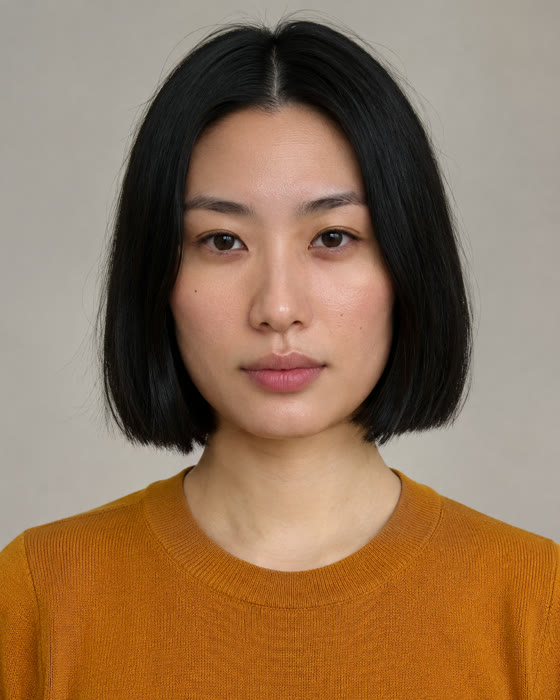
The photo and video here belong to the same example. Play the video to see how the still portrait becomes a performance, from the first movement of the hands to the sway beside the animation. Turn up the sound to hear how the movement feels with the music. Use this example to judge the overall look before you create your own. A different photo can give the performer a different expression or a more subtle sway, even when the same animation and music are included.
The cheek pose, the sway, and the familiar animation
The recognizable part of the trend is the pairing. The animated character brings her hands up to her cheeks and rocks from side to side, with a real person following along beside her. The video recreates that arrangement with the person in your photo. Watch the original post to see how the creator follows the animation and how the sway carries through the clip.

Hands to cheeks
Look for the moment both hands rise toward the face. It is the clearest cue that the performance is following the animation. The gesture can come across differently depending on the photo, particularly where the fingertips land or how closely the hands meet the cheeks.
Side-to-side movement
After the cheek pose, the performer shifts back and forth. Watch the shoulders and head as the movement changes direction. A small shift can still read as the dance when you see it alongside the animation.
Animation and music included
The animated reference appears next to the performer, where you can see the movement it follows. The music supplies the rhythm of the clip, and both elements are already part of the video when you watch it. Listen for Doja Cat’s “Like That” in the example. It is the track heard in the linked version of the dance.
Choose a photo with a clear, recognizable face
Pick a photo where the person is easy to recognize at a glance. You can add a JPG, PNG or WebP file up to 10 MB. If your photo app saved the picture in another format, export a JPEG copy and choose that file. Open the exported image at its actual size and check that the face still looks sharp before using it.
Clear face
Use a sharp photo with features you can make out without zooming in. If you have several photos to choose from, look for one that still looks like the person in everyday life. Strong beauty filters and motion blur can remove details that help preserve their likeness.
Even light
Soft window light or a well-lit room makes the eyes and cheeks easier to see. If one side of the face disappears into shadow, or bright light washes out the skin, try another photo.
Unobstructed face
Choose a photo where the eyes, nose and mouth are visible. Hair across the eyes, a hand over the mouth or dark sunglasses can hide the features you want to recognize in the result.
One adult with permission
Use a photo of yourself or another adult who has agreed to this use. If you are choosing between a solo portrait and a group photo, choose the portrait so the intended person is clear.
Make your video in three steps
- 1
Choose your photo
Select a photo from your device and check it in the upload area. If you picked the wrong file, remove it and select another before you start. You can make this choice before signing in, then sign in when you are ready to create. Check the preview before starting if you keep several similar photos on your device.
- 2
Generate your video
Press Generate once you have enough credits. If you need to buy credits, return to the tool after payment and check your balance. Press Generate to start the video. When the page says you can close it, your video can finish while you are away.
- 3
Watch and download
Open the completed video in the workspace, or find it in History if you left the page. Play it through to check the movement and sound, then download the MP4 to save it on your device.
250 credits per video. Buy 250 credits for $9.90 without a subscription, or use your existing balance.
View workspace plansWhat to check in your finished video
- Watch the face and hands through the whole dance.
- Turn on sound to check the music.
- Open the downloaded MP4 before posting.
Watch the movement and listen
Check whether the face remains recognizable from the first frame through the last sway. Watch the expression and hands, especially when the fingers come up to the cheeks and the person changes direction. Expressions, hand placement and movement can vary, and some details of the animation can shift as well. A second viewing makes it easier to spot a change that you missed on the first pass.
The result is an approximately eight-second vertical MP4 with music. The player starts muted. Use its sound control to hear the track in the file before downloading. Download the file to keep a copy on your device and check that it plays with sound there too.
Find your saved result and prepare to share
If the workspace says you can close the page, the video can finish while you are away. Sign in with the same account to find it in History. If the page could not confirm that generation started, use Check video status to look up the original request first. Starting a fresh request can use credits again.
If you plan to publish the clip, check the rules of the destination platform for both the music and the animation, and make sure the person pictured has agreed to that use. Watch the downloaded file in your editor or player before adding a caption or making a cut, so you can check how the audio and animation play together.
Talk To Me Doja questions
01Can I make this video from one photo?
Yes. Select one photo of the person you want in the dance, then sign in and press Generate. You can compare the uploaded portrait with the completed example above before you start. The effect adds the movement, the animation and the music, so you can make it without recording yourself dancing.
02Do I need a subscription?
No. You can use the credits in your account or buy 250 credits for $9.90 in a single purchase. That is enough for one video. The purchase adds credits to your account, and you decide when to spend them by pressing Generate. Workspace plans offer a recurring credit allowance.
03Which anime is the animation from?
The character in the animated reference is Urara Shiraishi from Yamada-kun and the Seven Witches. The original trend post linked above shows a creator following her cheek pose and sway. The still on this page shows the animated reference, and the playable example shows how it looks beside a performer.
04Can I close the page while my video is generating?
You can leave when the workspace says you can close the page. Older saved requests may still need you to keep it open, so follow the message for your video. When you return, sign in to the same Movelume account and open History to check progress or download the finished video.
05What happens if generation fails?
A confirmed generation failure returns the credits used for that request. If the status is unavailable or the page loses its connection before it can confirm what happened, use Check video status to look up the same request. Wait for its status before starting a separate video that could use more credits.
06Can I post my downloaded video?
Before posting, check that you have permission from the person in the photo and that your intended use follows the platform’s music and animation rules. Check the terms for the kind of post you are making, especially for a promotion or a paid placement. Rights to the soundtrack and animation depend on the applicable terms.
Make your version of the dance
Choose one photo. The animation and music are included.