
Start from text
The visual story used a 1024 × 1024 square, medium quality, PNG output, an editable prompt, and no input image. Keep the cast, prop, panel order, and exact text explicit when adapting this direction.
Compare two real GPT Image 2 results before creating: a four-panel visual story made from text and a two-reference environment edit. Then prepare your own request in the image workspace.
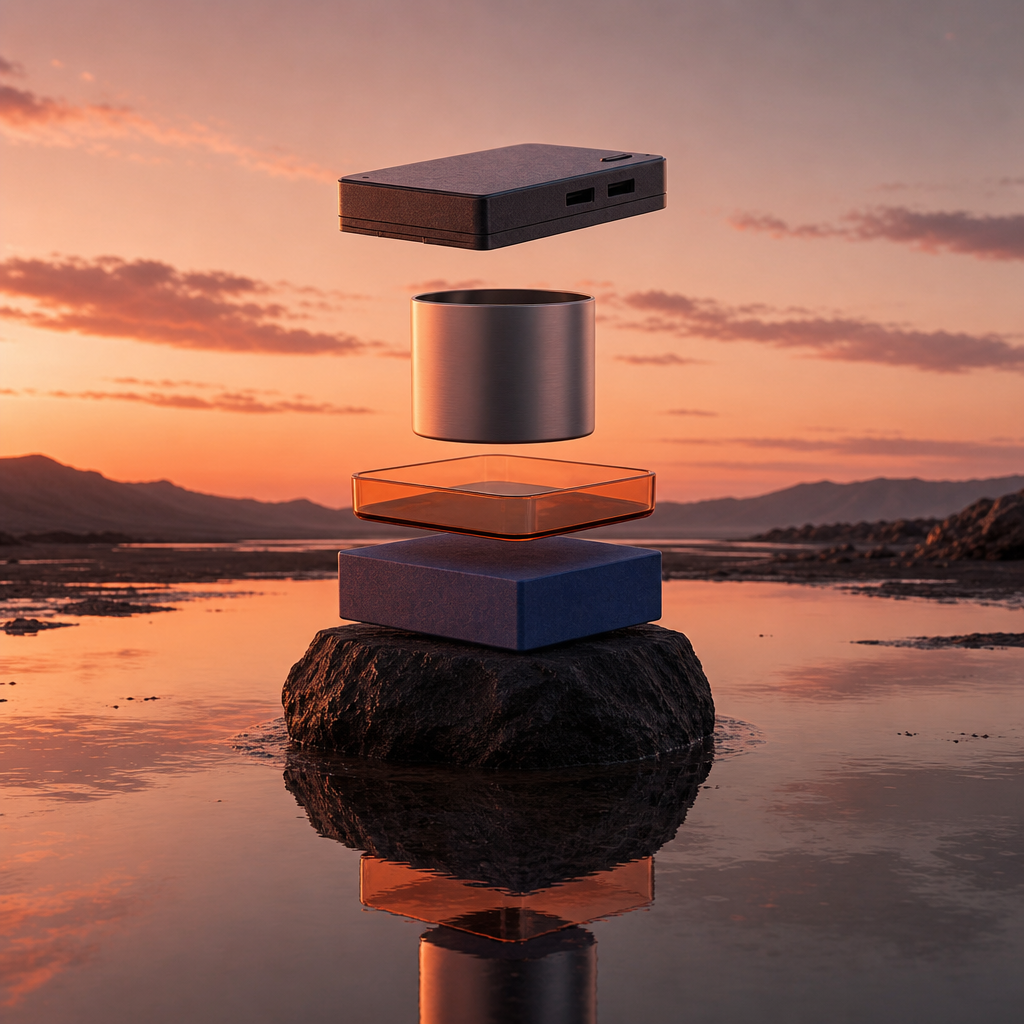
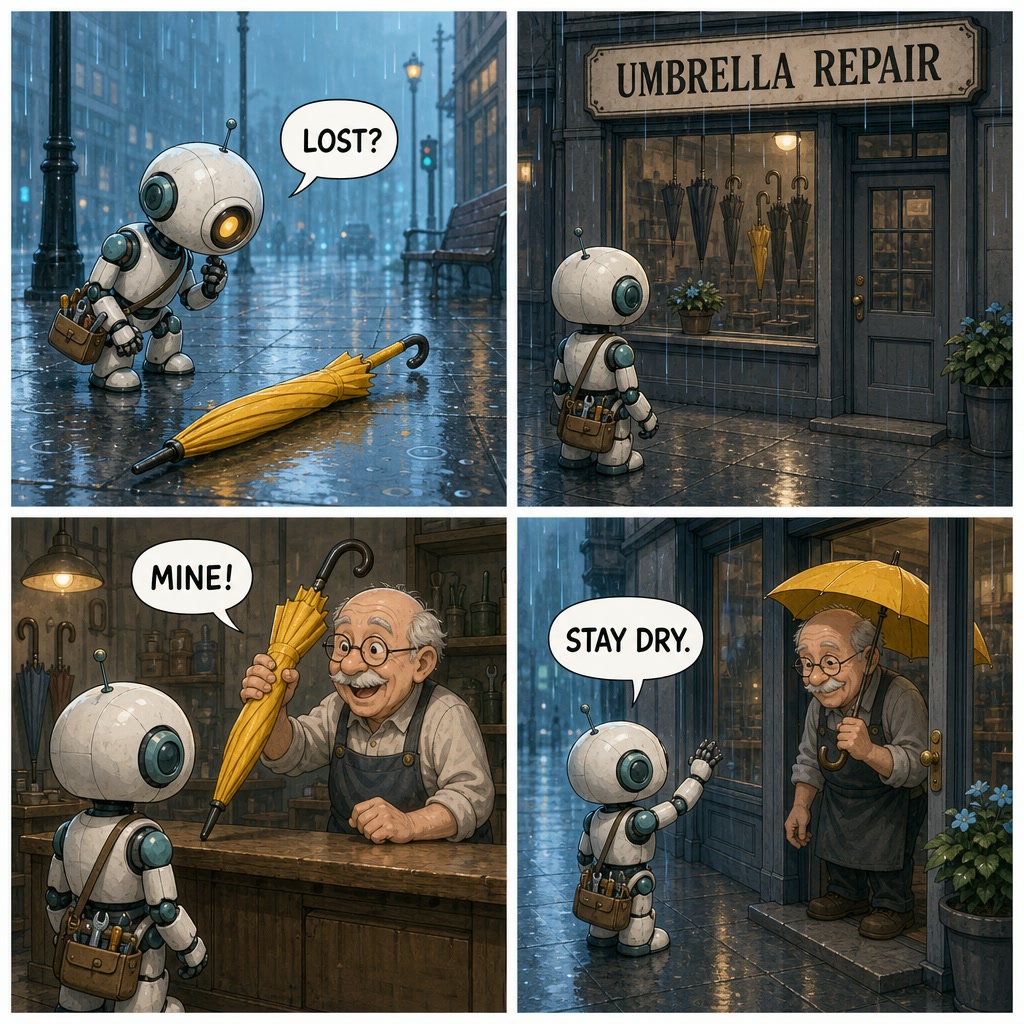
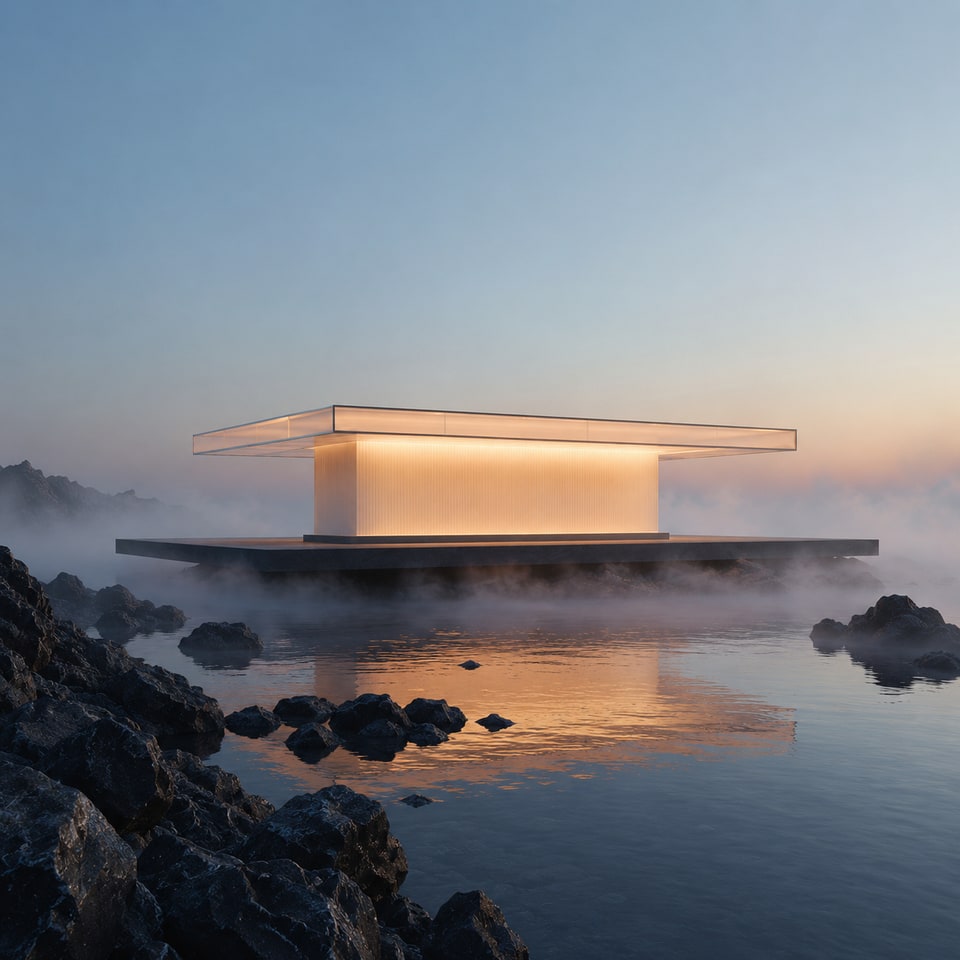
The Lost Umbrella starts with four written moments, one recurring robot, one yellow prop, and exact short text. The pavilion edit gives two approved images separate subject and setting roles.
For a visual story, define the recurring character, sequence, exact text, and key prop. For an edit, give each reference one role. State what stays recognizable and what may change. Use these details to check your finished image. The examples show two possible results, but text, panel order, composition, and character details can still change unexpectedly when you try a new prompt.
Name the recurring character and prop, write the four moments in reading order, and keep each text fragment short enough to verify. Prohibit extra labels so the story has one visible path. This result kept four separate panels, the same robot, the yellow umbrella, and all four requested text moments. Check every new story panel by panel for spelling, character drift, prop continuity, reading order, and unintended additions.
In the pavilion composition, one reference supplies the structure and the other supplies the setting. Describe the canopy and platform that should stay fixed, then specify which water, light, and atmosphere should carry into the combined scene. The pavilion remains the focal subject while blue light, water, and surrounding rock establish a different setting. For a similar edit, name the silhouette and proportions that should stay recognizable, then explain how light, perspective, and contact shadows should connect it to the new scene.
For a short comic like the one above, assign one action to each panel and write the dialogue before generating. Keep each line brief enough to fit its bubble. Describe recurring clothing and objects consistently so a change of scene does not become a change of character. Read the image from the first panel to the last without consulting the prompt. Check whether actions connect, speech bubbles have a clear speaker, and recurring details stay recognizable. Revise a crowded panel or an unclear line first instead of adding more visual instructions to every panel.
GPT Image 2 can help with short visual stories and reference-based scene composition. Start from text when you can describe the cast, sequence, and copy. Reference editing accepts 1–16 images; the pavilion example uses two to separate subject and environment.
Start from text for a compact comic, storyboard, sequence, or editorial vignette where character, prop, order, and concise copy can all be checked. Limit the number of story beats and reject invented words, duplicated panels, identity drift, or missing transitions.
For a subject-and-setting edit, give one reference the subject role and another the environment role. Name the geometry and identity that should remain recognizable, then describe the light and perspective needed to bring them into the same scene.
The page opens GPT Image 2 as an editable starting point rather than a locked effect. The examples are useful briefs, not one-click promises. If you change the story, prompt, or either edit input, review the new result on its own.
Together they show short visual storytelling and deliberate scene composition. They do not promise identical behavior across sizes, quality levels, aspect ratios, edit modes, inputs, or prompts. Check each new result separately.
The visual story used a 1024 × 1024 square, medium quality, PNG output, an editable prompt, and no input image. Keep the cast, prop, panel order, and exact text explicit when adapting this direction.
Reference one owns subject identity and geometry; reference two supplies environment, light, depth, and perspective. The saved draft uses 1K, 1:1, PNG, with an editable starting prompt.
The current text-to-image setup starts at 14 credits; the exact two-reference edit starts at 22. Generation is unavailable in this private preview, so these amounts are planning references rather than a live quote.
Choose a square, portrait, or landscape size, low, medium, or high quality, and JPEG, PNG, or WebP. Match the size and format to where you plan to use the image, then check the credits shown for that choice.
The two examples show one square visual story and one two-reference composition. Other sizes, layouts, languages, story lengths, and editing patterns may behave differently.
One successful comic does not mean text will always be accurate. Check spelling, panel order, duplicated or missing words, pseudo-text, speaker placement, and story relationships before publishing every image.
Reference editing accepts 1–16 images in your chosen order. The environment example uses two: subject first, environment second. Keep each reference relevant, and compare the finished result against the details you wanted to preserve.
Choose square, portrait or landscape sizes up to 3840 × 2160, low, medium or high quality, and JPEG, PNG or WebP. The examples use square PNG settings; they do not show every selectable combination.
You can choose GPT Image 2, write a prompt, and inspect the shown settings without spending credits. Online generation is not available yet, so keep the draft in this browser for later.
Open GPT Image 2 in the image workspace, adapt the story or edit direction, and inspect the reference requirement, resolution, aspect ratio, format, and starting credits. Nothing is submitted while you review the draft.
Start without a reference when all required information belongs in the brief. Use reference editing when authorized images contribute a subject, environment, material, or layout that words alone should not reinvent. The current workspace accepts one to sixteen ordered references; use only the smallest set with clear roles.
List the exact words, shapes to preserve, changes to the setting, and anything to leave out. After generating, compare each of these details with your prompt and reference images to see what needs another edit.
Select GPT Image 2 and the workflow that matches your input. Review the visible image size, quality, format, reference order, and current credits before continuing; the available choices and amount belong to your selected request.
Inspect text, panel order, character and prop continuity, geometry, seams, contact shadows, source rights, and unintended additions. Only publish a result that meets the original brief.
Plans for image and video
Annual plans are billed upfront. The same plan credits refresh every 30 days and expire at the end of that window; unused subscription credits do not roll over.
Explore the workspace and prepare a first request before choosing a paid plan.
For occasional image and video experiments with a predictable monthly ceiling.
Subscriptions renew automatically at the selected monthly or yearly rate until canceled. Cancel future renewals in your account.
For creators who iterate every week and need room for several directions.
Subscriptions renew automatically at the selected monthly or yearly rate until canceled. Cancel future renewals in your account.
For sustained, high-volume creation and access to the highest available output quality.
Subscriptions renew automatically at the selected monthly or yearly rate until canceled. Cancel future renewals in your account.
Prices are in USD. Subscriptions renew automatically; credit packs are one-time purchases.
Compare plansThese answers describe the settings and results shown on this page, not every capability advertised for GPT Image 2 elsewhere.
No. Online generation is not available yet. You can choose GPT Image 2 and prepare a text-to-image draft in the image workspace without uploading files or spending credits. Keep the draft in this browser for later.
Start from text when the brief describes the whole frame. Use reference editing when you have images to guide the result; it accepts 1–16. The two-image environment recipe below keeps its original subject-first, environment-second setup.
Text-to-image starts at 2 credits and reference editing at 6, depending on size, quality and input count. The shown square medium-quality text example costs 14 credits at the current rate. Check the amount shown for your selected settings before generating.
Choose a square size for panels, avatars, and balanced compositions; portrait or landscape for the final placement you already know. JPEG is practical for smaller finished images, while PNG or WebP may suit graphics and further editing. Choose from the sizes and quality levels shown in the workspace, then check the updated credits before generating.
No. It shows one result that passed spelling, layout, and story review. Different wording, languages, density, or panel structures can fail differently, so every new output still needs a text and continuity check.
Put the image that defines the main subject or object first, then use the next reference for the setting, light, palette, or another clearly named contribution. State what must stay recognizable and what may change. Remove any reference that does not add a distinct visual instruction.
Open the GPT Image 2 workspace to prepare a new image draft. Choose your workflow, add a prompt and any required images, then review the settings and credits before continuing.