
A new decade for your portrait

80s AI photo generator

Give your portrait an eighties studio look. Choose mall-studio color or soft glamour, compare the result with your original, and keep the version you like.

20 credits per preview · One image · About 1K PNG

or drop it here

One adult with a clear face. Use an evenly lit head-and-shoulders portrait, without a hat or heavy filter. JPG, PNG or WebP up to 10 MB.

Choose your look

Selected: Mall studio. Hair, clothing and background may change for the period look. Review facial details before keeping the result. Every preset starts from your original photo.

Checking account…

No model or prompt to configure. Each additional preview uses 20 credits. Plans & credits

Your photo, another era

How to make an 80s AI photo

  1. 01

    Choose a clear adult portrait

    Upload one JPG, PNG or WebP image up to 10 MB. Include the whole head and both shoulders, with the face large enough to recognize. An ordinary selfie or a simple upper-body portrait is a useful starting point. Avoid a group photo, a face hidden behind a phone or an existing heavy beauty filter. Use your own picture or an image you have permission to edit, and keep the original file for comparison.

  2. 02

    Pick your 1980s portrait style

    Choose Mall Studio for a staged department-store portrait or Soft Glamour for a gentler, softly lit interpretation. The hairstyle, clothing, light and background may change together to establish the period. Sign in and review the quote before confirming one image for 20 credits. You do not need to choose a model or write an editing instruction. Each additional style is a separate paid preview.

  3. 03

    Compare your face and save the result

    When your portrait is ready, move the comparison slider across the original and the edit. First check that it still resembles you, then examine the styling and backdrop. Download the PNG if you want to keep or share it. To compare the other preset, return to the same original photo. Editing an already transformed portrait can introduce changes that make the two styles harder to judge fairly.

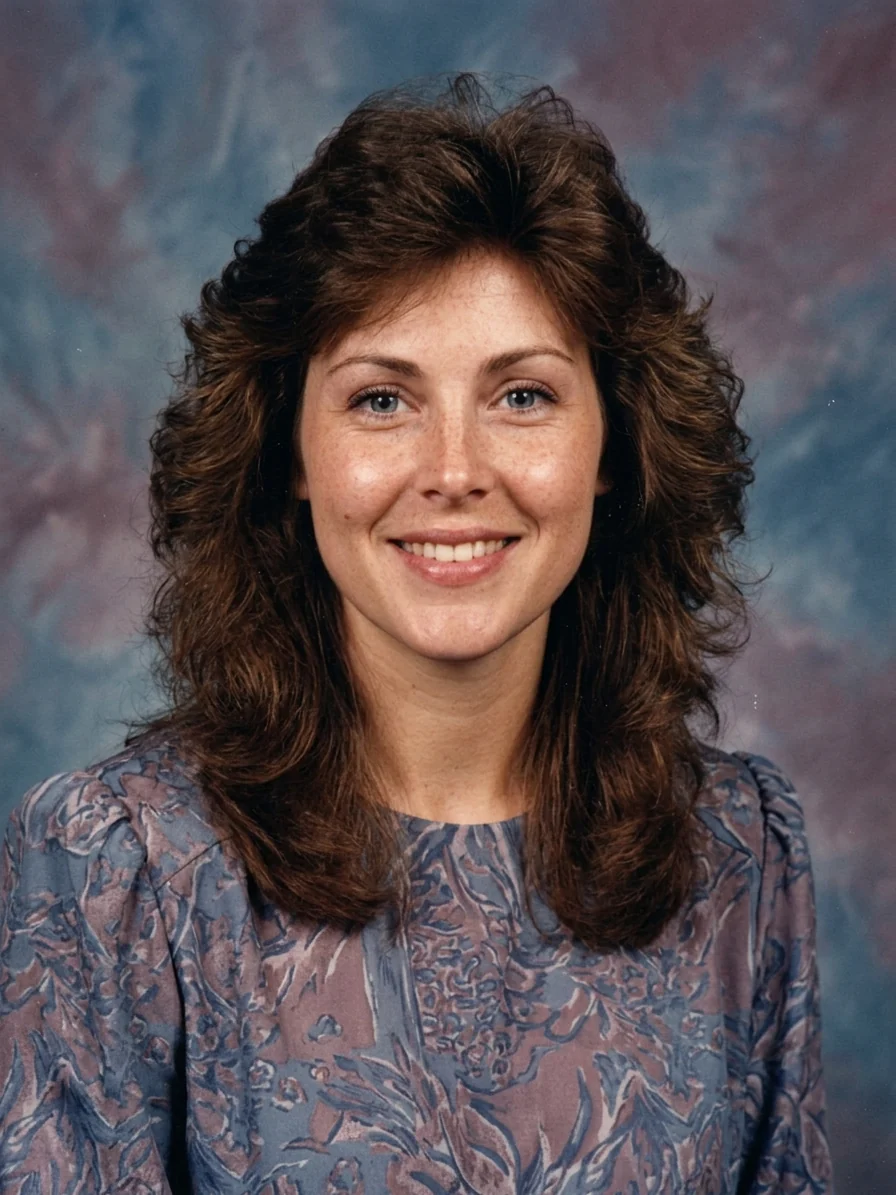
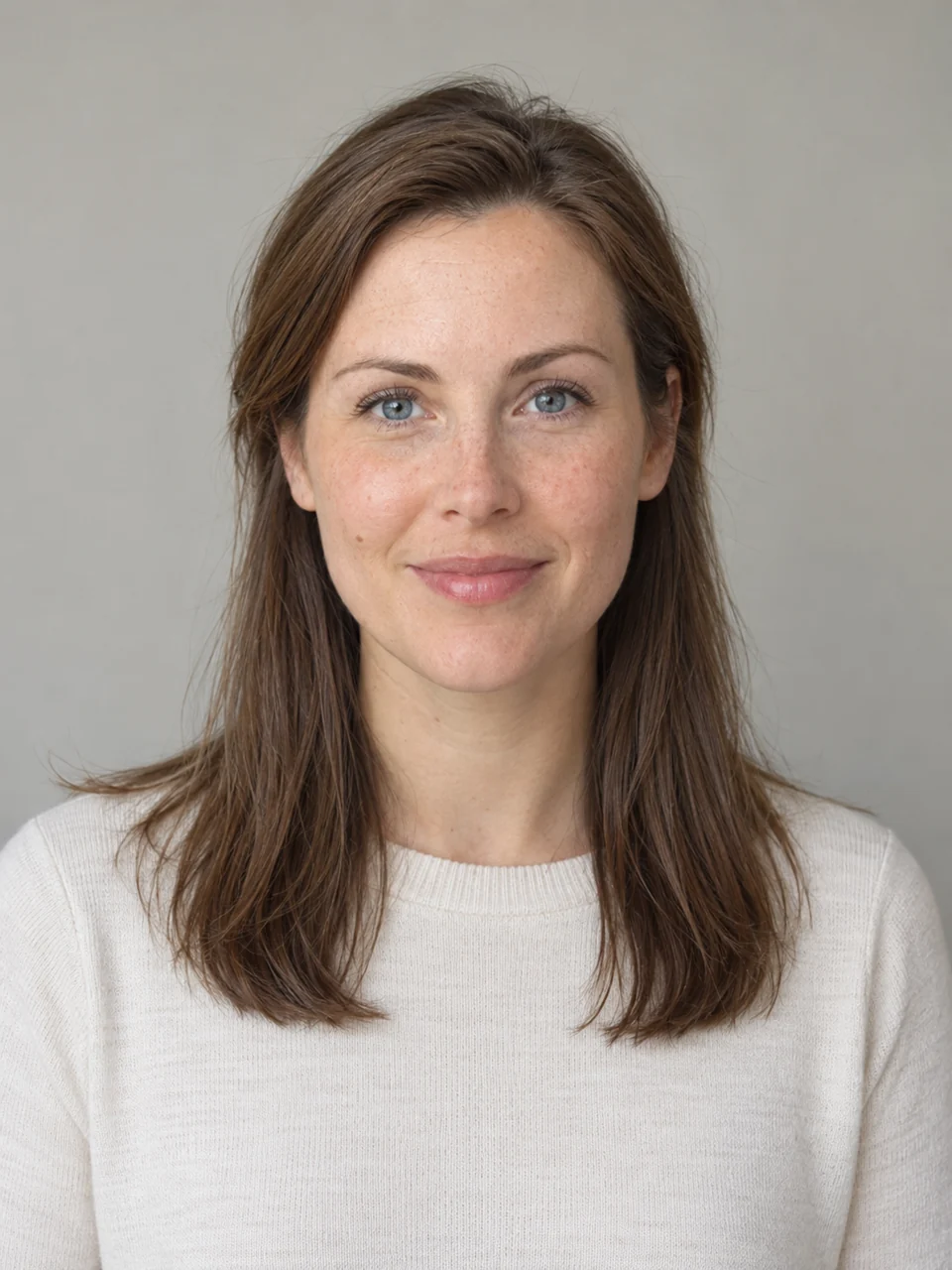
AI-created adult with a colorful 1980s mall-studio portrait preview
AI-created adult with a colorful 1980s mall-studio portrait preview, AI previewAI-created adult with a colorful 1980s mall-studio portrait preview, OriginalOriginalAI preview

Drag to compare · Arrow keys supported

Mall Studio

An 80s mall portrait with a familiar face

An 80s AI photo generator can change more than the color of a selfie. Mall Studio reimagines the photograph as a staged studio portrait: period-inspired hair and clothes, a photographic backdrop and a deliberately arranged look. It is a way to explore a different portrait aesthetic using a face you already recognize.

  • Judge the person before the styling

    Start with the eyes, nose, mouth and jaw rather than deciding from a small thumbnail. Check distinctive features such as freckles, the shape of the eyebrows and glasses. The edit aims to retain the person, their adult age and their natural skin tone, but it cannot promise exact preservation. A convincing outfit does not compensate for a face that no longer looks like the source. The 1980s treatment may deliberately change the hairstyle and the shape of clothing around the shoulders. Those are part of the chosen look. A shifted facial proportion, a different expression or a much younger-looking face deserves separate attention. Keep the original beside your result when deciding whether the likeness is useful enough to share.

  • Use the framing you already have

    A head-and-shoulders photo gives this style a clear subject and leaves room for the hair and studio background. A tight crop that cuts off the top of the head makes a fuller period hairstyle harder to assess. A distant figure in a busy room offers less facial detail. Choose the source that makes recognition easiest rather than expecting the effect to rescue an unsuitable photograph.

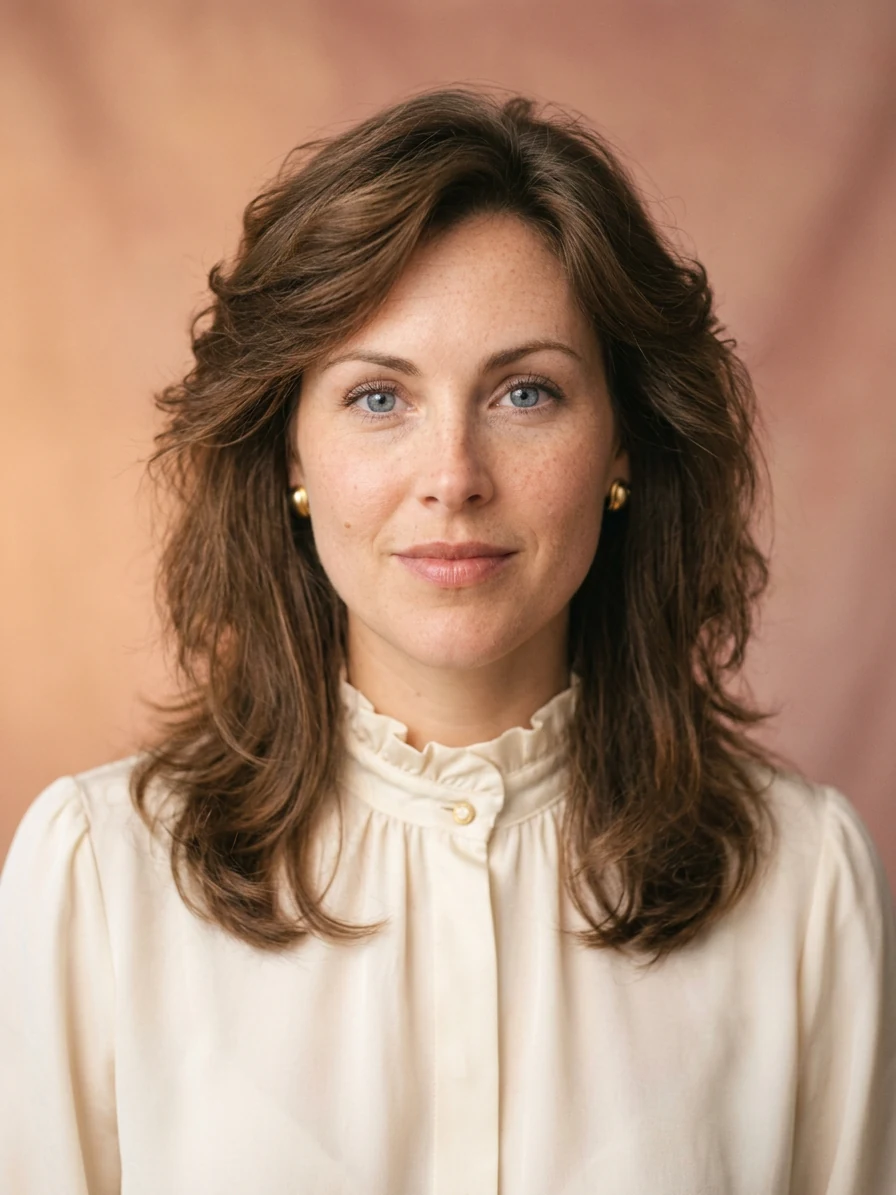
AI-created adult without glasses, soft-glamour 1980s portrait preview
AI-created adult without glasses, soft-glamour 1980s portrait preview, AI previewAI-created adult without glasses, soft-glamour 1980s portrait preview, OriginalOriginalAI preview

Drag to compare · Arrow keys supported

Soft Glamour

Explore a softer 1980s glamour shot

Soft Glamour takes the same original portrait toward diffused light, a softer photographic finish and coordinated period styling. It suits a nostalgic profile image, a party invitation or a playful portrait collection. The goal is an expressive reinterpretation, rather than an exact reconstruction of a particular studio or year.

  • Look beyond the soft finish

    Soft lighting can make facial changes less obvious at first glance. Zoom in on the eyes, the edge of the lips, earrings and glasses. Make sure softness has not turned into a missing feature or an unnatural skin texture. If you wear glasses, compare the bridge, frame corners and reflections: a small accessory can change even when the overall face remains recognizable. Compare the two presets from the same source before choosing a favorite. Mall Studio and Soft Glamour offer different directions, but the labels do not guarantee a particular hair length, garment or backdrop color. Use the visible result to judge what was actually created. A portrait that feels nostalgic may still contain a detail you would prefer not to publish.

  • Keep the intended use lightweight

    These images work as creative portraits and mood references. They are not identity documents, historical photographs or evidence that a person wore particular clothing. When you share one in a context where the distinction matters, describe it as an AI-created edit. For a printed invitation or a large poster, check the downloaded dimensions and the image at the intended size before ordering anything.

A useful source photo

Prepare a portrait you can compare honestly

Choose clear light and a simple composition

Even light helps you compare facial proportions and skin tone. A recent, unfiltered portrait is easier to evaluate than a photo with strong colored lighting, motion blur or a face-smoothing effect already applied. Keep other people outside the frame. If hair covers one eye or an accessory hides the jaw, the result may need to invent details that were never visible in the original.

A slight turn of the head can work as a portrait composition, but an extreme profile makes identity comparison harder. Do not expect a cropped source to become an accurate full-body picture. Start with the area you actually want to transform. Check both the original and the output at a readable size, including the shoulders, neckline and any jewelry that remains in view.

Understand what this effect changes

A simple photo filter usually changes the color, contrast or texture of the existing pixels. This tool generates a new interpretation of the portrait, so it can change hair, garments and the setting as well. That flexibility creates the period look, and it is also why you should inspect the result. It does not restore a damaged old photograph, recover lost detail or show what you truly looked like decades ago.

Plans for image and video

Pricing

Annual plans are billed upfront. The same plan credits refresh every 30 days and expire at the end of that window; unused subscription credits do not roll over.

Free
$0/ month

Explore the workspace and prepare a first request before choosing a paid plan.

10
signup credits · valid for 30 days
Build a free draft
  • 10 signup credits with a 30-day expiry
  • Prepare an image and prompt locally before sign-in
  • See the final credit cost before generation
Starter
$34.99/ month

For occasional image and video experiments with a predictable monthly ceiling.

2,400
credits every 30 days
Compare plans

Subscriptions renew automatically at the selected monthly or yearly rate until canceled. Cancel future renewals in your account.

  • 2,400 credits refresh every 30 days
  • Subscription credits expire at each refresh
  • Private results and generation history
CoreMost popular
$69.99/ month

For creators who iterate every week and need room for several directions.

6,000
credits every 30 days
Compare plans

Subscriptions renew automatically at the selected monthly or yearly rate until canceled. Cancel future renewals in your account.

  • 6,000 credits refresh every 30 days
  • A larger credit buffer for repeated iterations
  • Private results and generation history
Max
$174.99/ month

For sustained, high-volume creation and access to the highest available output quality.

18,000
credits every 30 days
Compare plans

Subscriptions renew automatically at the selected monthly or yearly rate until canceled. Cancel future renewals in your account.

  • 18,000 credits refresh every 30 days
  • Access to the highest available output quality
  • Private results and generation history

Prices are in USD. Subscriptions renew automatically; credit packs are one-time purchases.

Compare plans
Before you try

80s AI photo generator FAQ

01How much does an 80s portrait cost?

One generated portrait costs 20 Movelume credits and produces one PNG at about 1K. Review the quote before confirming. Trying the second preset or making another portrait costs another 20 credits. Access depends on your account balance and the applicable plan. Compare the current options in Pricing before purchasing; this photo tool is separate from the single-video template offers.

02Will it keep my face exactly the same?

It aims to keep a recognizable likeness, adult age and natural skin tone while changing the period styling. Exact preservation is not guaranteed. Compare facial proportions, expression, glasses and distinctive marks with the original. If an important feature changes, use the output as a creative interpretation rather than an accurate likeness.

03Is this the same as the 80s photo trend or a ChatGPT prompt?

It serves the portrait transformation behind that kind of trend, with two selected looks you can choose directly. You upload a photo and select a preset rather than copying an instruction into another service. This page does not provide a prompt library, a celebrity imitation or every variation associated with the trend.

04Can I choose another decade or make a couples portrait?

This tool currently offers two 1980s-inspired directions for one adult. It does not offer a decade selector, a couples mode, age regression or a school-yearbook template. Use a clear single-person photo and choose the look that fits your purpose. For a different editing task, explore the Image studio.

05Are my photos shown as public examples?

Your uploaded photo and personal result are restricted to your account rather than automatically becoming public examples. Download a result before the availability date shown beside it. Public comparisons use separate demonstration assets and do not establish a success rate for everyone. Read the Privacy Policy for details about processing and retention.

06What should I do if the connection drops after confirmation?

Check Find my request or your history before making another portrait. A slow response does not establish that generation failed. If the outcome is unclear, the tool keeps a new submission blocked while you look for the existing request. Keep that request available and contact support if it cannot be located.

Make your comparison

Compare your own eighties portrait

Start with a clear portrait and choose the period look you want to explore.