
Choose a size for the deliverable
Choose a size that fits your destination, then check the downloaded image dimensions. Image generation produces a finished still image; it does not produce an editable design document or a video.
Create an image from a prompt or edit your own references. Choose Pro for 1K or 2K JPEG/PNG output, or explore the existing Lite options.
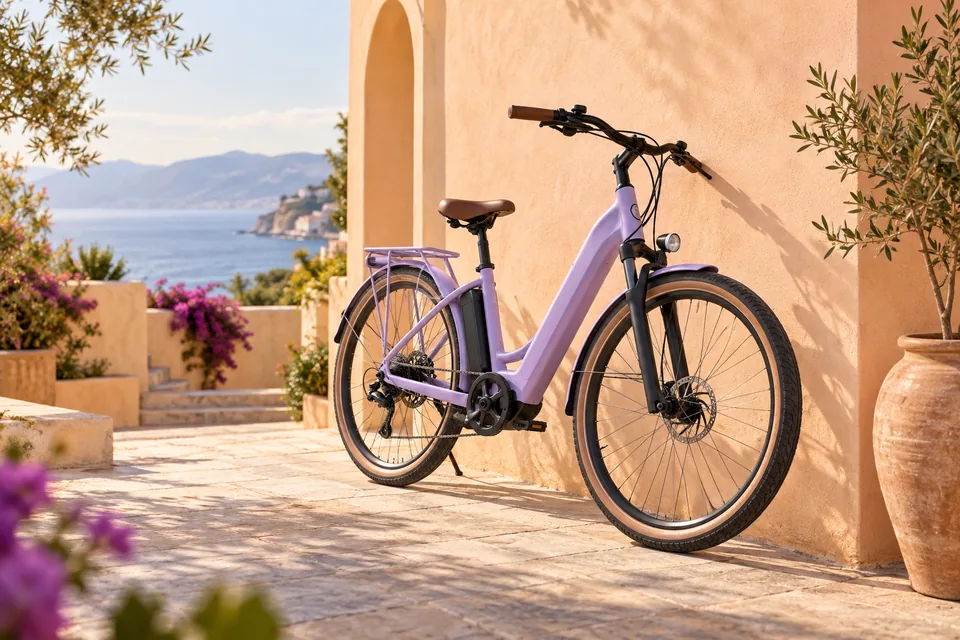

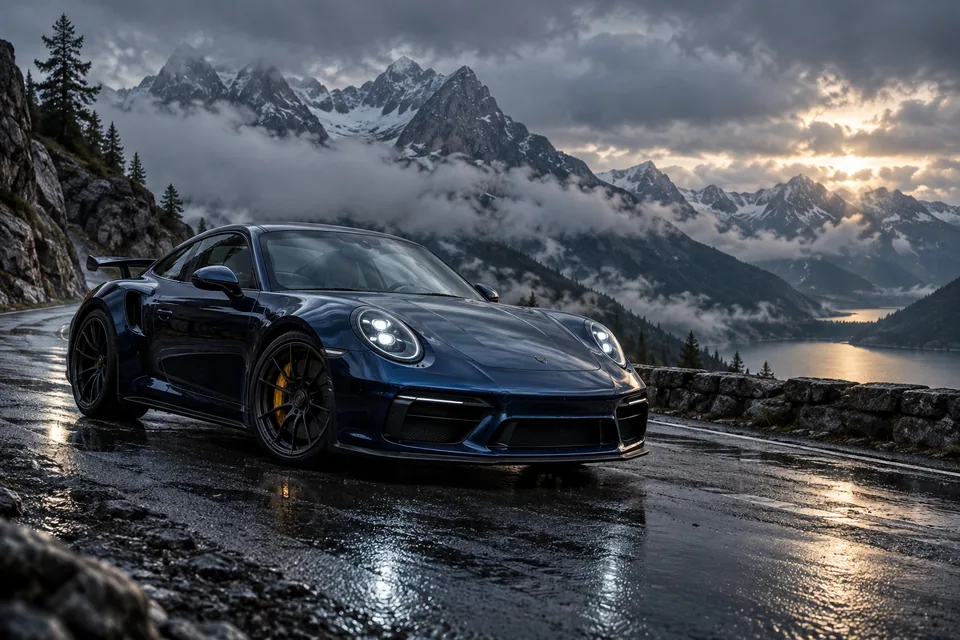
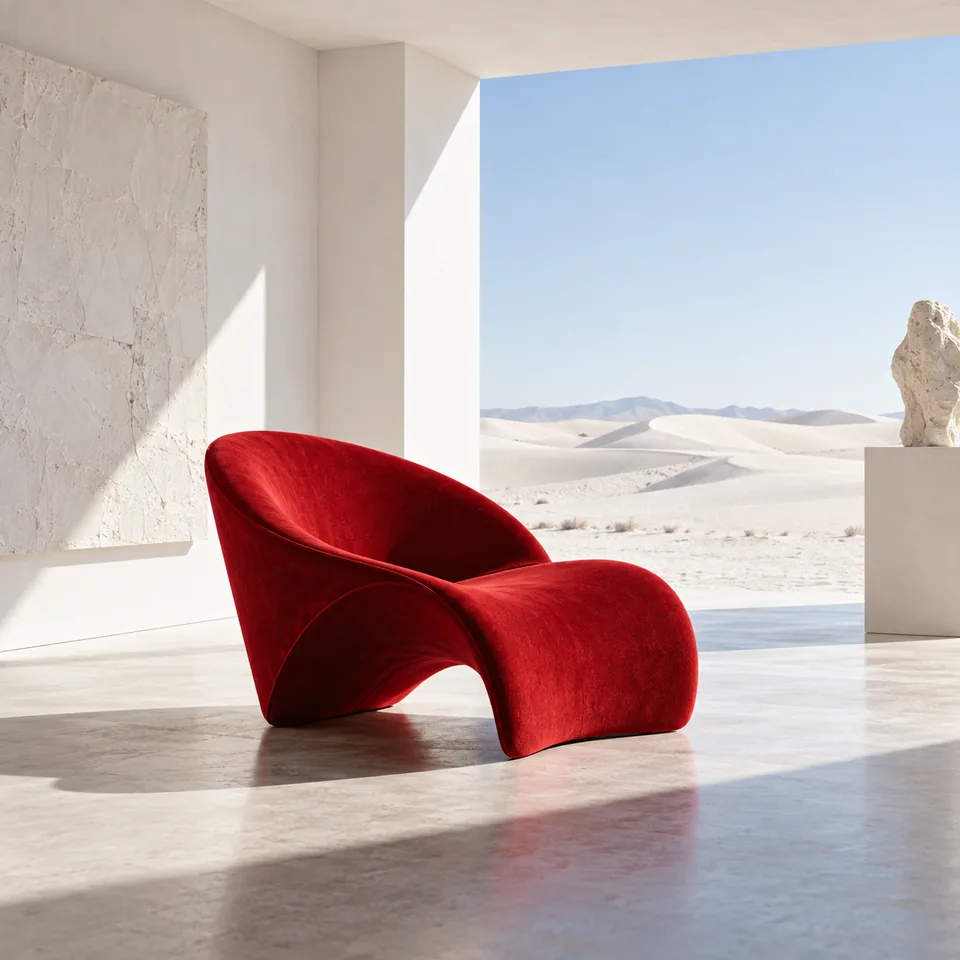
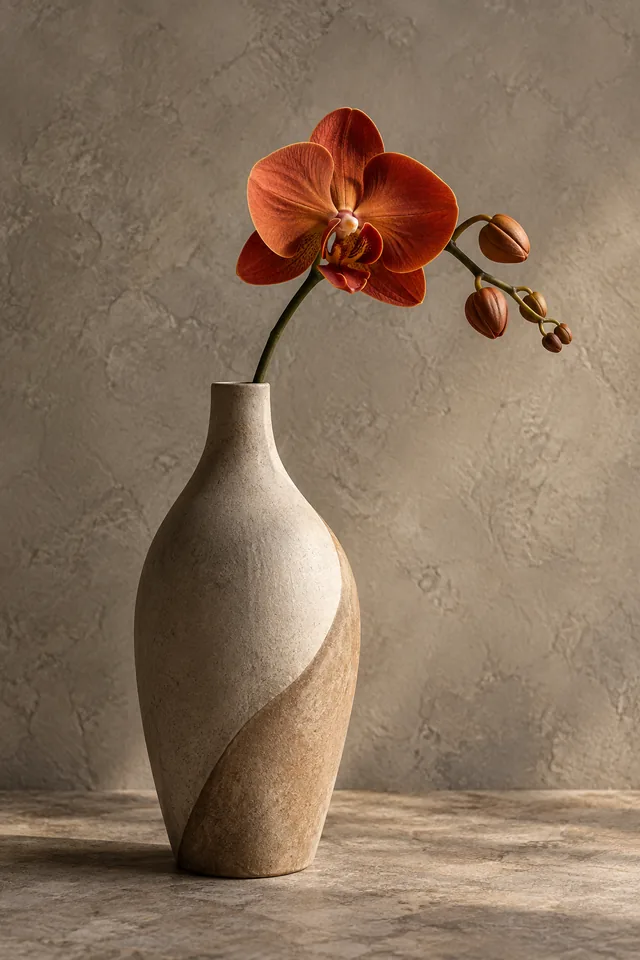

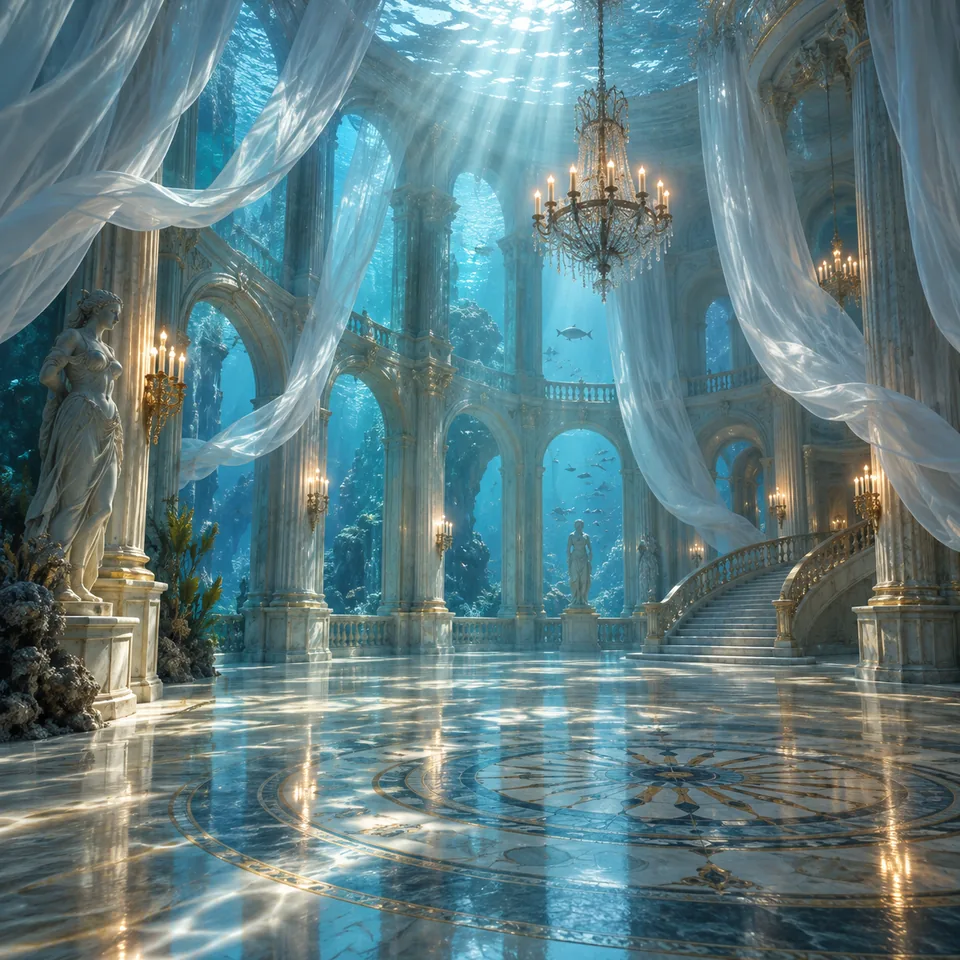
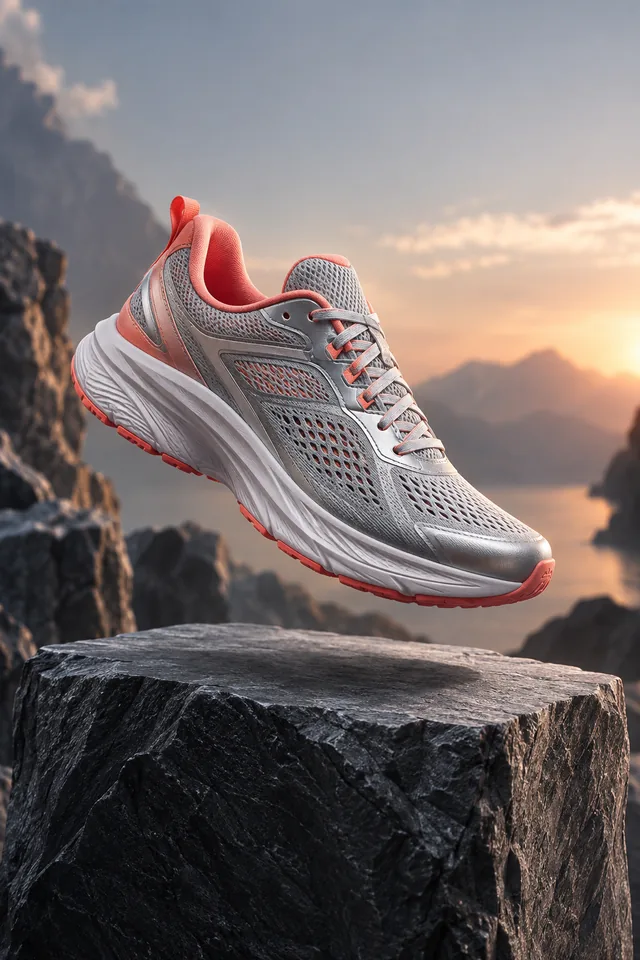
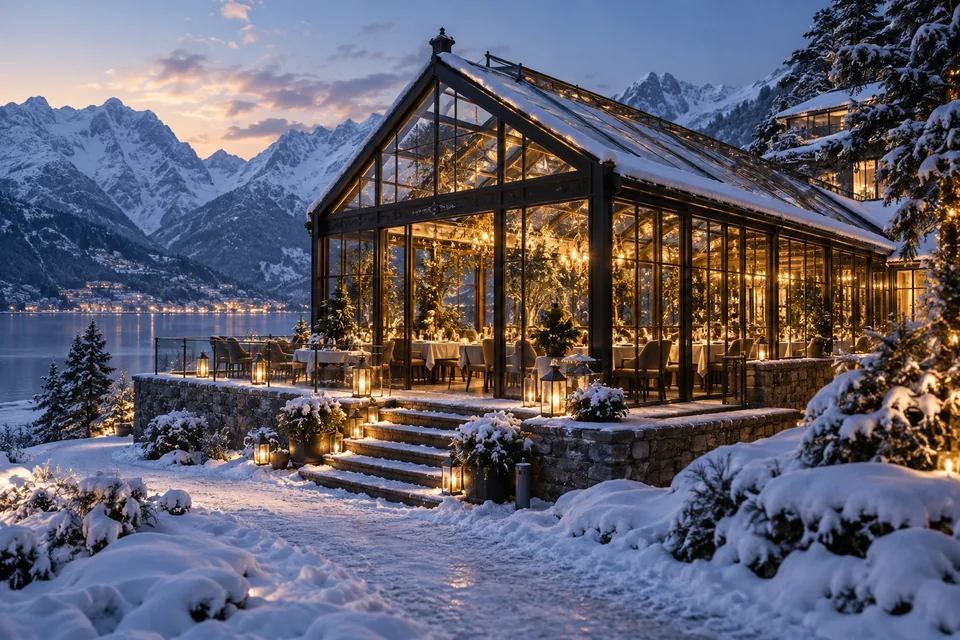
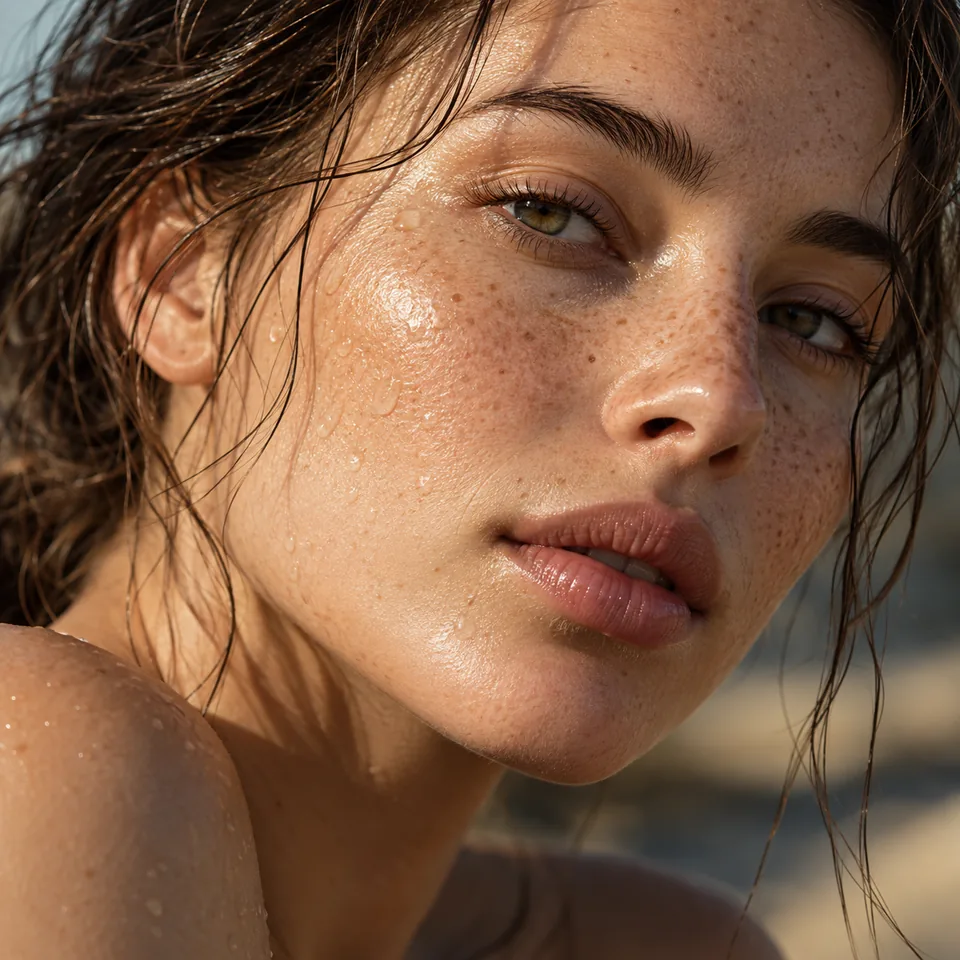
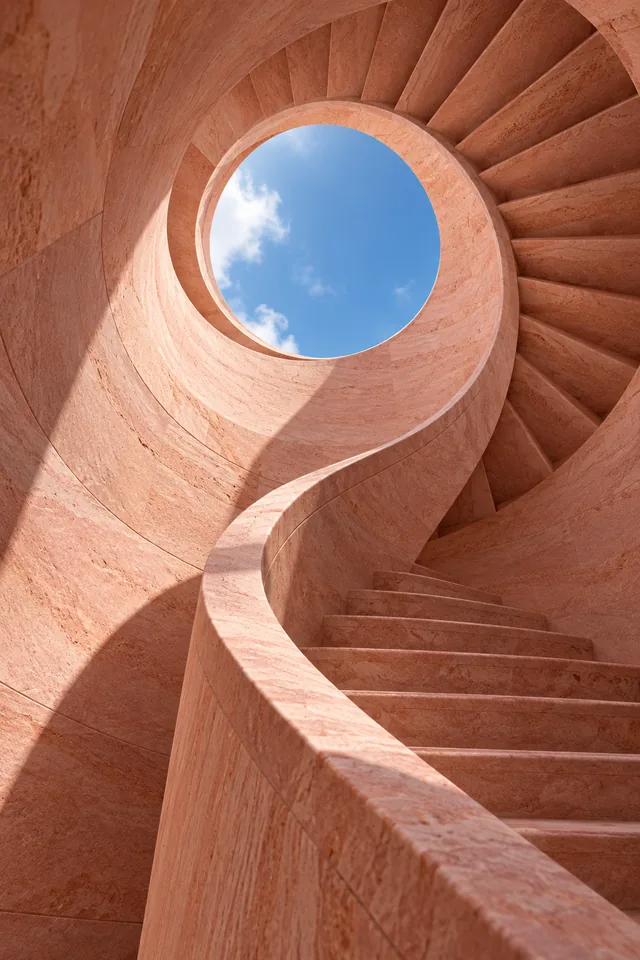
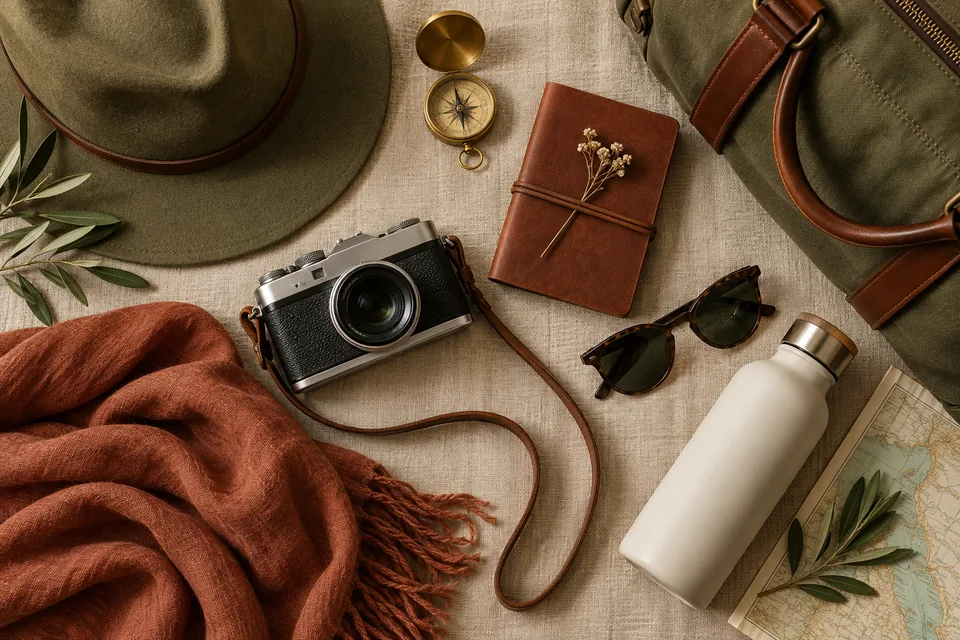
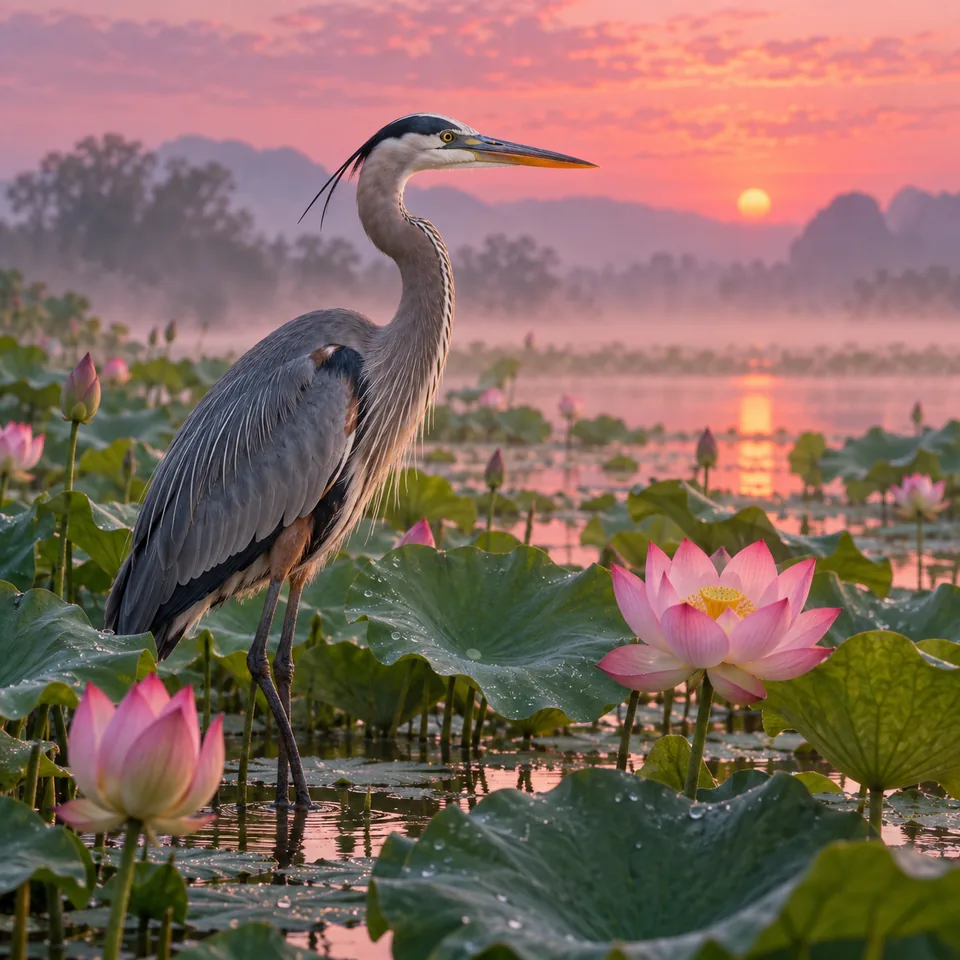
Seedream 5.0 Pro is an image generator and editor for turning a written brief or reference photos into a new visual. Use text to image when you can describe the subject, layout and style. Choose reference editing when you already have a product, composition or material direction to work from. Pro and Lite share this page so you can choose a version without rebuilding your idea in another tool.
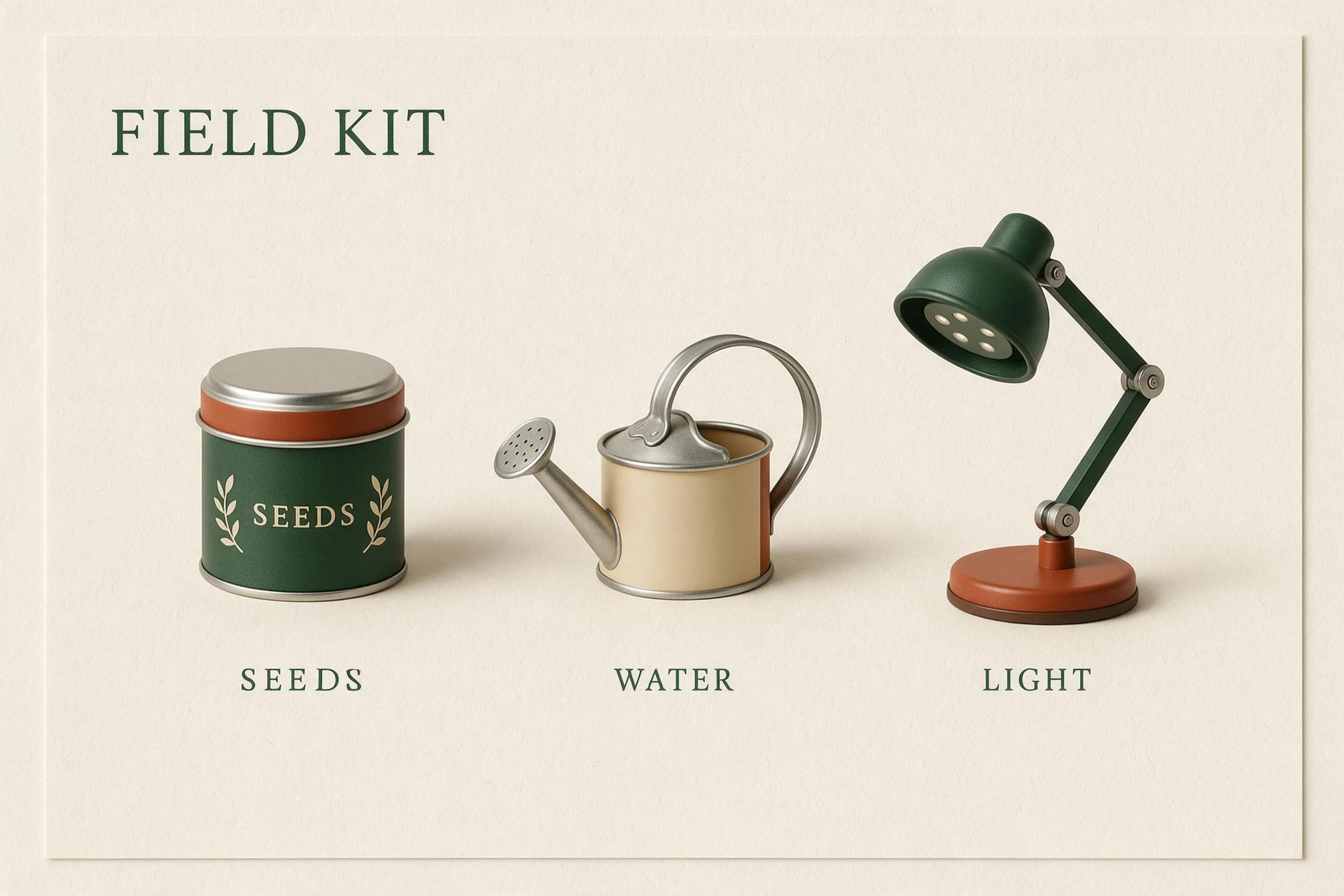
Start with a result you can evaluate: a poster with a short headline, a product scene with room for copy, or an illustration with clearly separated parts. The Pro design board shown here places a seed tin, watering can and lamp beneath a short heading. The requested labels are readable, but SEEDS also appears on the tin. Check added wording, object counts and relationships as carefully as spelling before publishing.
For an edit, separate the decisions you want to keep from the changes you want to make. One reference can establish the object and camera angle; another can suggest a finish or color palette. Explain each image’s role in its selected order. More references are useful only when they add clear information. Two conflicting views of the same object may make your instruction harder to follow than one well-chosen source.
Use a specific brief to guide your image: what it should show, where it will appear, and which details must be checked. These tasks can start from text or from references you have permission to use.
Describe the hierarchy before the decoration: a headline at the top, one main subject, then a short set of labels or supporting elements. Put the exact wording in quotation marks and ask for enough space around it. Keep dense copy outside the image when it needs frequent updates. Check spelling, numbers and visual relationships at full size; an attractive diagram does not establish that its explanation is correct.
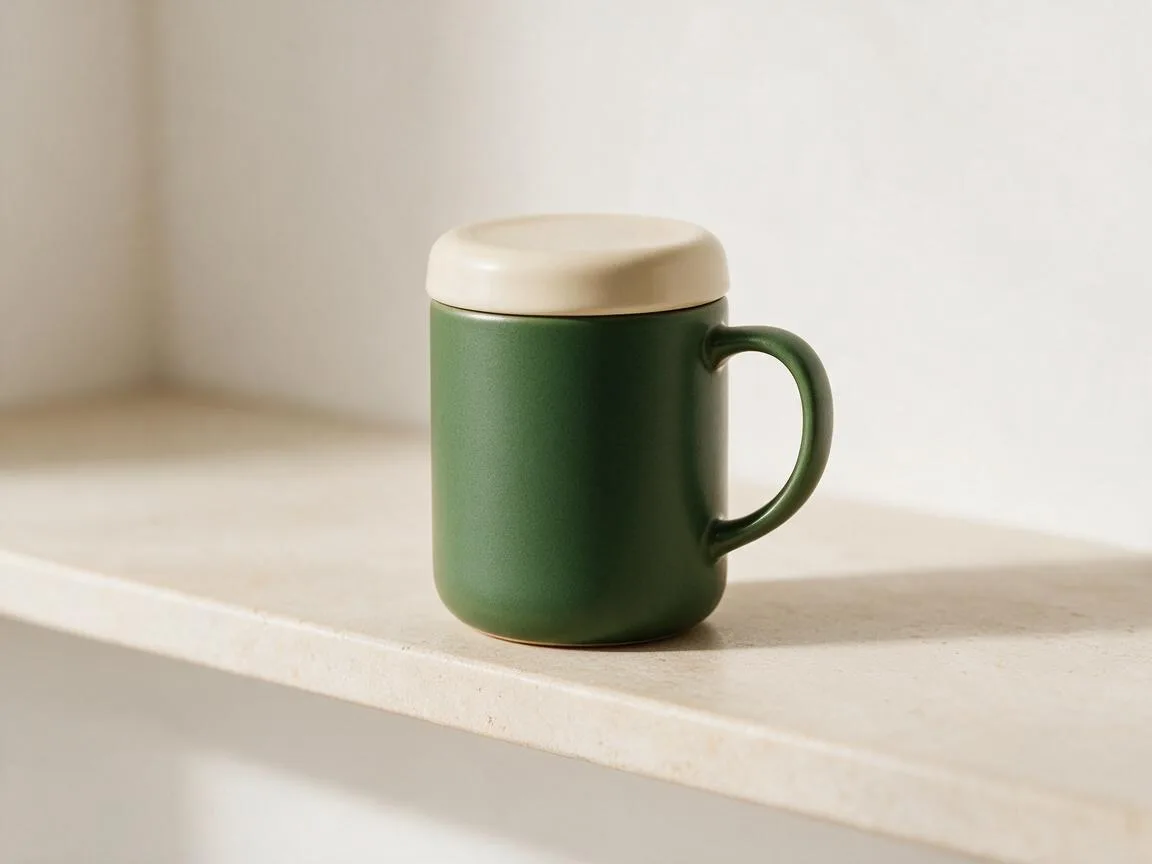
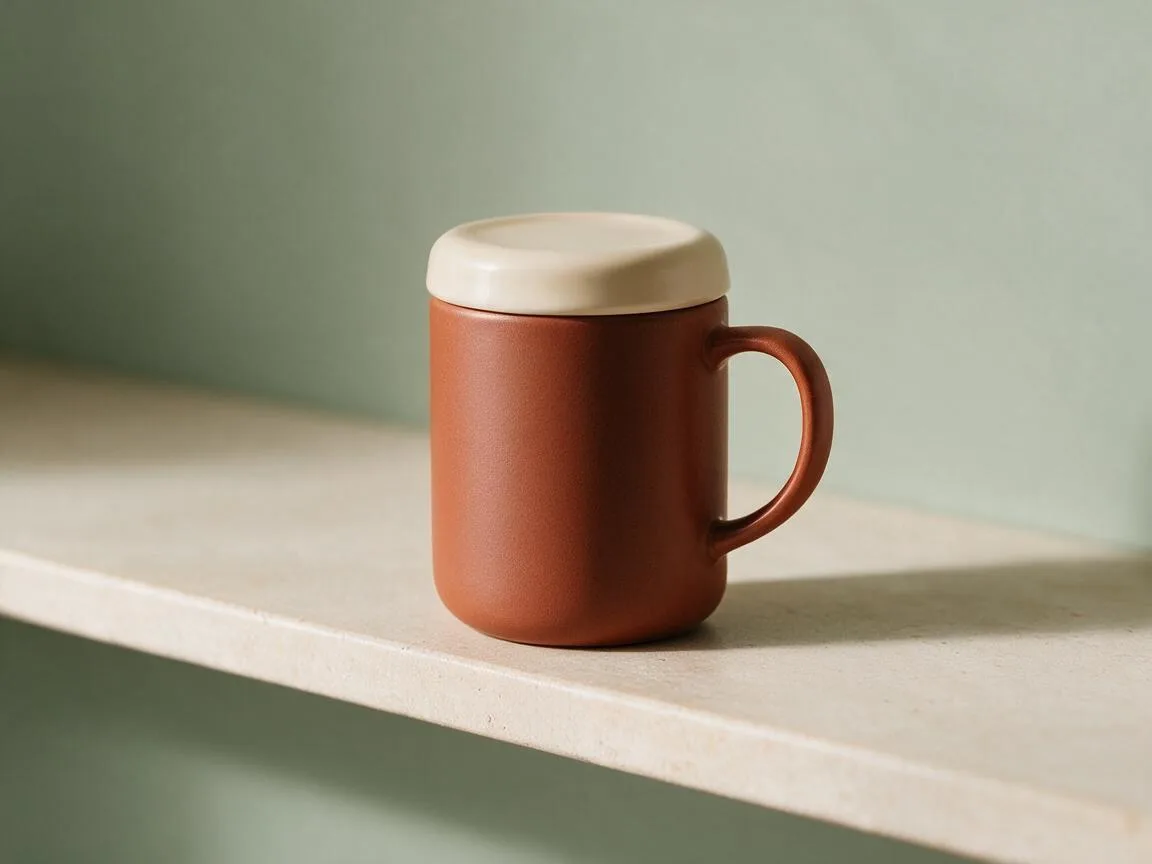
Use a clean product photo when its shape should guide the edit. Describe the background, light and surface you want, then name the parts that should stay recognizable. The Pro mug example changes a green body to terracotta and replaces the background with sage. Its lid and handle remain recognizable, while lighting and surface texture vary slightly. Compare your output with the original before using it in a listing. Color, proportions, labels and included accessories should match what a customer will receive.
Pro offers 1K and 2K output with a choice of JPEG or PNG. Lite offers aspect presets and automatic 2K, 3K and 4K sizing, with the delivered format chosen automatically. Choose a size that fits your destination and compare the displayed credit price. For a recurring task, try the same brief with each version and compare the details that matter to you, such as lettering, product shape or composition. The examples on this page use Pro.
The version, input images and requested output affect what you can create and what it costs. A generated image may need correction or finishing work before it is ready for its intended use.
Choose a size that fits your destination, then check the downloaded image dimensions. Image generation produces a finished still image; it does not produce an editable design document or a video.
Use the clearest references available and avoid very small subjects or conflicting viewpoints. Reference guidance can help preserve a composition, but it does not guarantee that every detail or background pixel will remain unchanged.
Read all generated wording, check object counts and compare important details against the source. Diagrams and labels can look convincing while containing mistakes. For product imagery, verify the item’s actual shape, color and markings rather than using visual polish as the only acceptance check.
The selected version, output size and reference count affect the credit price. Review the quote after changing these settings and before generating. A new generation is a separate request with its own price.
Create an image from a prompt or edit your own references. Choose Pro for 1K or 2K JPEG/PNG output, or explore the existing Lite options. Check the selected version, image size and credit quote before generating. The examples on this page were made with Pro.
Choose the task first, then set up the prompt, references and output. Keep the brief focused enough that you can tell whether the result followed it.
Choose text to image for a new composition or image editing to work from references. Describe the subject, its setting and the intended use: a square product image, a landscape presentation visual or a poster. Say what should occupy the foreground and where space should remain clear.
For an edit, add one to ten images you have permission to use. Name their roles in order, such as “use the object in image one and the color palette in image two.” State the change in plain language, followed by the details to preserve. Avoid combining unrelated edits in the same request.
Select Pro or Lite and review the size and format options for that version. Pro offers 1K/2K and JPEG/PNG; Lite has its own settings. Review the credit amount before generating, especially when adding references to a Pro edit. Save the result you want from your completed task.
Zoom in to check text, edges, faces, product details and repeated objects. Compare an edit with its source to spot changes you did not request. If a result needs another pass, describe the remaining problem precisely rather than rewriting every instruction. Each new generation has its own displayed price.
Plans for image and video
Annual plans are billed upfront. The same plan credits refresh every 30 days and expire at the end of that window; unused subscription credits do not roll over.
Explore the workspace and prepare a first request before choosing a paid plan.
For occasional image and video experiments with a predictable monthly ceiling.
Subscriptions renew automatically at the selected monthly or yearly rate until canceled. Cancel future renewals in your account.
For creators who iterate every week and need room for several directions.
Subscriptions renew automatically at the selected monthly or yearly rate until canceled. Cancel future renewals in your account.
For sustained, high-volume creation and access to the highest available output quality.
Subscriptions renew automatically at the selected monthly or yearly rate until canceled. Cancel future renewals in your account.
Prices are in USD. Subscriptions renew automatically; credit packs are one-time purchases.
Compare plansChoose the workflow and output settings that match your image.
It creates still images. Use a written prompt for a new image or reference photos for an edit. If you want an animated clip, use a video model instead. A poster, storyboard image or product scene generated here remains a still image.
Compare the output options and the displayed price for your task. Pro offers 1K/2K with JPEG or PNG selection. Lite provides aspect presets and automatic sizing options at a different price. If both fit your needs, compare results using a brief you already know, then choose the version that handles your important details best.
Pro lets you choose JPEG or PNG before generating. Lite selects the output format automatically, so its delivered file may be either. Choosing PNG does not itself request a transparent background. Check the completed image and its actual dimensions before using it in a design or listing.
You can add one to ten images for reference editing. Describe what each source contributes and keep the selection order consistent with your prompt. Add an extra image only when it helps explain the desired result; additional Pro references can also increase the credit quote.
Yes. The product concept, labeled design board and mug edit shown here were made with Seedream 5.0 Pro. The design board adds a repeated word on the tin; the edit changes light and surface texture as well as the requested colors. Compare each output with your brief and source before publishing.
For one output, Pro text-to-image starts at 17 credits at 1K or 34 credits at 2K. Editing with one reference starts at the same amounts, and extra references add to the price. Check the quote after choosing your inputs and settings. Lite’s current presets cost 9 credits per output.
Choose a version, write the image you want, or start from your own references. Review the output settings and credits, then generate and inspect the result.