
Start from text
The published text-to-image example is a 1024-square PNG. In your workspace, choose the size and aspect ratio that suit your own composition, then check the displayed credits for those settings.
Study two real FLUX.2 Flex images before drafting a request: a text-led material still life and a two-reference edit that separates composition from palette and atmosphere.
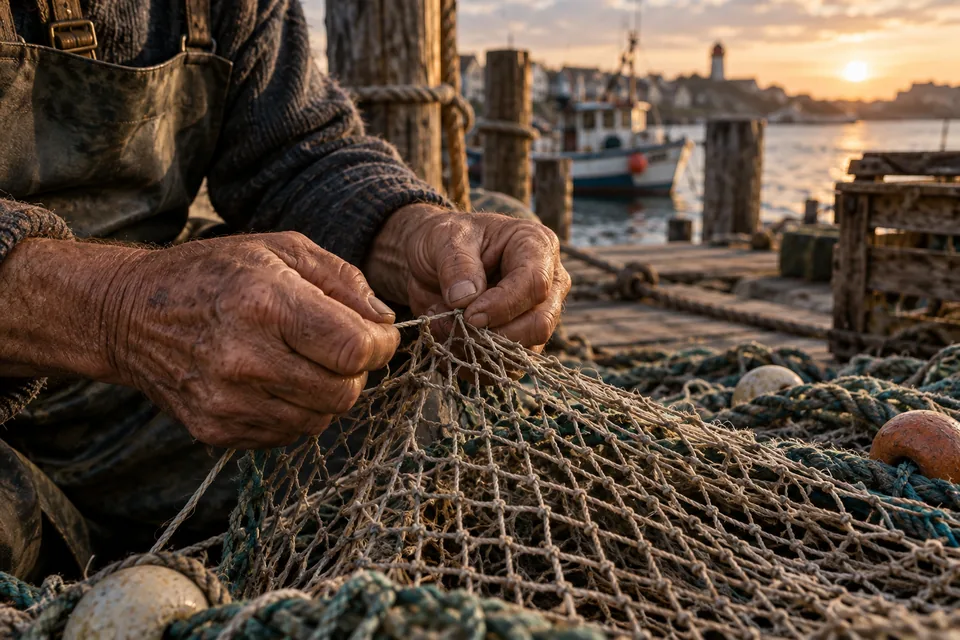
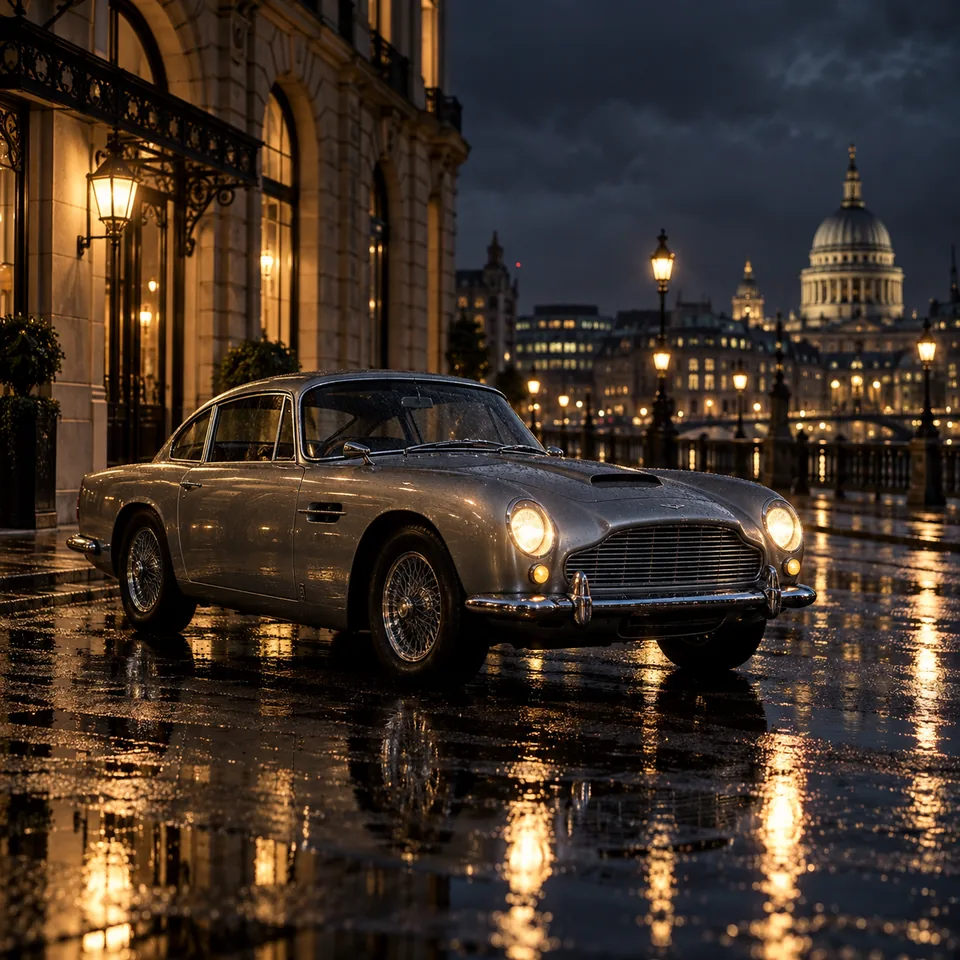
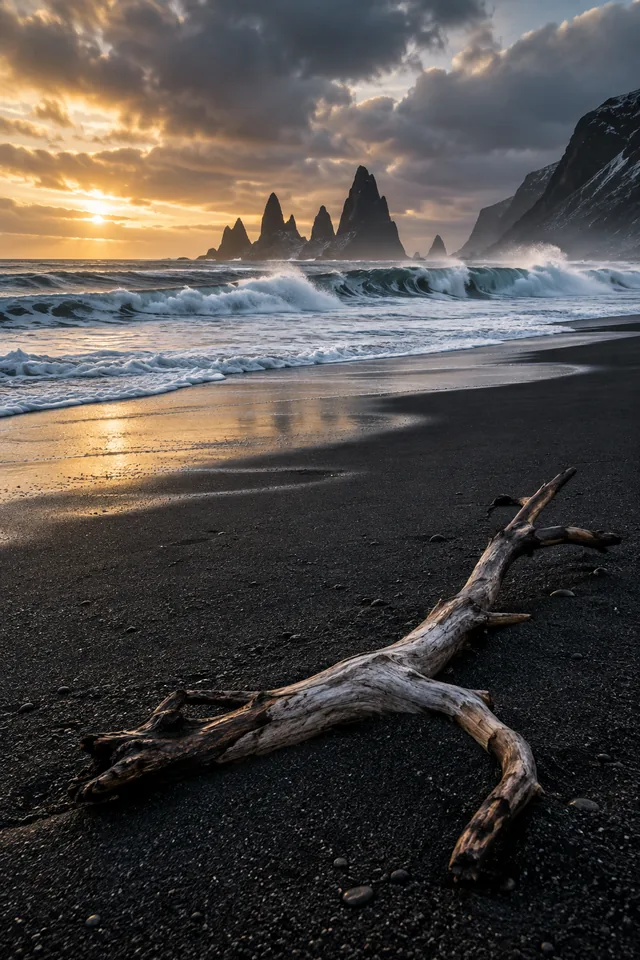
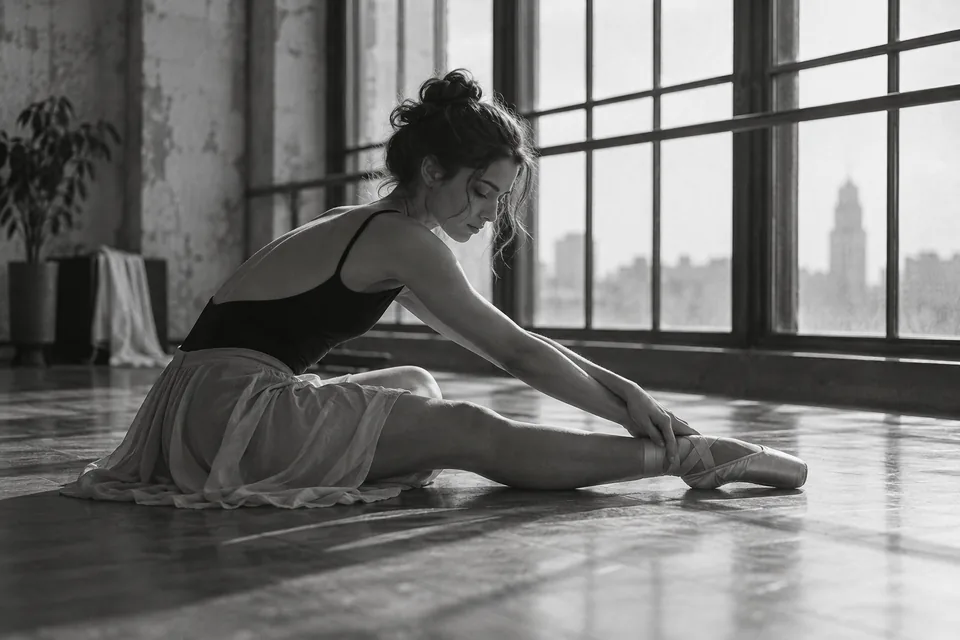
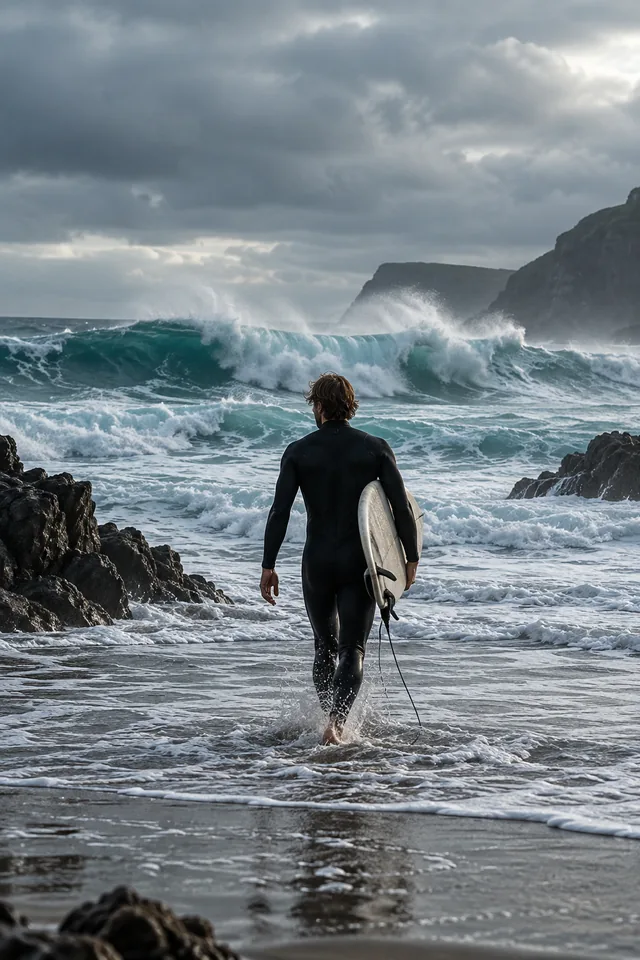
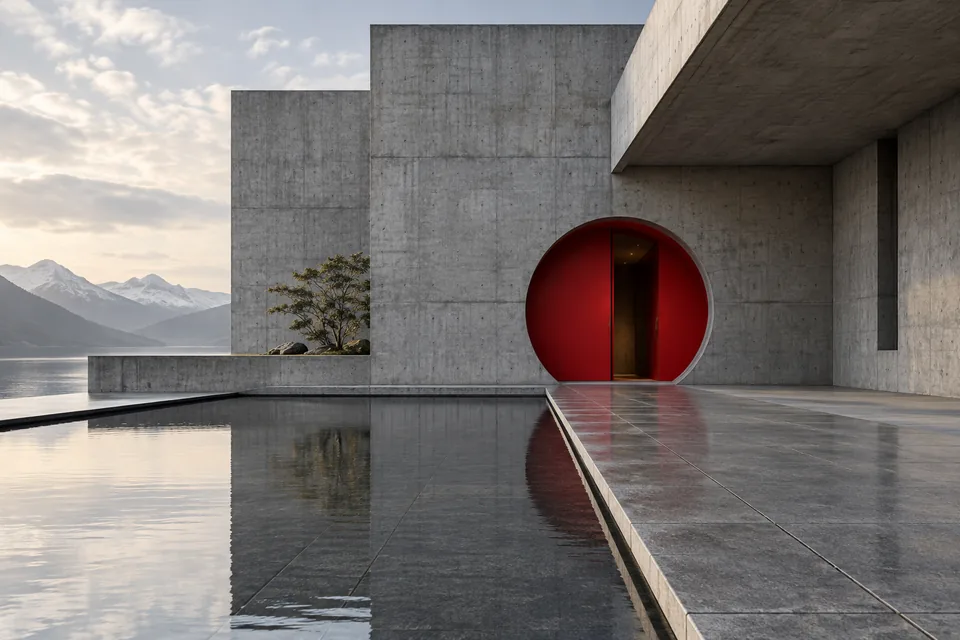
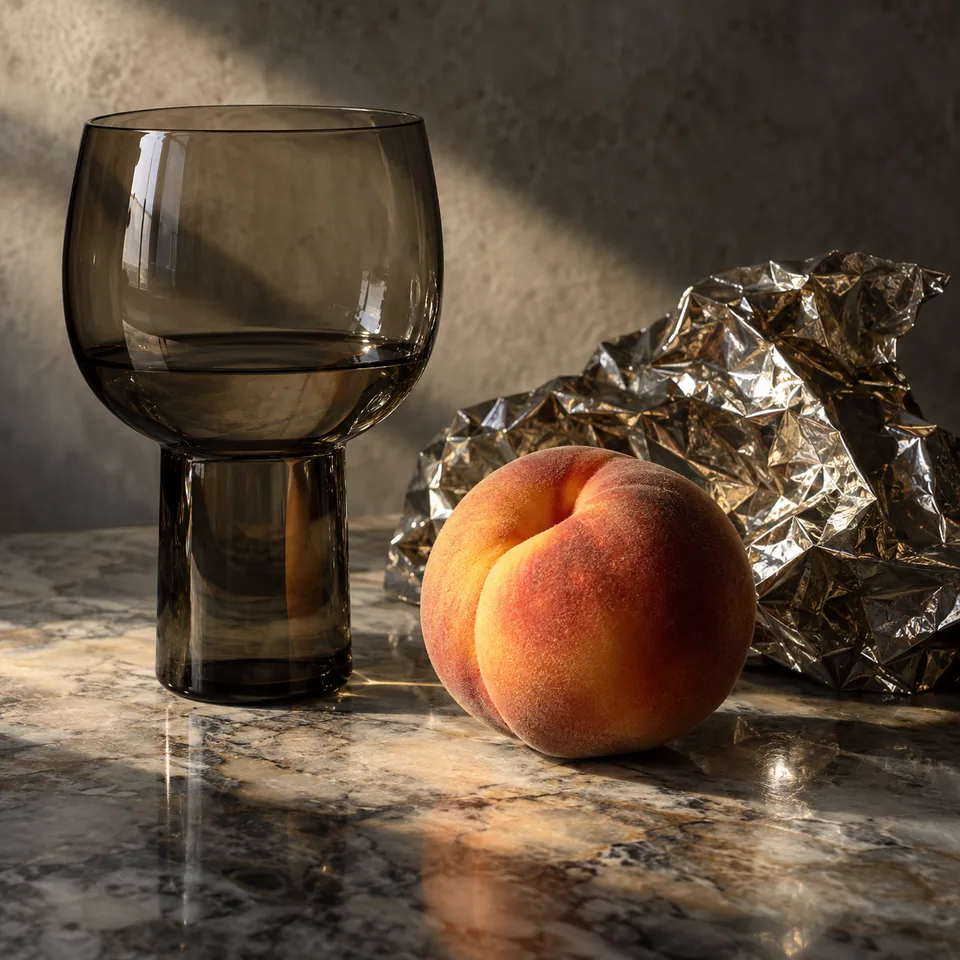
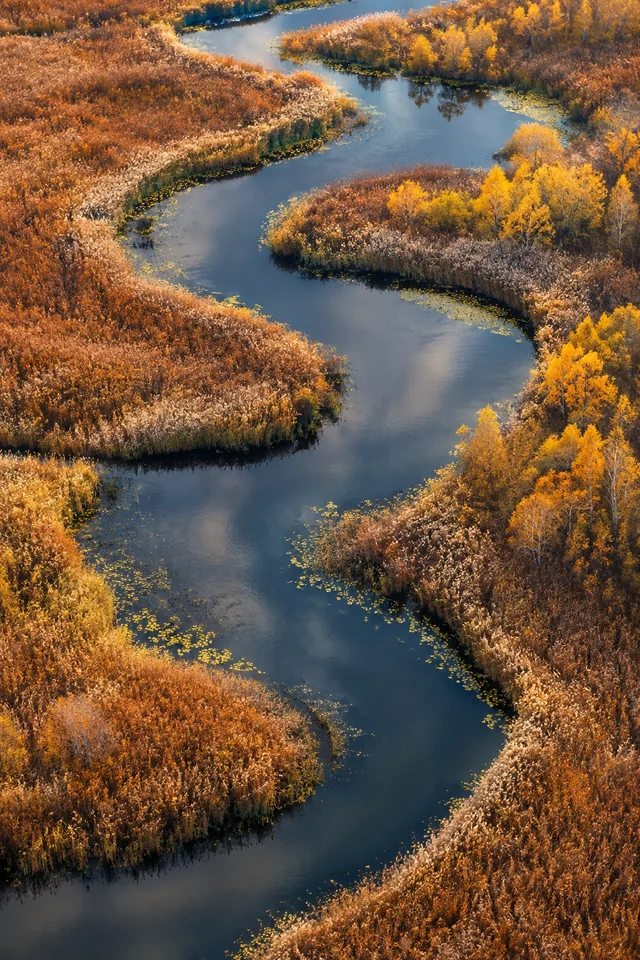

FLUX.2 Flex is shown here through one text-led material study and one edit using exactly two references. Use them to compare a complete object-and-lighting brief with a composition that gives each owned source a specific visual role.
The text-led workflow uses a complete material and lighting brief. The two-reference edit gives each owned image a role, then names what must remain and what may transfer. Use this list to make the request concrete. After generating, compare object shape, contact points, reflections, shadow direction, colors, source-image rights, and any unwanted additions.
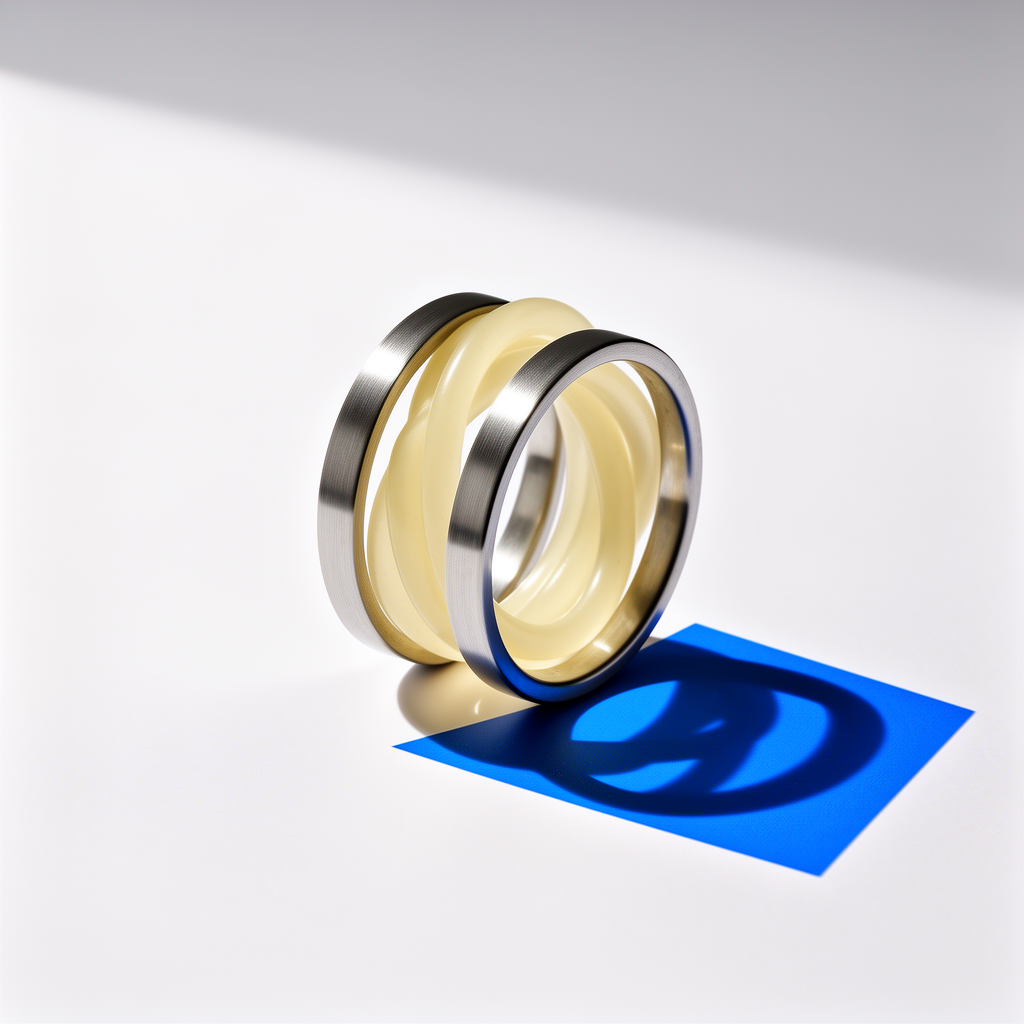
The displayed still life brings pale translucent loops and metallic rings into one compact composition. The cobalt shadow creates a second graphic shape on the surface below. Use this kind of brief when the relationship between a few materials matters more than a busy scene. Describe where the objects meet, where light passes through, and how the shadow falls. These relationships give you practical decisions to inspect: a ring should retain its opening, translucent parts should stay distinct from metal, and the cast shadow should agree with the lighting.
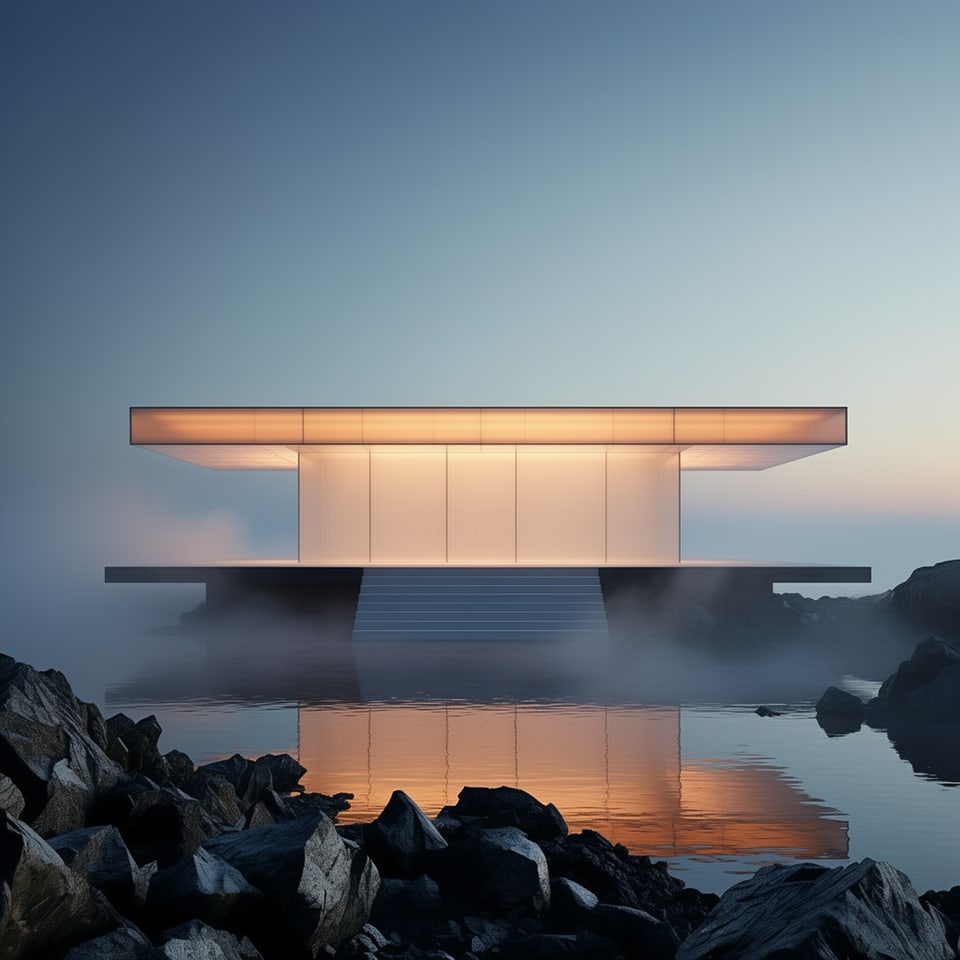
Place the composition image first and the color or atmosphere image second. Say which shapes and empty areas must stay unchanged, then describe the colors, light, materials, and depth to borrow from the second image. In the composition study, the broad horizontal structure stays central while amber light, blue atmosphere, dark rock, and reflective water establish the setting. When planning a similar edit, identify the outline and layout to preserve first, then describe the color and environmental cues that may change.
Use the loop study to plan a focused variation. Keep the outline, camera angle, spacing, and main light fixed, then describe one change such as frosted glass instead of clear glass. This makes the material difference easier to compare. Describe how the new surface should respond to light: softer highlights, a blurred view through the glass, or a sharper metallic reflection. Compare edges and contact shadows as well as color. If several details change together, simplify the next brief so the intended difference remains clear.
Start from text when the full scene can be described in a brief. Use two references when one owned image should anchor composition and another should contribute palette, atmosphere, and material behavior.
Start from text for original combinations of glass, metal, paper, stone, cork, fabric, or ceramic where believable material behavior matters. Use only a few objects so you can clearly check each material, edge, reflection, and contact point.
Use the two-reference edit when an approved layout should survive while a second approved image contributes color, glow, fog, reflection, or material response. State both roles directly instead of asking for a vague blend.
Both workflows use editable prompts, so you can inspect the complete visual brief before generating. Every changed brief or source pair still needs its own review for rights, materials, geometry, and unintended additions.
The two images show clear material separation and a composition guided by two different references. They do not show every aspect ratio, larger size, input count, edit type, subject, or prompt. Check your own result against the details that matter to your brief.
The published text-to-image example is a 1024-square PNG. In your workspace, choose the size and aspect ratio that suit your own composition, then check the displayed credits for those settings.
Reference one supplies the centered horizontal composition and negative space. Reference two supplies the cobalt-grey palette, amber light, basalt accents, mist, contrast, and reflections. The two-reference option requires both images in that order.
The current 1K text-to-image setup starts at 13 credits; the exact two-reference edit starts at 38. The final amount will be shown before generation begins and may change with the available settings.
The public gallery shows a 1024-square JPEG for the text-led image and a 960-square JPEG for the two-reference edit. Both are gallery copies of those results.
The examples cover one text-led material study and one two-reference composition transfer. Other objects, materials, input counts, sizes, and edit types may behave differently.
Cobalt Balance Study handled glass, aluminum, paper, cork, contact shadows, and one controlled light setup. More objects, complex refraction, thin geometry, typography, hands, or functional assemblies may fail differently and need their own review.
The current editor accepts one or two images. The example uses two ordered roles: composition first, palette and atmosphere second. One image is also valid for a different edit; keep the subject and changes clear in your prompt.
Amber Grid at Dawn preserves a broad pavilion grid, not a person, product identity, logo, text, exact building, or protected artwork. It does not promise faithful identity or pixel-level structure.
Open FLUX.2 Flex in the image workspace, choose your workflow, and prepare your own prompt and references. The gallery is a visual guide; opening the workspace does not automatically load the pictured example or its settings.
Choose FLUX.2 Flex in the image workspace. Select text to image for a new scene or reference editing for an existing visual direction, then write the prompt and review your own settings.
Start from text when you can describe the whole scene. Reference editing accepts one or two images: one can establish the object; a second is useful when it adds a distinct setting or palette. Explain what each image should contribute.
Name the objects, materials, positions, lighting, shadows, details to keep, colors or atmosphere that may change, and anything to avoid. For a two-reference edit, place the structure image first and the palette or setting image second, then explain each role in the prompt.
Check the selected workflow, image size, aspect ratio, format, output count, and displayed credits before continuing. For reference editing, confirm every image has finished uploading and that its order matches the roles described in your prompt.
Check object count, shape, material separation, contact points, reflections, shadow direction, color changes, and unwanted additions. Make sure you have permission to use the source images, and label the result as AI-generated when viewers could mistake it for a real product or place.
Plans for image and video
Annual plans are billed upfront. The same plan credits refresh every 30 days and expire at the end of that window; unused subscription credits do not roll over.
Explore the workspace and prepare a first request before choosing a paid plan.
For occasional image and video experiments with a predictable monthly ceiling.
Subscriptions renew automatically at the selected monthly or yearly rate until canceled. Cancel future renewals in your account.
For creators who iterate every week and need room for several directions.
Subscriptions renew automatically at the selected monthly or yearly rate until canceled. Cancel future renewals in your account.
For sustained, high-volume creation and access to the highest available output quality.
Subscriptions renew automatically at the selected monthly or yearly rate until canceled. Cancel future renewals in your account.
Prices are in USD. Subscriptions renew automatically; credit packs are one-time purchases.
Compare plansThese answers describe the settings and results shown on this page, not every capability advertised for FLUX.2 Flex elsewhere.
Not yet. You can open either FLUX.2 Flex workflow and prepare your own prompt and settings in this browser. Opening the workspace does not load a gallery recipe, upload references, or spend credits.
Both workflows offer square, portrait and landscape presets, including fixed 1920 × 1080 and 2048 × 2048 options, with JPEG or PNG output. Reference editing accepts one or two images and also offers automatic sizing. The examples retain their original 1024-square PNG settings.
Text-to-image starts at 13 credits; editing with one reference starts at 26. Larger outputs and additional references cost more. The shown two-reference 1K setup costs 38 credits at the current rate. Check your selected request before generating.
The saved originals are 1024-square PNG files. The gallery shows 1024- and 960-square JPEG copies for faster loading and does not present them as the original files.
No. It proves that one ordered source pair and one prompt passed review. Future pairs may merge geometry, leak colors, invent objects, distort contact, or ignore role boundaries. Every output needs comparison against both source records.
Yes. The gallery shows FLUX.2 Flex outputs, including the loop study and the amber-and-blue composition. Use them to inspect visible geometry, material contrast, and lighting. Your own subject, references, and prompt will produce a different result, so compare the details that matter to your brief.
Open the FLUX.2 Flex workspace to prepare a new image draft. Choose your workflow, add a prompt and any required images, then review the settings and credits before continuing.