
Choose shape before size
A square post, tall cover, and wide banner need different framing. Resolution adds pixels; it does not repair a cramped composition or restore a subject cropped out of frame.
Create a new image or refine a reference with Nano Banana Pro. Shape the composition, choose the output, and inspect the details that matter.
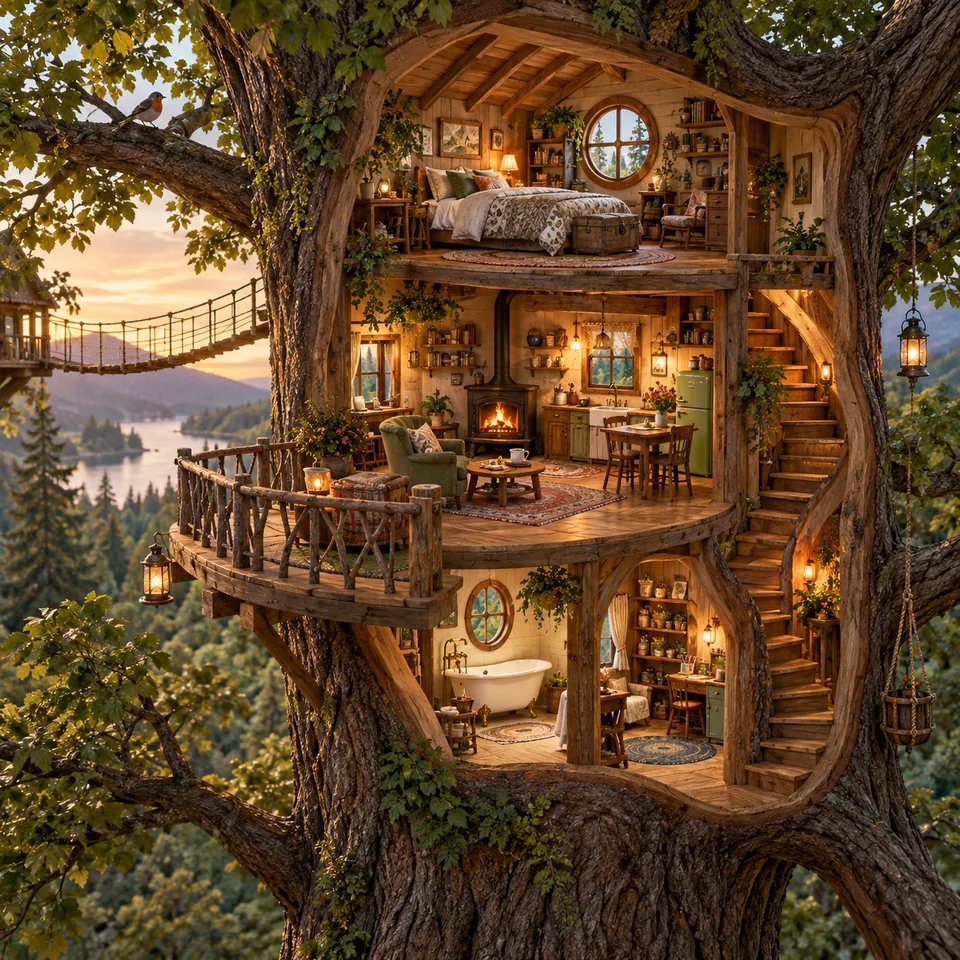
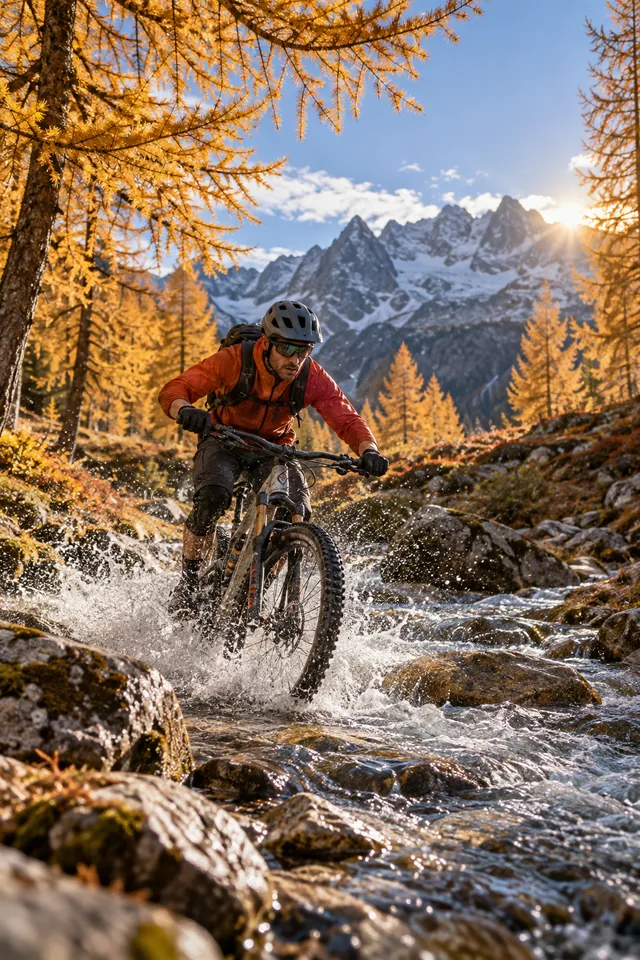

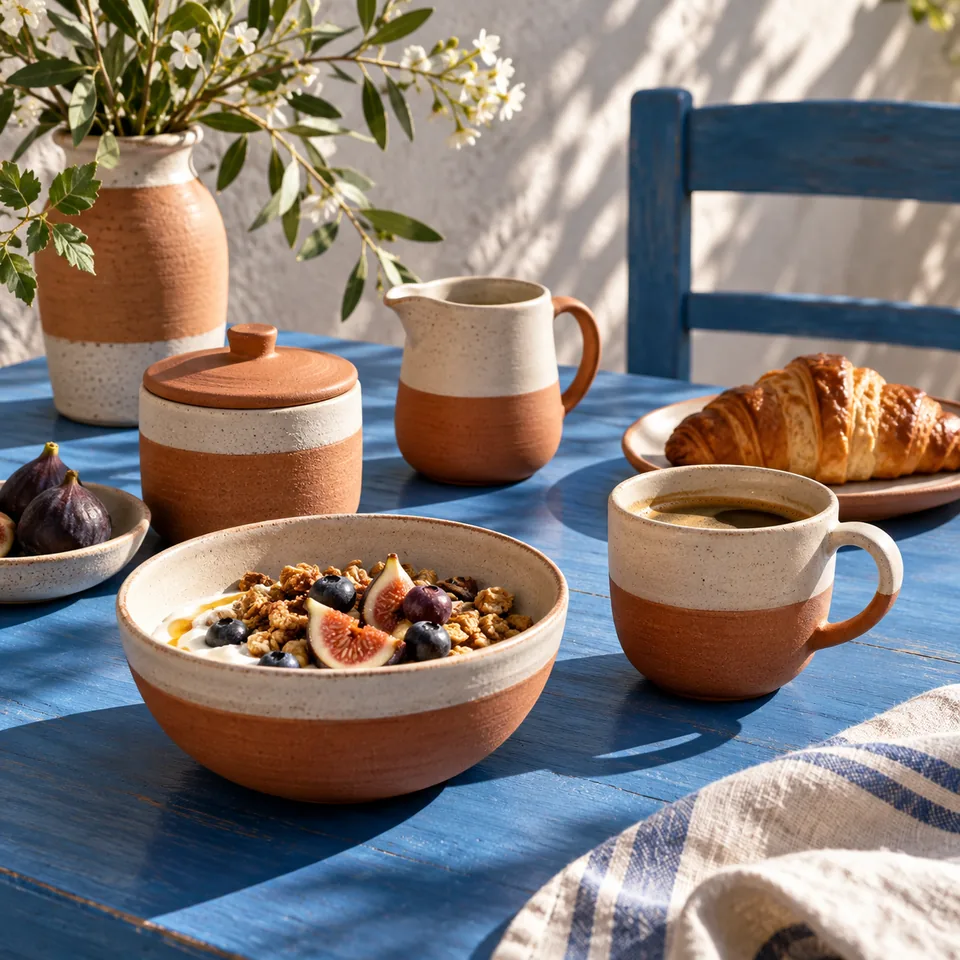
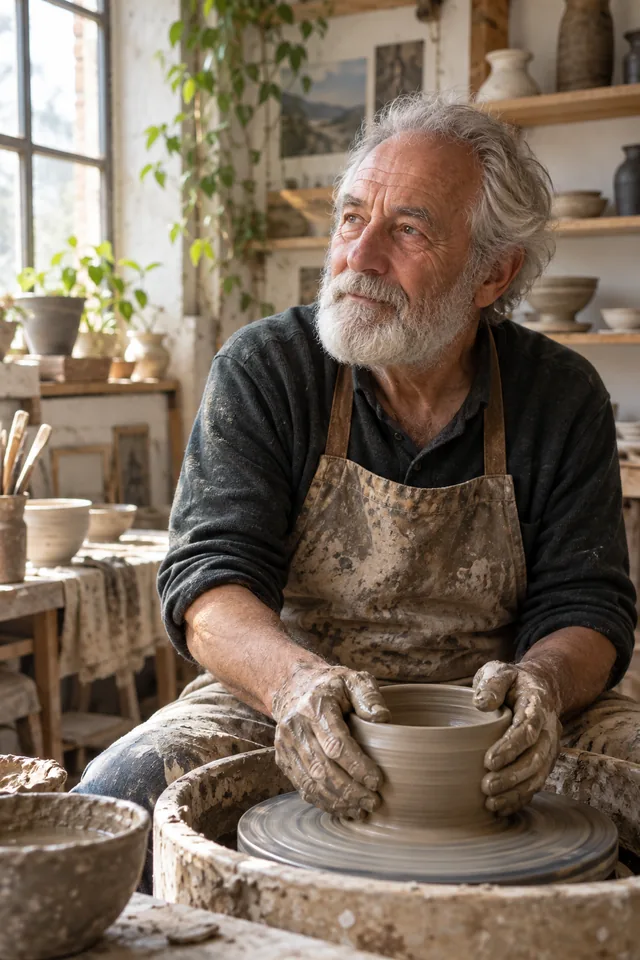
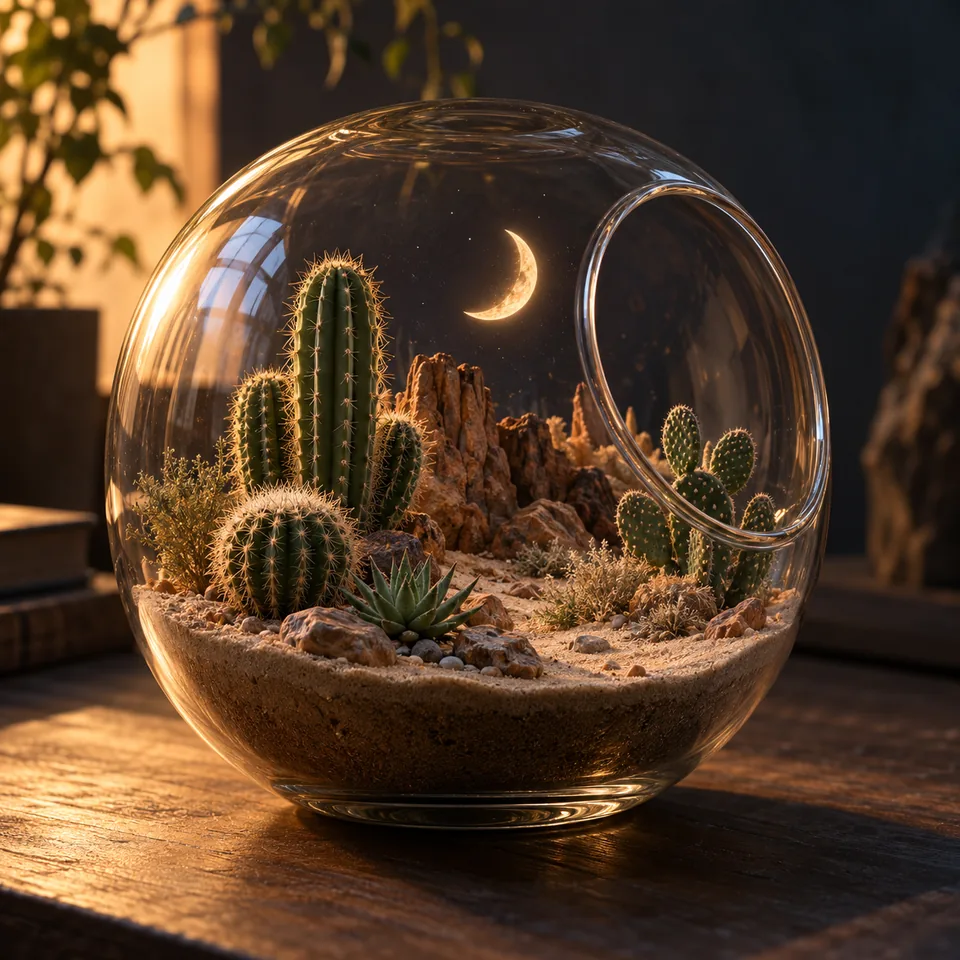
Choose Nano Banana Pro when the task needs a composed image, controlled materials, or a thoughtful revision of an existing visual. Decide first whether the scene should be invented from text or anchored by reference images.
For a new concept, name the object, setting, viewpoint, and light. For an edit, state what must remain and what may change. That distinction gives every later instruction a clear purpose.
Use a product photo for subject shape, a mood image for atmosphere, or a sketch for arrangement. Number references when their roles differ, and remove images that add no useful information.
Compare outlines, reflections, lettering, object count, and small components at full size. A compelling result can still change a feature that the brief required you to preserve.
Avoid changing subject, material, viewpoint, lighting, and layout in one edit. A narrower first pass reveals whether the model understood the most important requirement and gives you a useful basis for the next decision.
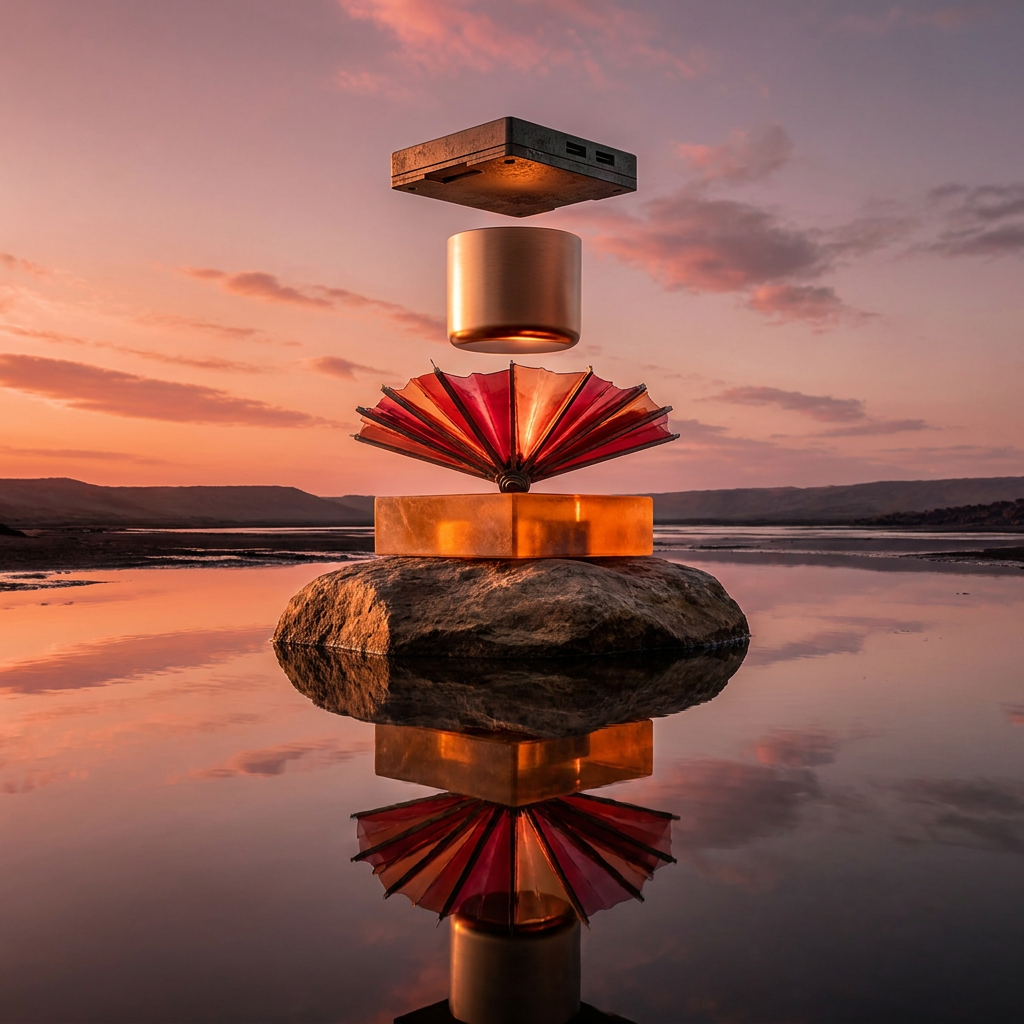
“Create a sculptural still life with one folded red fan, suspended bronze forms, warm sunset light, and a calm water reflection. Keep every object distinct and leave quiet space around the composition.”
Write the brief in the same order you will inspect the result. A readable sequence of subject, composition, camera, setting, light, and finish is easier to revise than a pile of unrelated style words.
Name the main subject, where it sits, and how the frame is shaped. Then add viewpoint and background. Resolve conflicting camera directions before spending time on surface style.
Put required wording in quotation marks and say where it belongs. Keep it short enough for the intended size, then inspect spelling, spacing, punctuation, and edge quality in the final image.
If shape changed, reinforce the silhouette. If the crop failed, change composition. Keep the parts that worked stable so the next result answers one clear question instead of restarting the entire brief.
If the image will serve several placements, protect space around the subject and any required lettering. Generate around the most demanding crop, then make smaller delivery crops from a version that still contains the essential composition.
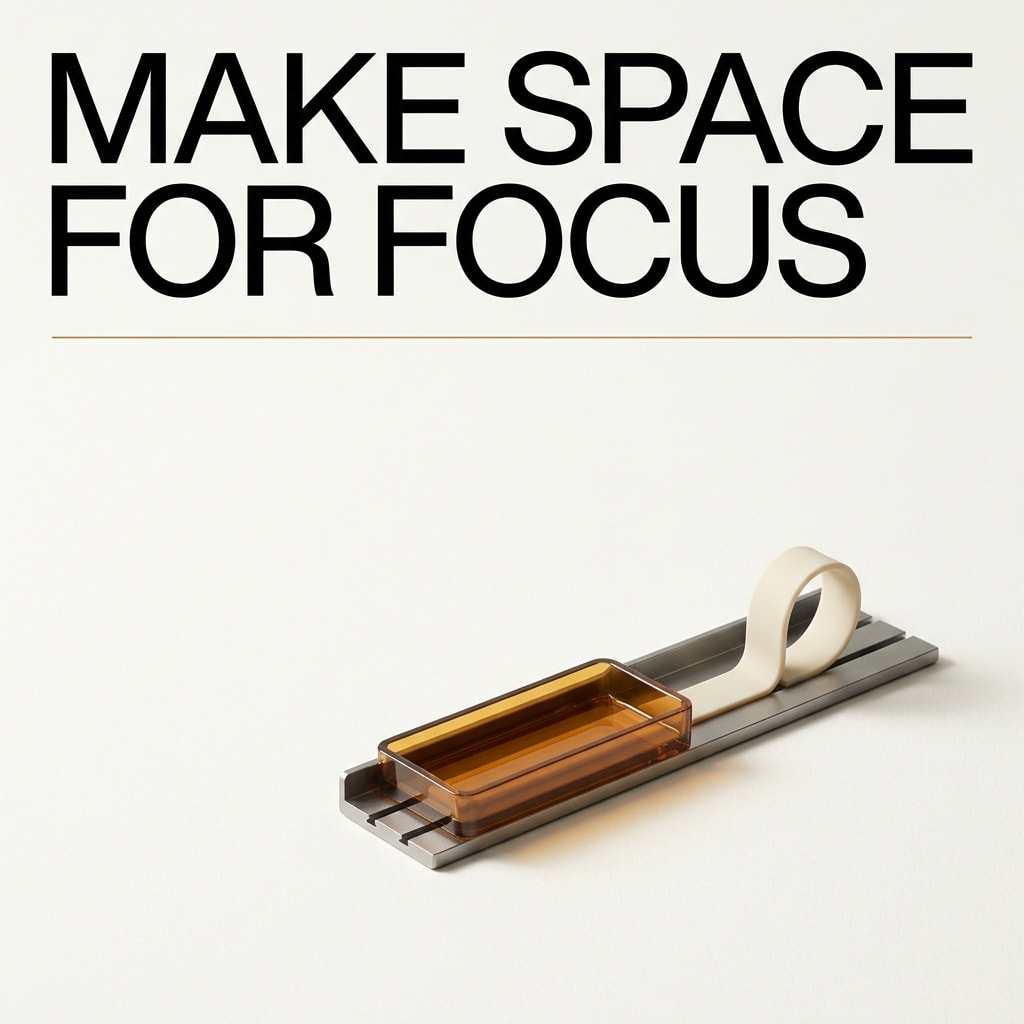
“Design a minimal editorial poster for a desk object. Use an off-white field, one bold black headline in quotation marks, a low product arrangement, and restrained amber accents. Keep the typography readable.”
Output settings should follow the place where the image will be used. Shape the composition first, then choose the size and file type that fit the next step. Review those choices together before generating, because a polished file in the wrong shape still creates extra work.
A square post, tall cover, and wide banner need different framing. Resolution adds pixels; it does not repair a cramped composition or restore a subject cropped out of frame.
Texture and fine detail can look convincing in a thumbnail but distracting in a presentation. Inspect the image near its intended display size before choosing a larger generation.
Choose JPEG, PNG, or WebP for the next application. A PNG extension does not guarantee transparency, so inspect the actual file and keep an original before later compression or cropping.
Check object count, edges, repeated patterns, faces or hands where present, and any exact text. Record intentional differences so feedback for another pass remains specific.
Download the strongest uncropped result before moving into another editor. A clean original gives you room to resize, compress, or prepare variants without losing the version that first solved the brief.
Open the image generator with Nano Banana Pro selected. Use the text workflow for a new composition or the reference workflow for an image based edit. Add only the references needed for the brief, and check that each image is readable before continuing. The model selector remains available if you decide another image model better fits the task.
Describe the subject and composition, then list any preservation requirements. Select an aspect ratio, resolution, and output format appropriate to your destination. Read the current credit amount shown by the generator before submitting. If generation is unavailable, keep your brief and return when it is available; the page does not require you to invent different settings to proceed.
Inspect the downloaded image at a useful size. Check the main subject against the brief and any references, then examine text and fine details. Keep the version that solves the task, or identify the single most important change for another attempt. A clear review note is more useful than adding a long list of unrelated adjectives to the next prompt.
Plans for image and video
Annual plans are billed upfront. The same plan credits refresh every 30 days and expire at the end of that window; unused subscription credits do not roll over.
Explore the workspace and prepare a first request before choosing a paid plan.
For occasional image and video experiments with a predictable monthly ceiling.
Subscriptions renew automatically at the selected monthly or yearly rate until canceled. Cancel future renewals in your account.
For creators who iterate every week and need room for several directions.
Subscriptions renew automatically at the selected monthly or yearly rate until canceled. Cancel future renewals in your account.
For sustained, high-volume creation and access to the highest available output quality.
Subscriptions renew automatically at the selected monthly or yearly rate until canceled. Cancel future renewals in your account.
Prices are in USD. Subscriptions renew automatically; credit packs are one-time purchases.
Compare plansThey are separate model choices in Movelume. This page describes Nano Banana Pro and its current image creation and reference editing controls. Use the model directory to open the other version rather than assuming that its input limits, available sizes, or results are identical.
Yes. Use text to image and describe the scene you want. References are useful when an existing image should influence the result, but they are not a requirement for a new composition. Choose the workflow based on how much visual information you already have.
Do not assume exact preservation. A reference guides the generation, and details can still change. Name the elements that matter, compare them with the input, and review fine features before using the result. For an exact final correction, a conventional image editor may be the appropriate next tool.
This page does not promise a free allowance. The generator shows the current credit requirement for your selected settings before submission. Account access and available credits determine whether you can continue. Changing output settings can change the amount, so review the current figure rather than a previous one.
You can download a suitable image and use it as the starting image in the image to video workflow. Plan enough space for the subject to move, and avoid relying on tiny lettering that must stay exact throughout a clip. The video model is a separate choice from Nano Banana Pro.
Identify whether the main issue is subject identity, composition, lighting, or fine detail. Adjust that part of the instruction and keep the rest stable for the next comparison. If references conflict, simplify the set before adding more images or more descriptive text.
Start with a focused brief, choose your references, and review the output against the details that matter.