

A different top. Your own photo.

AI clothes changer

Try a classic shirt or a casual jacket from one photo. Preview an everyday upper-body look, inspect the face and hands, and download a PNG.

20 credits per preview · One image · About 1K PNG

or drop it here

One adult with the full upper body visible. Keep shoulders, arms and hands in frame with clear lighting. JPG, PNG or WebP up to 10 MB.

Choose your look

Selected: Classic shirt. These are two everyday top presets. They do not reproduce an uploaded garment or predict its real-world fit. Every preset starts from your original photo.

Checking account…

No model or prompt to configure. Each additional preview uses 20 credits. Plans & credits

A different top

How to change clothes in a photo

  1. 01

    Show the upper body clearly

    Choose one adult in a JPG, PNG or WebP photo up to 10 MB. Include the shoulders, torso and the part of the sleeves you want to change. A picture cropped at the neck gives the tool too little clothing to work with. Use a photo you own or have permission to edit. Keep the original pose and background in view so you can compare them with the finished image.

  2. 02

    Select a shirt or a casual jacket

    Pick Classic Shirt for a simple collared top or Casual Jacket for a more relaxed outer layer. These are two ordinary clothing directions, rather than an upload for a specific garment. Sign in, review the quote and confirm one 20-credit preview. You do not need to describe fabric or select a model. Another option requires its own quote and another 20 credits.

  3. 03

    Inspect the whole outfit area

    Compare the result with your source using the slider. Check the face and body first, then the collar, cuffs, fastenings and places where hands overlap fabric. Download the PNG if the preview is useful. To compare both options, return to the original photo each time. Reusing a previously edited output can accumulate changes and makes it harder to tell what the clothing edit actually did.

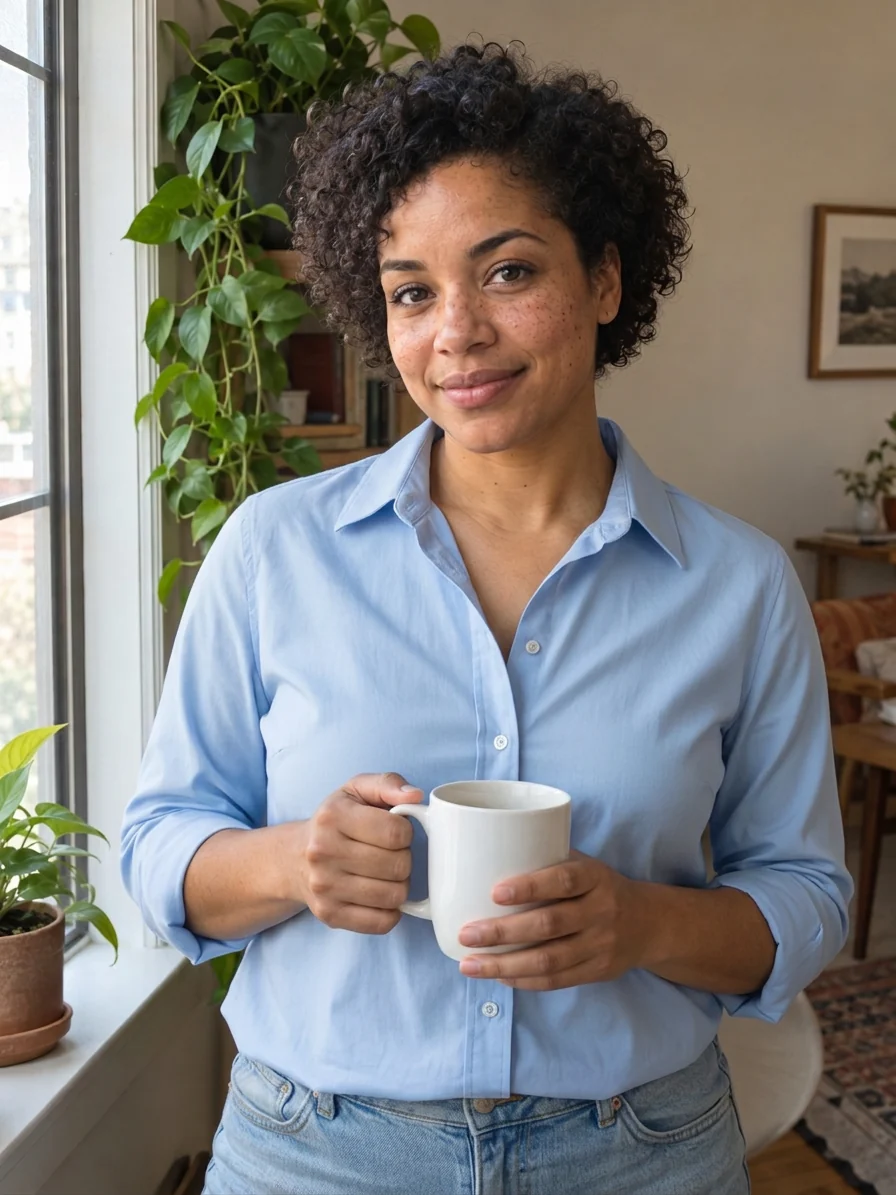
AI-created adult with a mug, classic shirt preview
AI-created adult with a mug, classic shirt preview, AI previewAI-created adult with a mug, classic shirt preview, OriginalOriginalAI preview

Drag to compare · Arrow keys supported

Classic Shirt

Preview a different top with an AI clothes changer

A classic collared shirt can change the mood of a casual portrait without requiring a new photo session. This option explores an ordinary shirt style while aiming to retain the person, their body shape, pose and surroundings. It is useful for comparing a clothing direction before deciding whether it suits the picture.

  • Start at the collar and work outward

    Look at how the collar meets the neck and whether its two sides belong to the same shirt. Follow the center opening down the torso. Buttons, seams and folds should remain plausible rather than merging into skin or repeating in an odd pattern. At the shoulder, compare the garment edge with the original body outline. A tidier top should not quietly become a different shoulder width or a narrower waist. If a shorter top exposes an area that was covered before, those clothing details are generated rather than recovered. Keep your attention on recognizable features as well as fabric. Compare the eyes, mouth, jaw and skin tone with the original. A clothing preview that changes the face is less useful for judging how the new outfit relates to the person. The edit aims to keep identity consistent, but exact preservation is not guaranteed.

  • Choose the source for the crop you need

    If the final image will show only the upper body, start with an upper-body photo. There is no need to invent legs or extend the scene. Include both sleeve edges when possible, and avoid a large object hiding most of the torso. The more of the actual garment area you can see, the easier it is to assess the result rather than guessing what happened outside the crop.

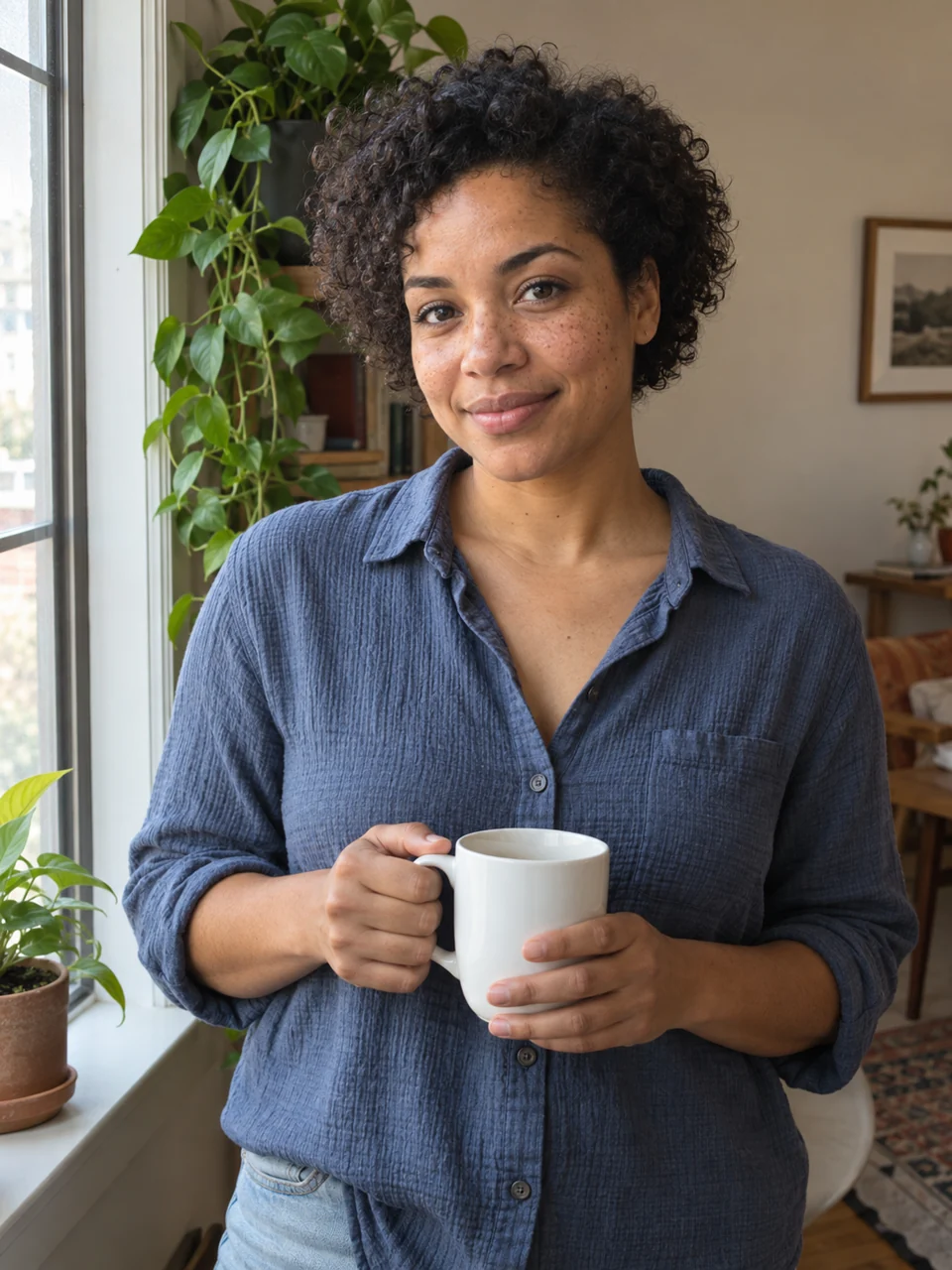
AI-created adult with a mug, casual jacket preview
AI-created adult with a mug, casual jacket preview, AI previewAI-created adult with a mug, casual jacket preview, OriginalOriginalAI preview

Drag to compare · Arrow keys supported

Casual Jacket

Compare an outer layer while keeping the same pose

The casual jacket option offers a different silhouette around the shoulders and chest. It can help you compare a relaxed outfit with a shirt using the same photograph, expression and setting. The result is a styling preview, rather than a recommendation to buy a particular jacket.

  • Check hands, sleeves and overlapping objects

    Hands create important boundaries: a cuff should end at a believable wrist, fingers should remain separate and an object held in front of the body should stay in front. A cup, bag strap or folded arm can expose mistakes that a small thumbnail hides. Compare these areas closely instead of judging only the central chest panel. Also check the outline of the jacket and any visible opening. The left and right sides should form one coherent garment, with folds responding plausibly to the pose. Thick outerwear may change the clothing silhouette, but it should not imply that the person’s underlying body has changed. If the result noticeably alters proportions or the pose, do not treat it as a reliable outfit comparison.

  • Compare style rather than product identity

    A generated jacket can suggest an overall look without matching a store item. Color, fabric texture, pocket placement and closure details may be invented. Use the preview to decide whether you like the direction, then evaluate actual clothing separately. It cannot establish what a specific garment would look like in your lighting or how that garment would hang on your real body.

Before choosing a photo

Understand the difference between outfit editing and try-on

Two presets, one person photo

This page takes one person photo and offers two selected tops. It does not take a second image of a garment, a shopping screenshot or a branded product. If your task is to reproduce the exact print, cut, logo or embroidery of something for sale, this tool does not provide that input or guarantee. A similar-looking generated top is not proof of a precise virtual try-on.

The same distinction applies to fit. A photograph does not supply body measurements, garment measurements, stretch or construction details. The preview cannot predict size, comfort, range of motion or fabric drape. Use a retailer’s sizing information and the actual garment when making a purchase decision. Do not use an attractive generated result as evidence that a particular item will fit.

Make the comparison useful

Use even lighting, a readable face and a background you can recognize. A complex reflection, a crowd or heavy motion blur makes unwanted changes harder to detect. Keep your original crop when judging the preview, and examine the background near the arms and waist. Those edges reveal whether the edit changed more than the top.

An AI outfit changer is most useful when the question is narrow: does this portrait work better with a simple shirt or a relaxed jacket? It is less suited to recreating a whole wardrobe, adding an unseen full body or producing a product catalog with exact garment specifications. If the source is unsuitable, choose another original photo before spending credits on another preview.

Plans for image and video

Pricing

Annual plans are billed upfront. The same plan credits refresh every 30 days and expire at the end of that window; unused subscription credits do not roll over.

Free
$0/ month

Explore the workspace and prepare a first request before choosing a paid plan.

10
signup credits · valid for 30 days
Build a free draft
  • 10 signup credits with a 30-day expiry
  • Prepare an image and prompt locally before sign-in
  • See the final credit cost before generation
Starter
$34.99/ month

For occasional image and video experiments with a predictable monthly ceiling.

2,400
credits every 30 days
Compare plans

Subscriptions renew automatically at the selected monthly or yearly rate until canceled. Cancel future renewals in your account.

  • 2,400 credits refresh every 30 days
  • Subscription credits expire at each refresh
  • Private results and generation history
CoreMost popular
$69.99/ month

For creators who iterate every week and need room for several directions.

6,000
credits every 30 days
Compare plans

Subscriptions renew automatically at the selected monthly or yearly rate until canceled. Cancel future renewals in your account.

  • 6,000 credits refresh every 30 days
  • A larger credit buffer for repeated iterations
  • Private results and generation history
Max
$174.99/ month

For sustained, high-volume creation and access to the highest available output quality.

18,000
credits every 30 days
Compare plans

Subscriptions renew automatically at the selected monthly or yearly rate until canceled. Cancel future renewals in your account.

  • 18,000 credits refresh every 30 days
  • Access to the highest available output quality
  • Private results and generation history

Prices are in USD. Subscriptions renew automatically; credit packs are one-time purchases.

Compare plans
Before you try

AI clothes changer FAQ

01How much does one clothing change cost?

One image costs 20 Movelume credits. You see a quote before confirming, and receive one PNG at about 1K. Choosing another top or making another preview is a separate paid generation. Check your current balance and the plans in Pricing before proceeding. This page does not promise a free first image or unlimited clothing changes.

02Can I upload a dress or a shopping screenshot to try on?

This version accepts one person photo and offers Classic Shirt or Casual Jacket. It does not accept a separate garment reference, reproduce a specific dress or promise an exact product match. Use it for a general upper-body style preview, rather than a precise try-on of an item you intend to purchase.

03Will it keep my face, body and background unchanged?

The edit aims to change the upper garment while keeping those details consistent. Exact preservation is not guaranteed. Compare facial proportions, shoulder width, pose, hands and nearby background edges with the original. If an important feature changes, the output should not be used as a faithful record of the person or an accurate fit preview.

04What kind of photo works best?

Use one adult with a clear face and enough of the torso and sleeves to show the intended change. An unobstructed upper body is easier to compare. If a hand or object crosses the clothing, inspect that boundary carefully in the result. A head-only selfie cannot accurately show how a jacket would look across an unseen body.

05Can I download the result and revisit the original?

You can download the generated PNG and open available results in your history. Try another option returns to the original input while that upload remains available. If the original has expired, upload the source file again. Your personal uploads and results are account-restricted; they do not automatically become public showcase images.

06What if I lose connection after I confirm the preview?

Use Find my request or check your history before starting another preview. An interrupted response may still correspond to an accepted generation. If the tool cannot yet establish the outcome, it blocks another submission while you recover the existing request. Contact support if you cannot find it rather than repeatedly confirming a new image.

Make your comparison

See a different top in the same photograph

Choose a clear upper-body photo and compare one clothing direction at a time.