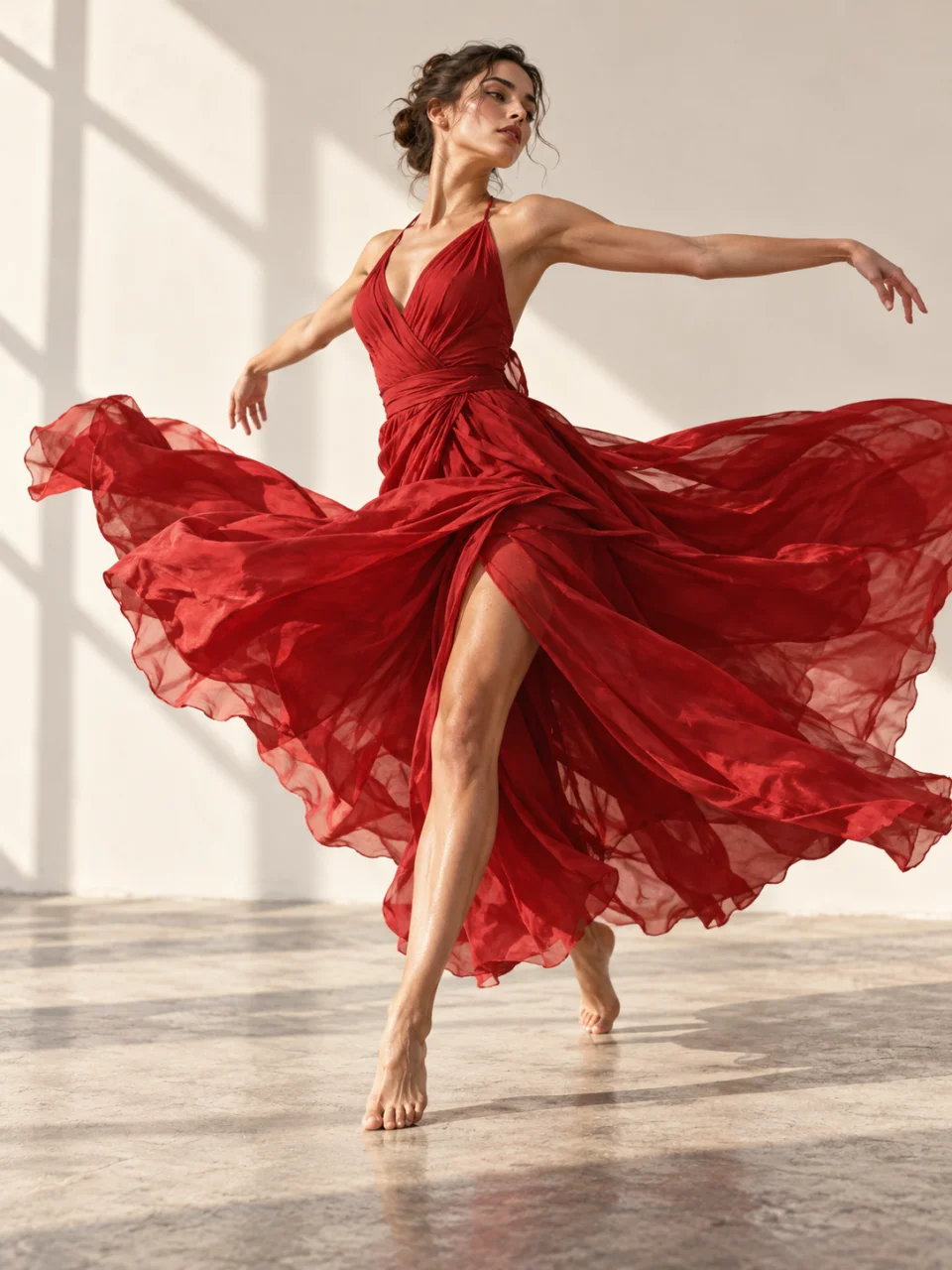
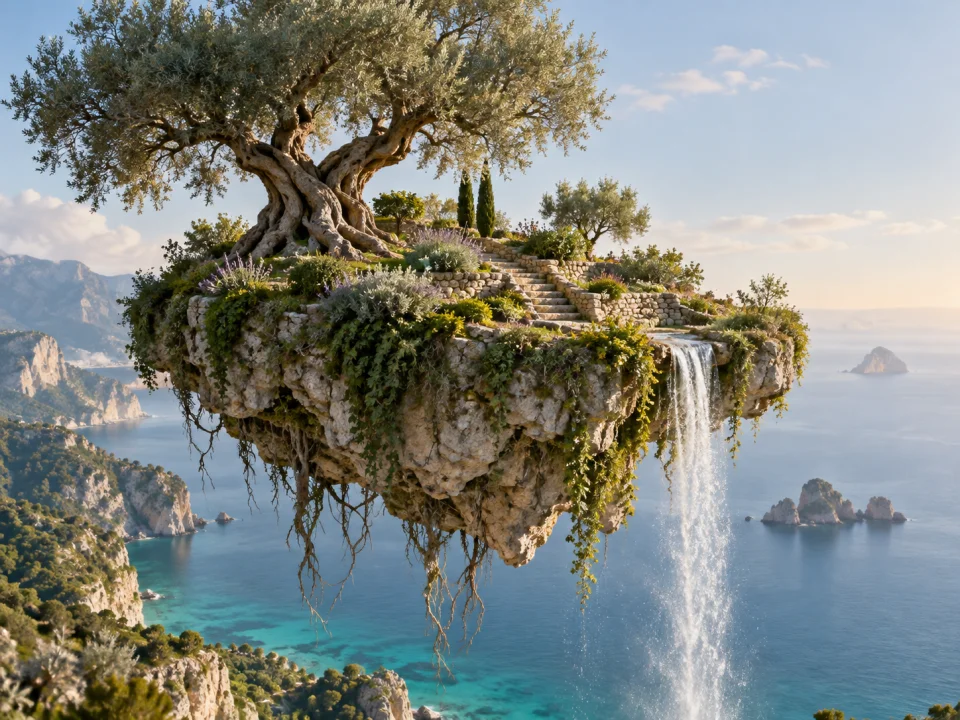
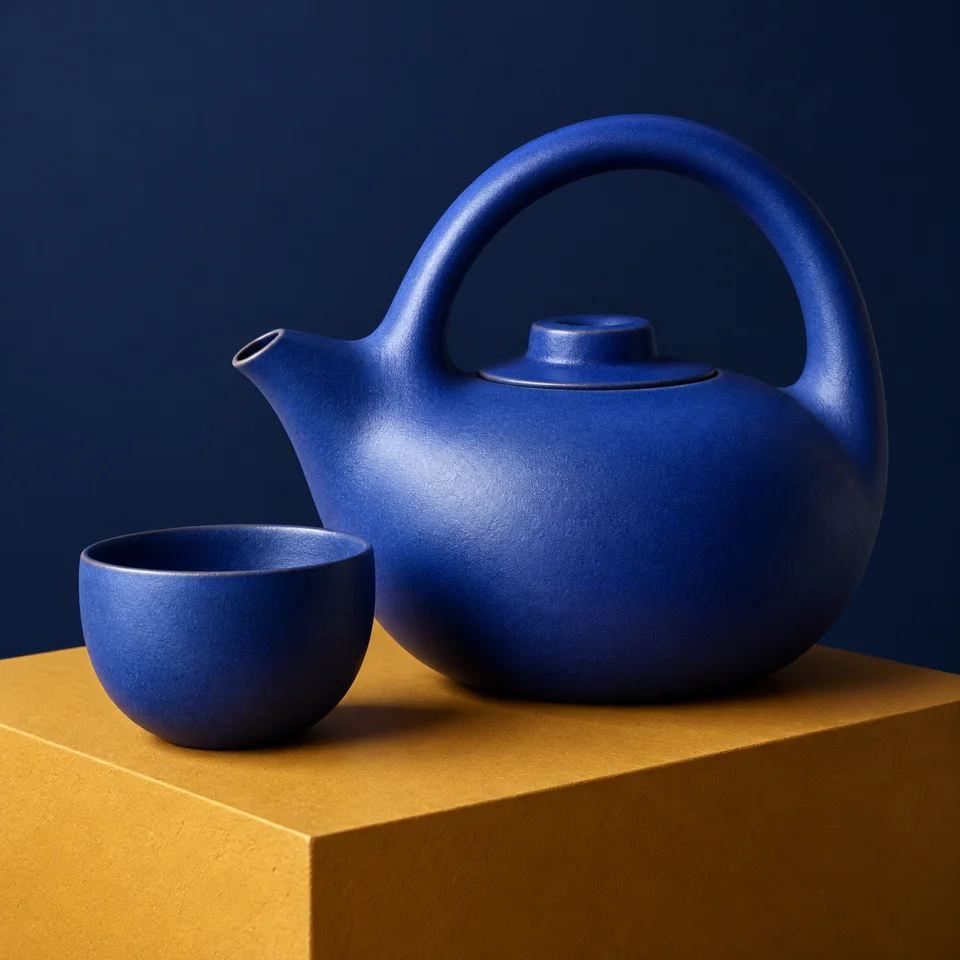
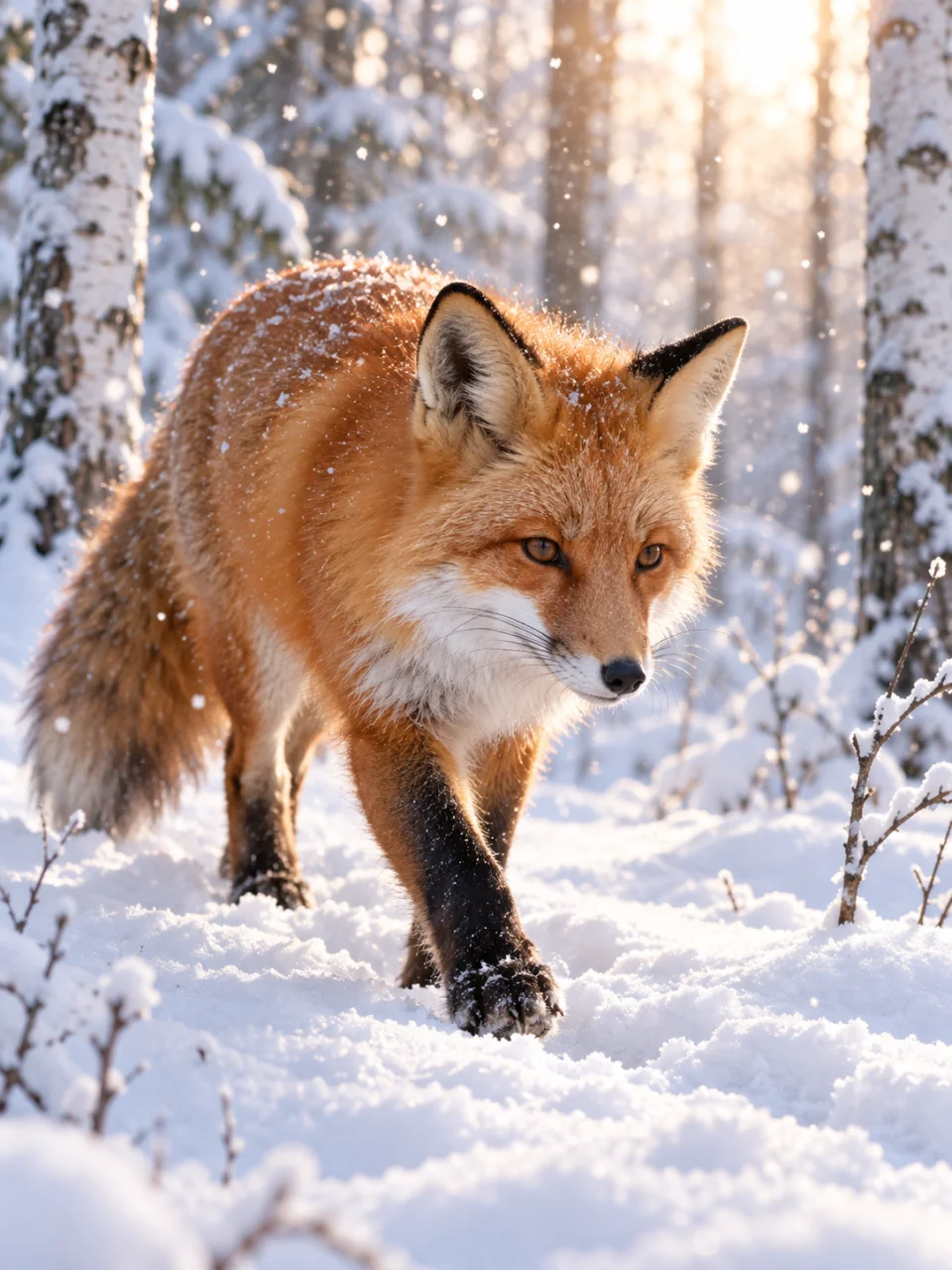
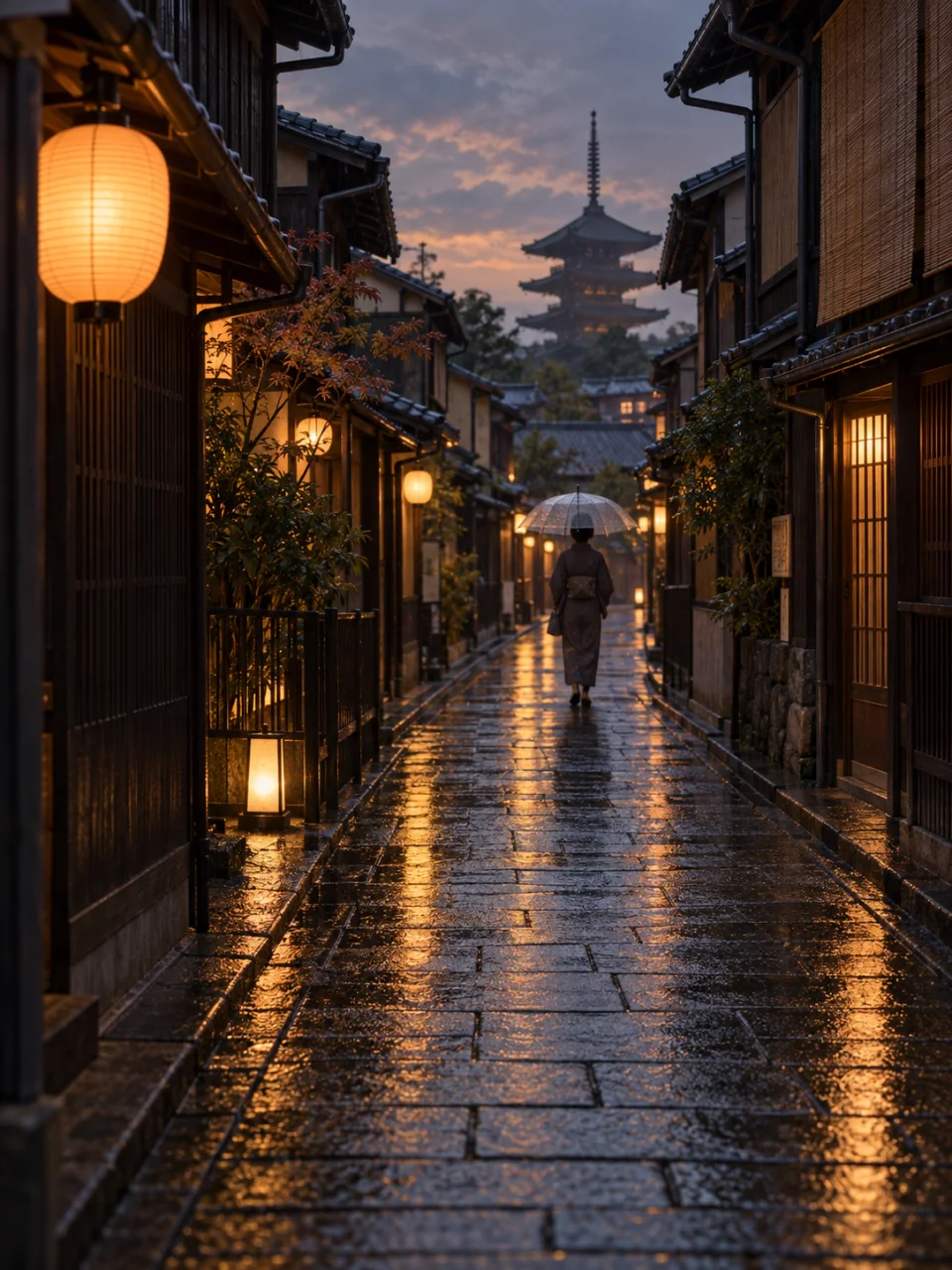
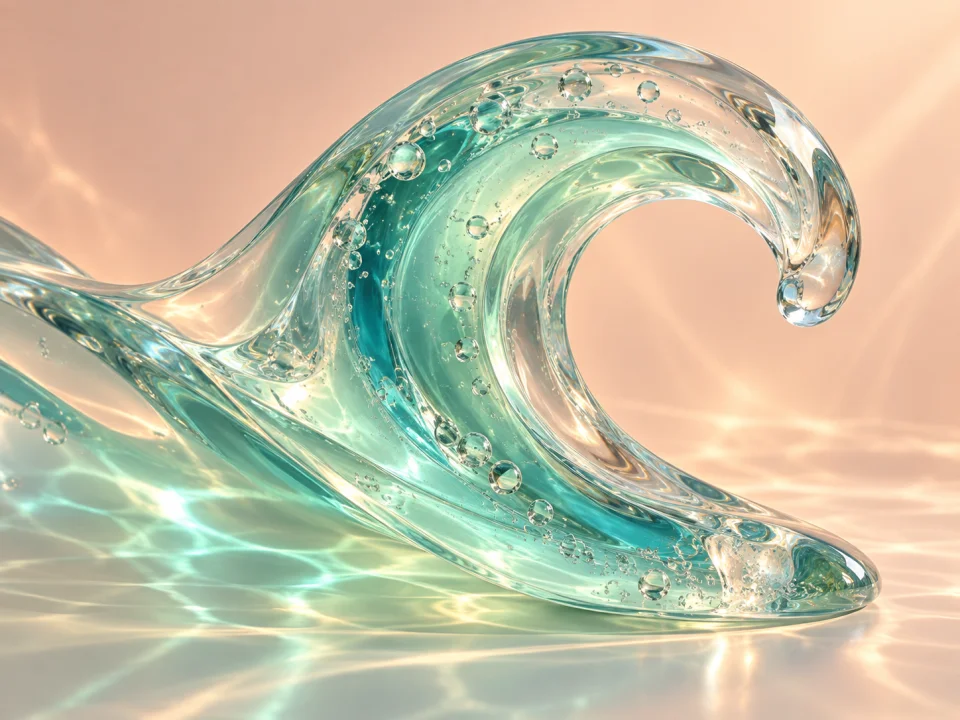
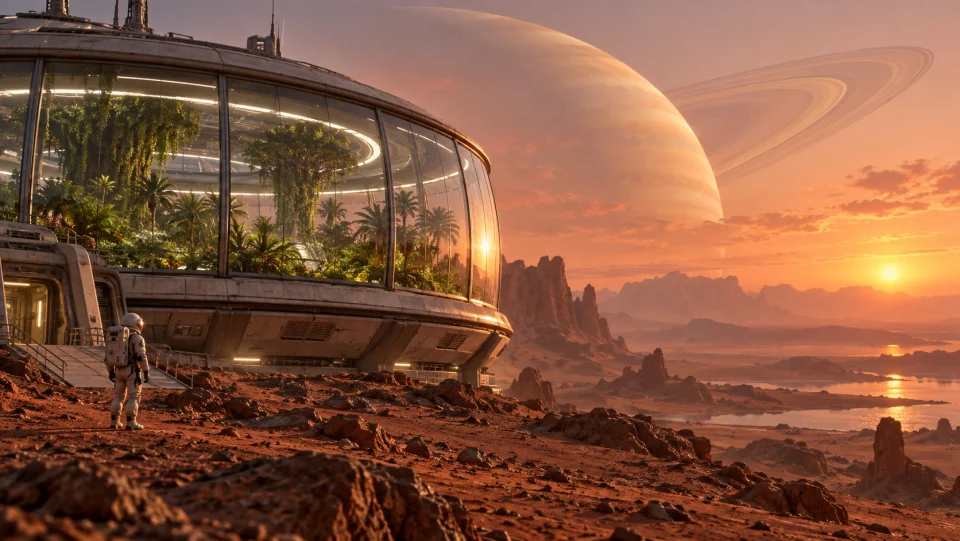
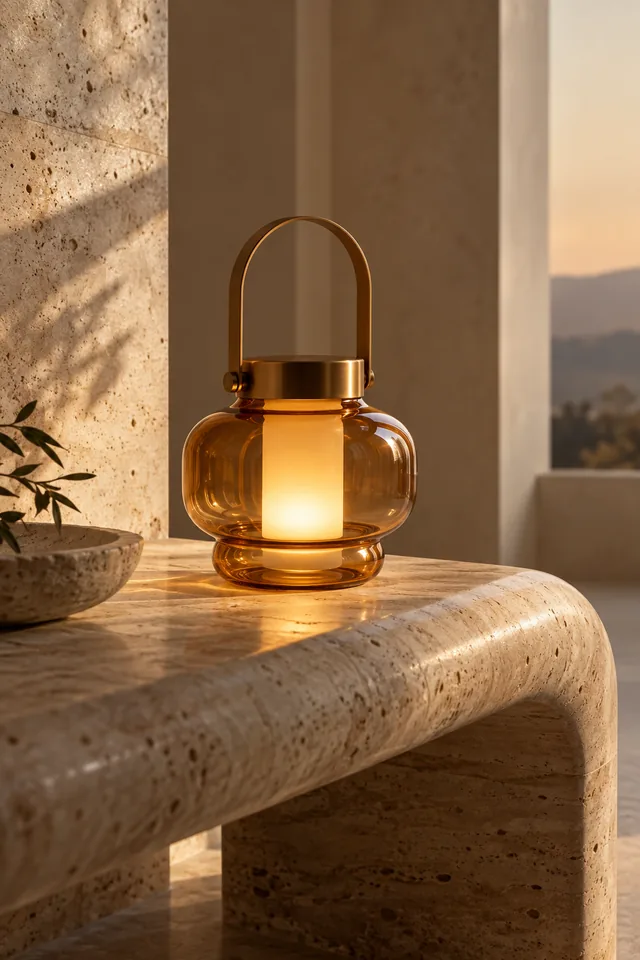
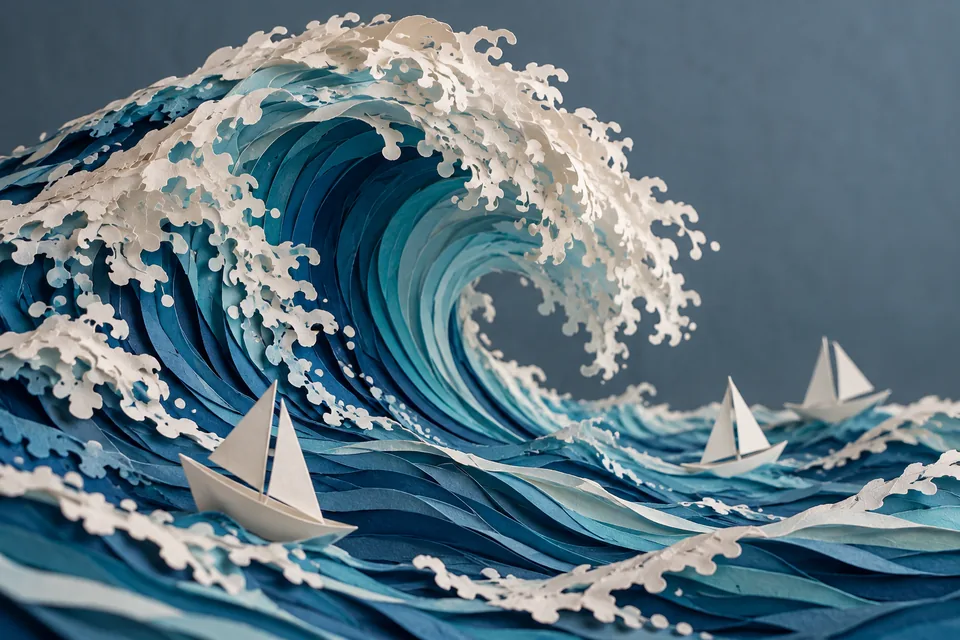
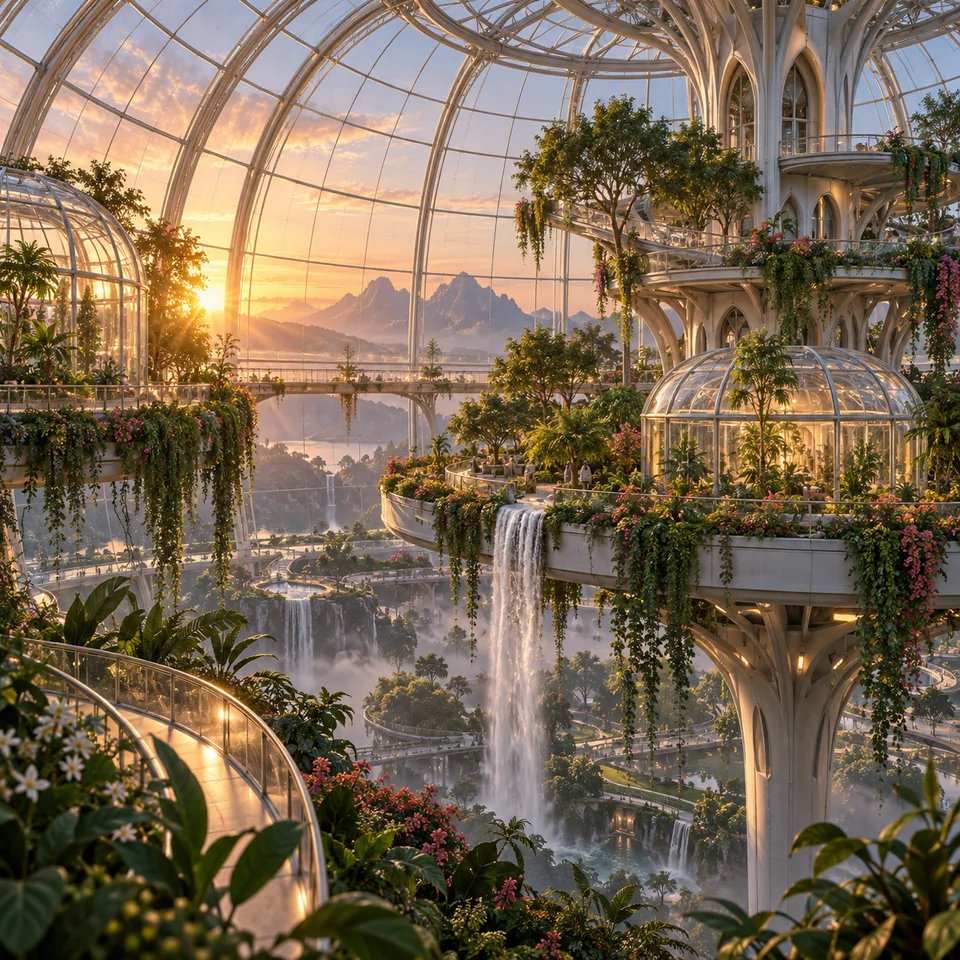
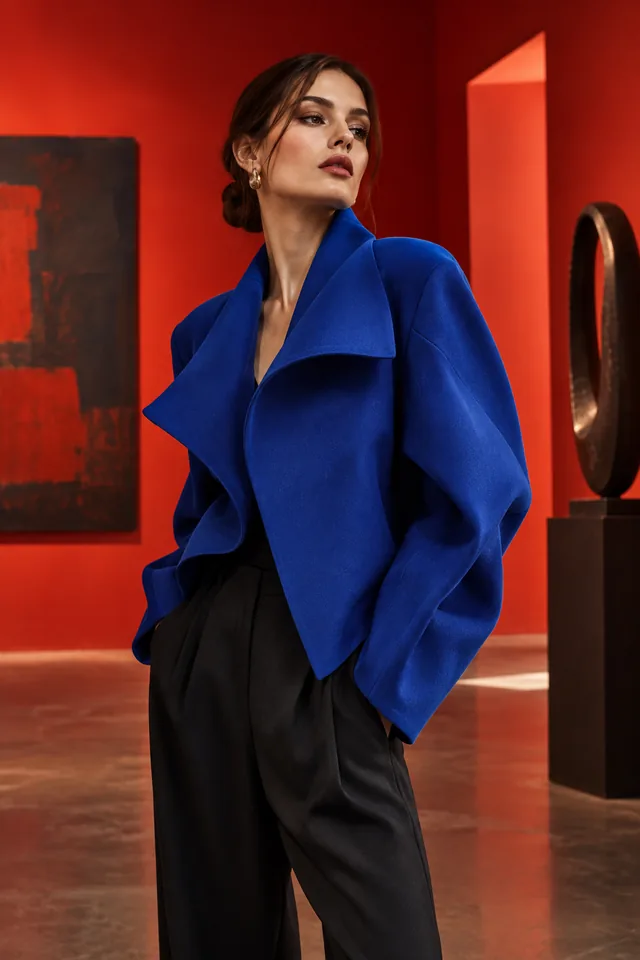
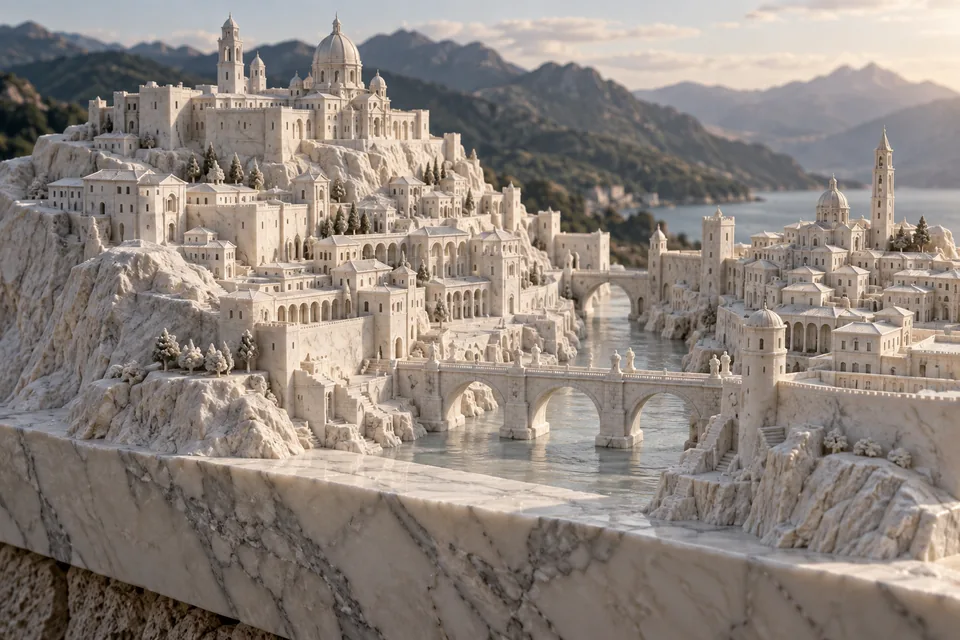
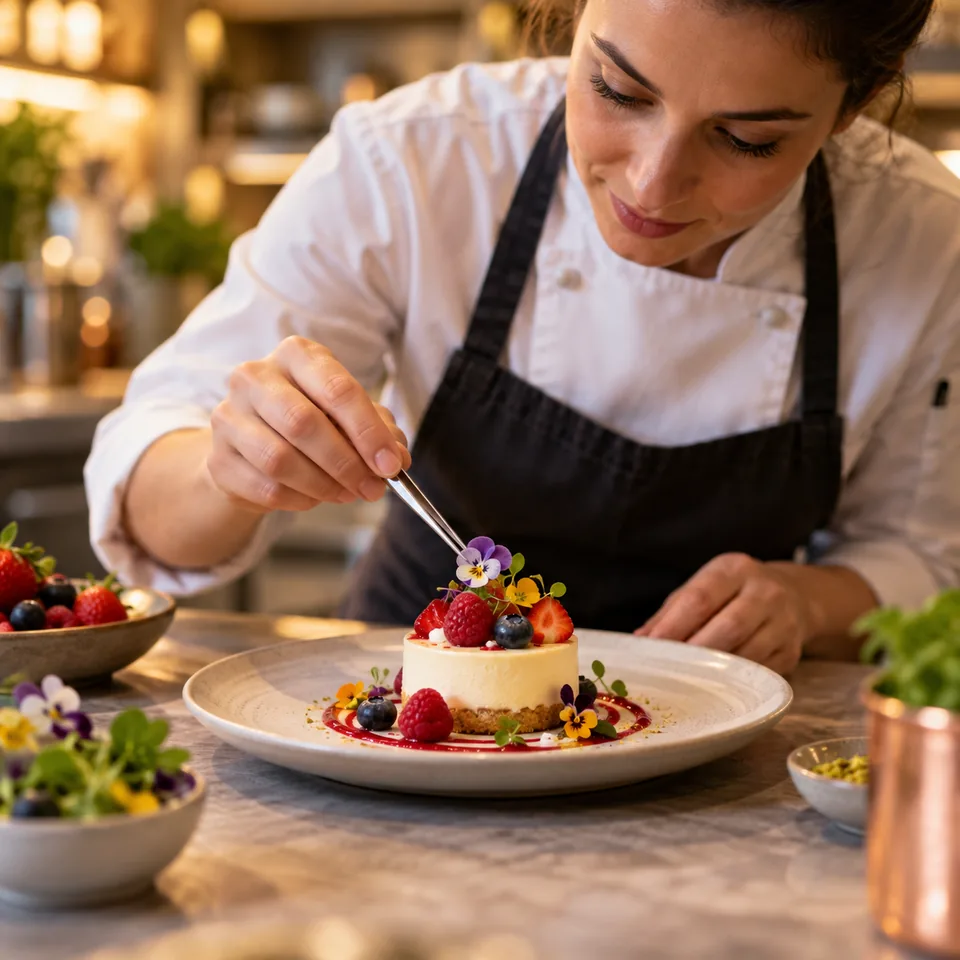
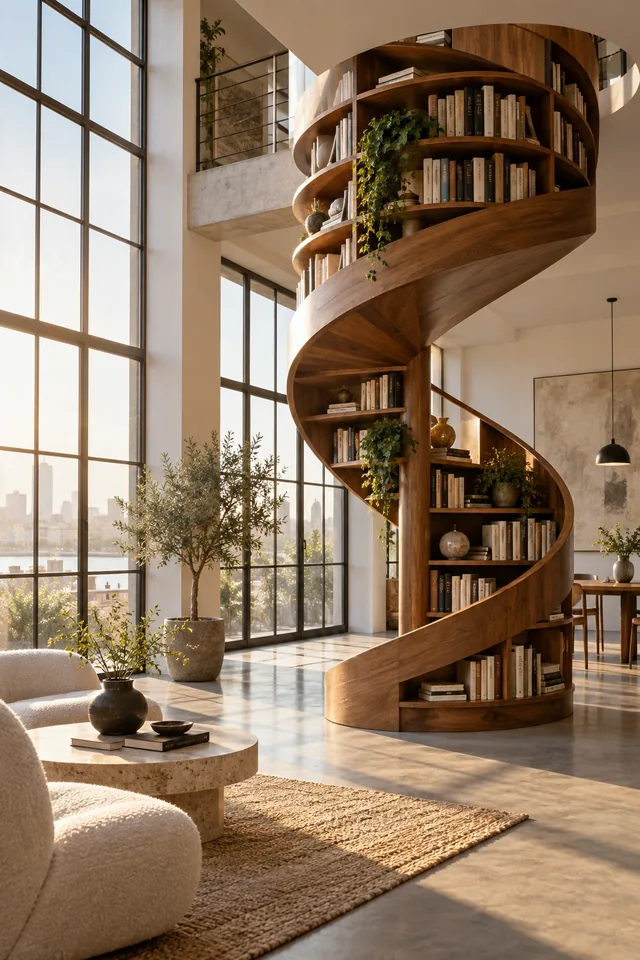
Create images from text or edit your photos online with GPT Image 2.5. Choose Flare for speed or Sunburst for precise edits.
0 / 5000
PNG
Prompt, files, and settings stay in this browser for 24 hours.
The exact credit amount is shown before generation.
Finished images will be delivered privately to your account.
Creative inspiration
A few directions to explore
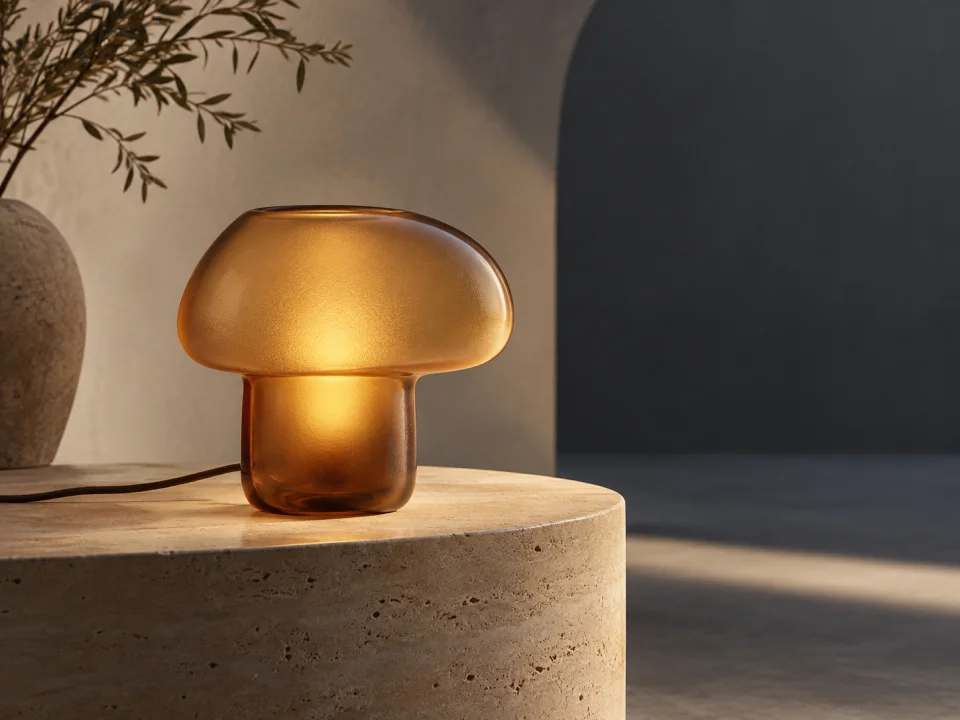
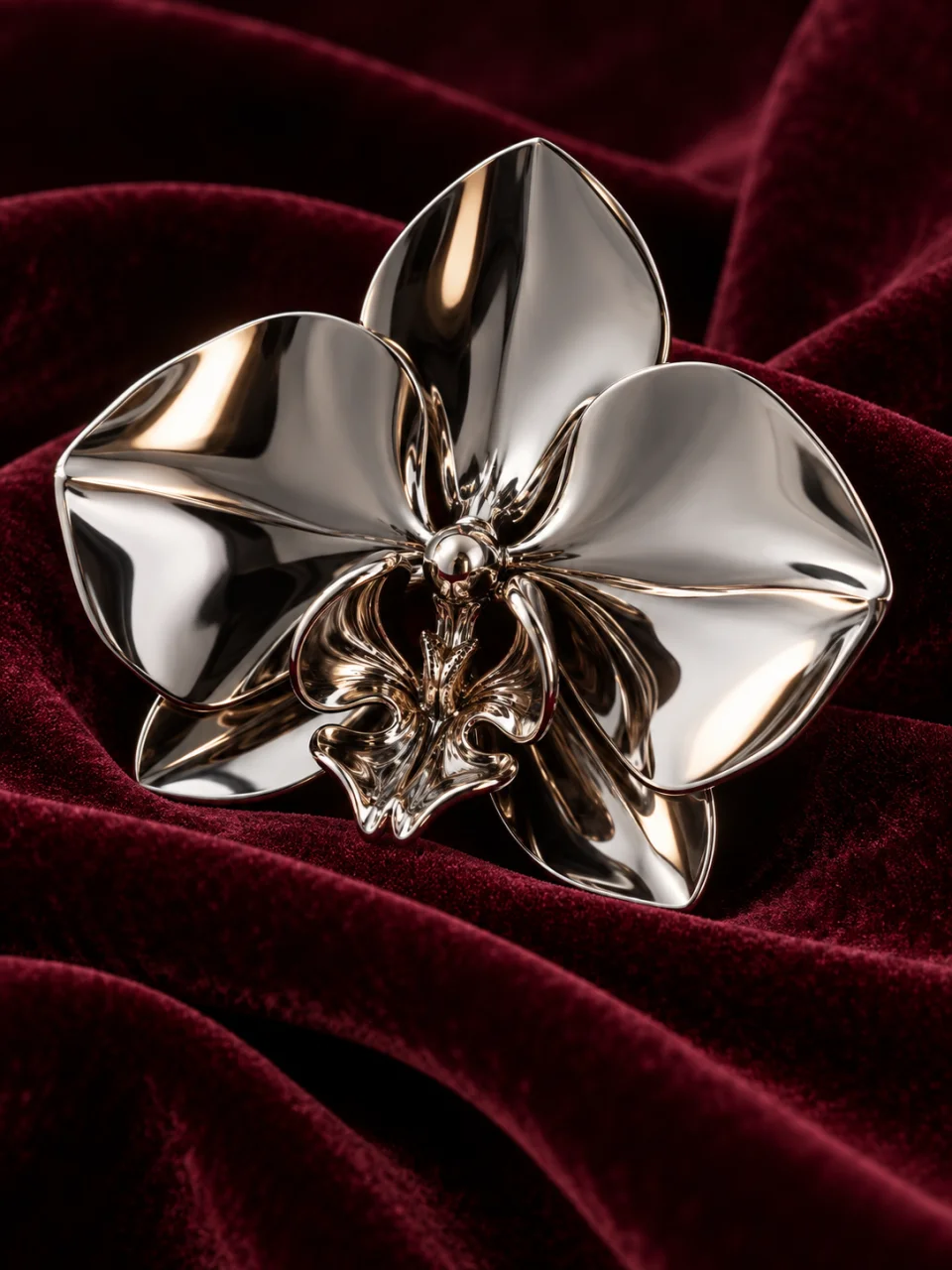
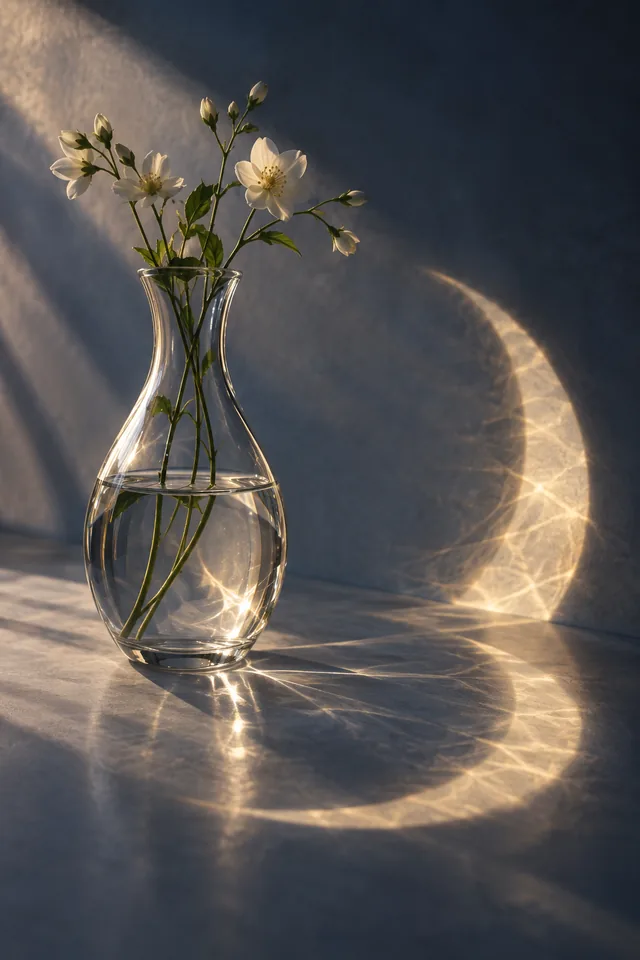
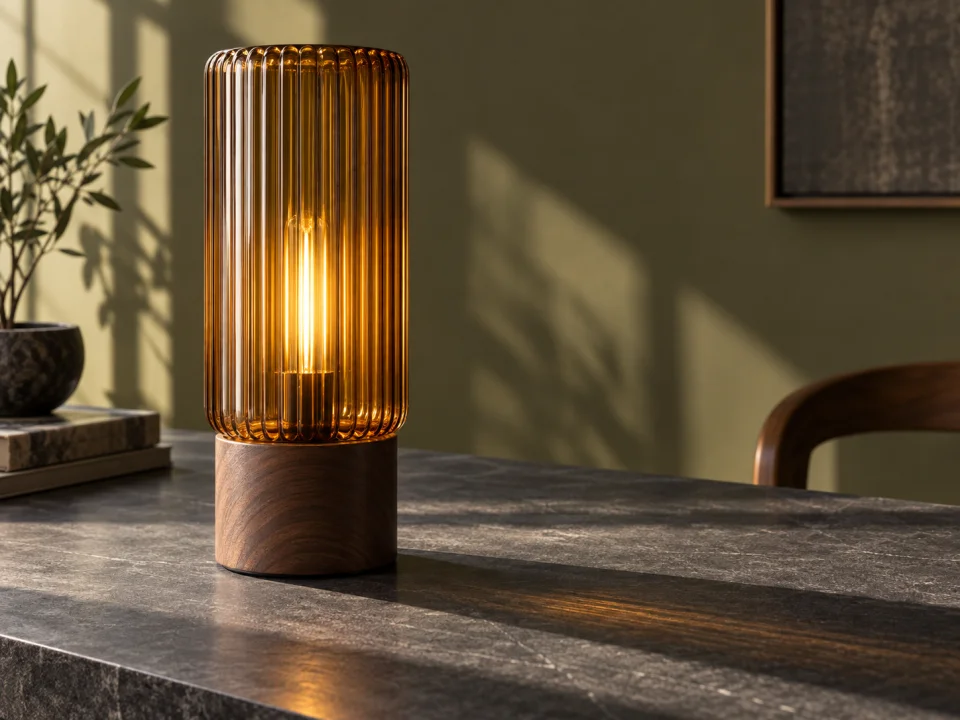
Material and lightInspect the glass finish, outline and shadow separately.
Create something useful
GPT Image 2.5: choose Flare or Sunburst
GPT Image 2.5 turns a written idea or an uploaded picture into a new image. Use it online for product scenes, illustrated stories, social posts and photo edits. Movelume brings its two modes, Flare and Sunburst, into the same generator. Start with the kind of picture you need, choose a mode, and set the shape before you generate.
Flare for quick creative exploration
Choose Flare when you want to explore an idea without spending too long on the first version. It is the faster option for everyday image creation: a new background for a product, a playful illustration or a cover for your next post. Describe one clear subject and the mood you want. Once you have a composition you like, adjust a specific detail such as the color palette or lighting.
Sunburst for careful image editing
Choose Sunburst when a precise change matters more than speed. You might want to put a product in a different setting, change the material of an object or refine a scene with several important details. Upload a reference when the subject already exists, then explain what should stay recognizable. Sunburst can take longer than Flare. Both modes also create new images from text, so an uploaded photo is optional.
Build a product scene around your photo
A clear product photo gives your image edit a useful starting point. Place a lamp on a bedside table, show a ceramic cup beside breakfast or explore a seasonal background for a gift. Describe the surface, light and surrounding objects instead of asking for a vague premium look. For example, ask for soft window light, a pale wood table and room on the right for your headline. Keep the original product photo handy to check recognizable details.
Make illustrations and social graphics
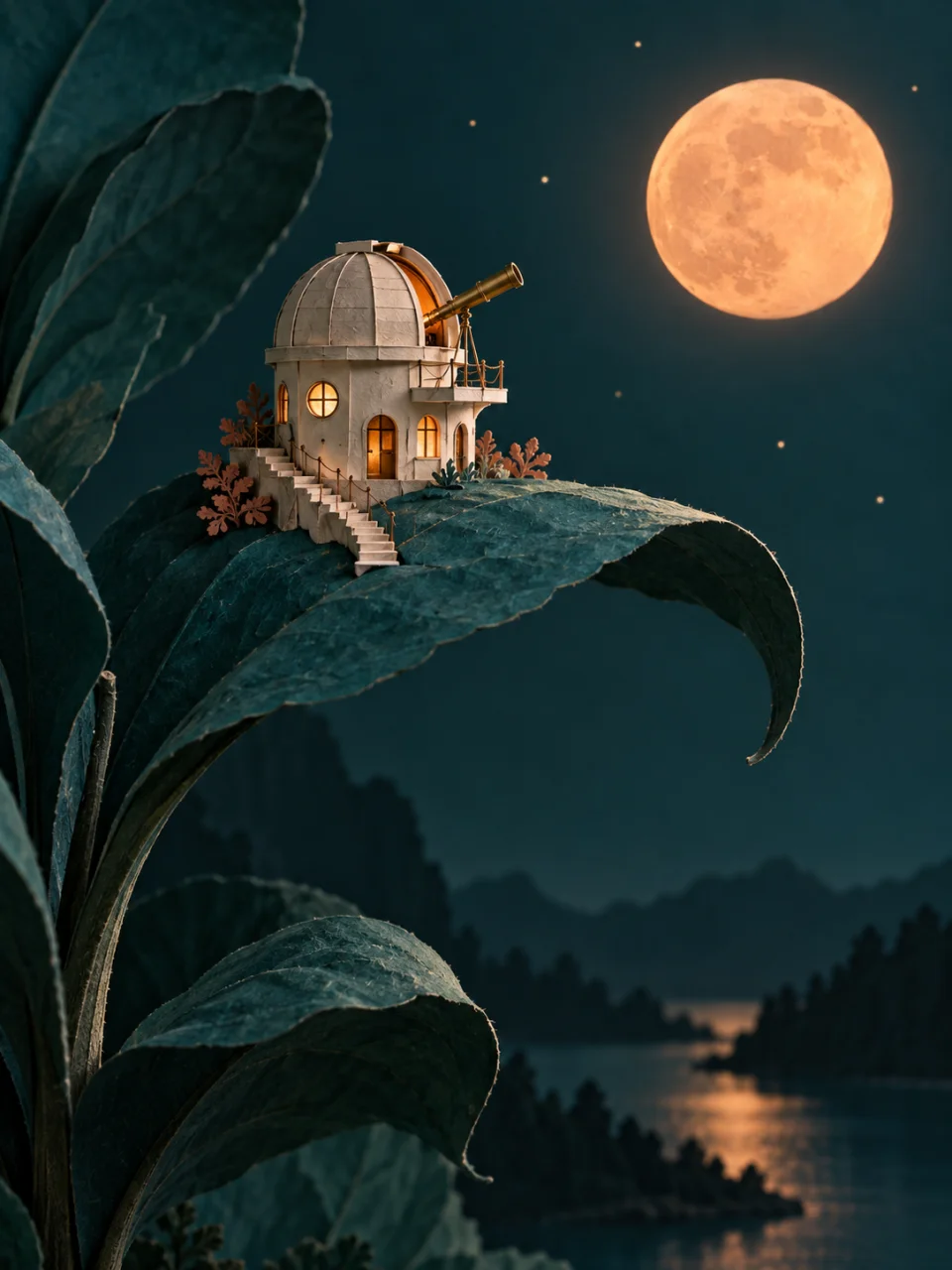
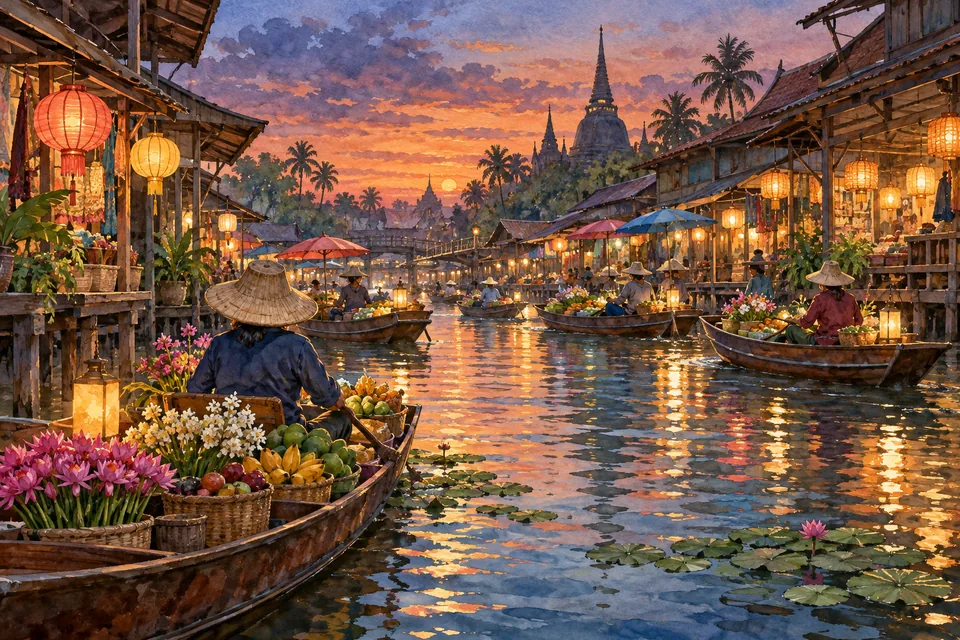
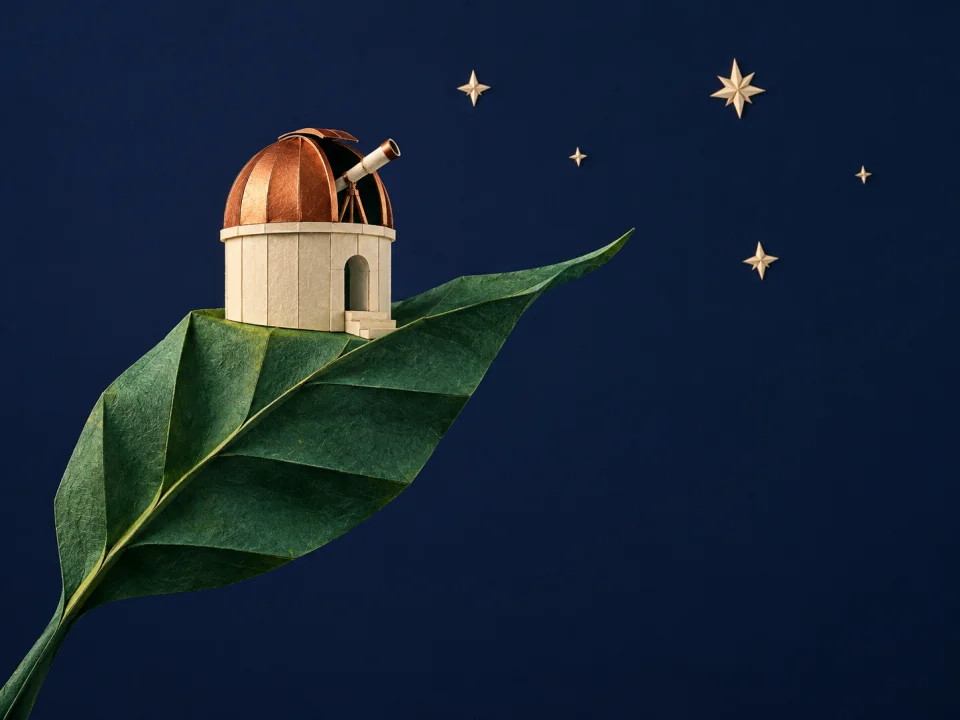
Start from text when you want an original scene rather than a change to an existing photo. Describe a small paper observatory, an imaginary garden or an illustrated shopfront, then choose a style such as cut paper, watercolor or clean editorial drawing. For a social post, decide where any headline will go before generating. Leaving open space around the subject makes the picture easier to crop and combine with your own text later.
A clear focal pointOne small observatory, one large leaf and a restrained palette.
Start with a clear idea
GPT Image 2.5 prompts and photo edits
A useful prompt says what you are making, what should appear and how it should look. You can write in ordinary sentences; there is no special format to learn. Start with a short description of the subject, framing and light. The examples below are original starting prompts you can adapt to your own image, rather than instructions you must follow word for word.
A prompt for a new product image
Try: “Create a product photograph of an amber glass table lamp on a cream shelf. Use warm afternoon window light, a soft shadow and a plain background. Place the lamp on the left and leave the right side empty for a headline.” Replace the object and colors with your own idea. Choose a wide shape if the image belongs in a banner, or a square for a compact social post.
An edit that changes the background
Upload your photo and try: “Place this lamp on a pale oak bedside table in a calm bedroom. Keep the lamp’s shape, amber glass and camera angle. Change the surroundings to a linen wall and soft morning light.” Naming both the change and the details to preserve helps communicate the edit. If the first result changes too much, return to the original photo and ask for a smaller, more specific adjustment.
Use references for different parts of the image
You can add up to sixteen reference images, but one or two may be enough. Explain their roles in order: the first photo shows the product, the second provides the room and the third suggests the colors. Avoid uploading several pictures that ask for conflicting views or backgrounds. Each additional reference adds credits to the edit, so choose images that contribute something the prompt cannot easily describe.
Ask for readable text and a useful layout
For a poster or invitation, include the exact words in quotation marks and say where they belong. A request such as “Place ‘Summer Studio’ in large dark lettering at the top, with the illustration below” is clearer than “add a stylish title.” Check the spelling in the finished image. If you need to change dates, translate copy or resize the design later, leave space and add the final wording in your usual design tool.
Pick the right settings
Image sizes, quality and credits
The settings shown here apply to GPT Image 2.5 on Movelume. Choose the frame for where you will use the image, then choose Medium or High quality. Flare and Sunburst use the same size choices. The generator shows the credits needed before you start, so you can choose settings that fit both the picture and your budget.
Choose a square, landscape or portrait image
Use 1:1 at 1024 × 1024 for a square post, 4:3 at 1024 × 768 for a landscape illustration, or 3:4 at 768 × 1024 for a portrait layout. For a wider composition, choose 16:9 at 1280 × 720; for a vertical story, choose 9:16 at 720 × 1280. Tell the model where the subject should sit, especially if you need room for a title or expect to crop the image afterward.
Decide how many credits to use
A new image costs 4 credits at Medium quality or 14 credits at High. Reference edits add 2 credits for each uploaded image: an edit with one reference is 6 credits at Medium or 16 at High. These amounts apply to both Flare and Sunburst. High quality keeps the dimensions you selected; it does not automatically make the picture larger. Check the displayed total before clicking Generate.
Download one finished PNG
Each generation produces one PNG image with a solid background. Download the result from your workspace, then use it in your post, presentation or design. Before publishing, take a quick look at small lettering and any details that need to match a real product. If you need a different background, color or composition, use the image as a reference for another edit and describe the change you want.
From idea to image
How to use GPT Image 2.5 online
01
Write a prompt or upload a photo
For a new picture, choose Text to image and describe the result. To change an existing picture, choose Reference edit and upload your image. Include the subject, setting and most important detail in your prompt. Use images you own or have permission to edit.
02
Choose your mode and frame
Select Flare for faster everyday creation or Sunburst for edits where precision matters. Choose the image shape and Medium or High quality. Sign in, check the displayed credit amount and click Generate. You can change these settings without leaving the page.
03
Download or make another edit
Open the completed image in your workspace and download the PNG. If you want a variation, keep the parts you like and describe one change, such as warmer light or a simpler background. A focused edit is easier to direct than starting the whole idea again.
Plans for image and video
Pricing
Annual plans are billed upfront. The same plan credits refresh every 30 days and expire at the end of that window; unused subscription credits do not roll over.
Free
$0/ month
Explore the workspace and prepare a first request before choosing a paid plan.
01What is the difference between Flare and Sunburst?+
Flare focuses on faster everyday image creation. Sunburst focuses on editing precision and can take longer. Both accept text prompts and reference images. Choose the mode separately from Medium or High quality; they are two different settings, not names for the same choice.
02Can I use GPT Image 2.5 for free?+
You can explore the generator and its settings before signing in. Creating or editing an image on Movelume requires an account and enough credits. A new image starts at 4 credits. Check your account balance and the displayed cost before generating; this page does not offer unlimited free images.
03Can I edit an existing image with GPT Image 2.5?+
Yes. Choose Reference edit, add one to sixteen images and describe what you want to change. You can ask for a new setting, different colors or a revised composition. State which details should remain the same, especially when the image includes a recognizable product or person.
04Does this generator support 4K or transparent backgrounds?+
Not currently. Movelume offers the five image sizes listed above, with a longest edge of up to 1280 pixels. Downloads are PNG files with a solid background. Transparent backgrounds, custom dimensions and editing a selected area with a mask are not available in this generator.
05Can I still choose GPT Image 2 or Nano Banana Pro?+
Yes. Open the model menu to choose another available image model. GPT Image 2 and GPT Image 2.5 appear together, with 2.5 first; Nano Banana versions have their own group. Check the available settings and credits after switching, because they can differ between models.
Your next image
Create your next image with GPT Image 2.5
Start with a prompt or a photo. Choose Flare or Sunburst, set your frame and make an image for your next project.