Turn a scene description or one starting image into a short video. Choose Pro or Fast, set the clip length, and describe the movement and sound you want to explore.
Start frame
01Switch models without leaving the shared workspace.
02See the final credit cost before every generation.
03Find finished work in your results and history.
Made with LTX 2.5
Paper, glass, and a starting image
Paper sails in motionA six-second LTX 2.5 Fast text-to-video sample with a simple rotating subject.
Glass moving into ceramicA six-second LTX 2.5 Pro sample explores a short action and a closer camera view.
Plan one moving scene
Plan a scene that works in a short clip
LTX 2.5 is a video model from Lightricks. Use it to develop a compact visual idea with motion and audio: a moving object, a quiet environment, or a camera move around a subject. A useful brief describes what changes during the shot, rather than only what the opening frame looks like. Keep the action readable within the selected duration. After generation, watch the entire clip and compare its beginning, middle, and ending with the scene you intended.
Give the subject one clear action
Start with an action that can be understood without a long explanation. Paper sails turning in a breeze, a marble rolling into a dish, or a curtain moving beside a window give the model a visible sequence to work with. Identify the subject, its material, and where the movement begins and ends. Avoid asking a short clip to introduce several characters, change locations, and complete a complicated story. More instructions can create competing demands rather than a more useful result.
Distinguish camera movement from object movement
Explain whether the camera stays still or moves through the scene. A slow push toward an object changes its scale in the frame; a sideways move reveals different surfaces; a static view makes the object's movement easier to judge. Describe the motion you need in plain language. Then check whether the background and subject behave consistently. A smooth-looking camera move can still reveal bending edges, changing proportions, or an object that slides when it should stay in place.
Describe sound as part of the scene
Include a short description of the sound when it matters: light paper rustling, glass touching ceramic, or a quiet room tone. Separate those sounds from any speech or music you want. Generated audio needs its own review; a visible impact may sound late, an unwanted voice may appear, or a background sound may dominate the shot. Listen to the downloaded clip before using it in a project, and plan to replace or edit audio when the timing or content must be precise.
Leave space for the intended placement
Choose a horizontal or vertical frame around the place the clip will appear. Keep important action away from edges that may be cropped by a feed or player. If you will add a title later, describe an uncluttered area rather than relying on long generated lettering. Review the video at the size your audience will see, as well as at a larger size for detail checks. A composition that looks attractive as a still frame may become cramped once the subject moves.
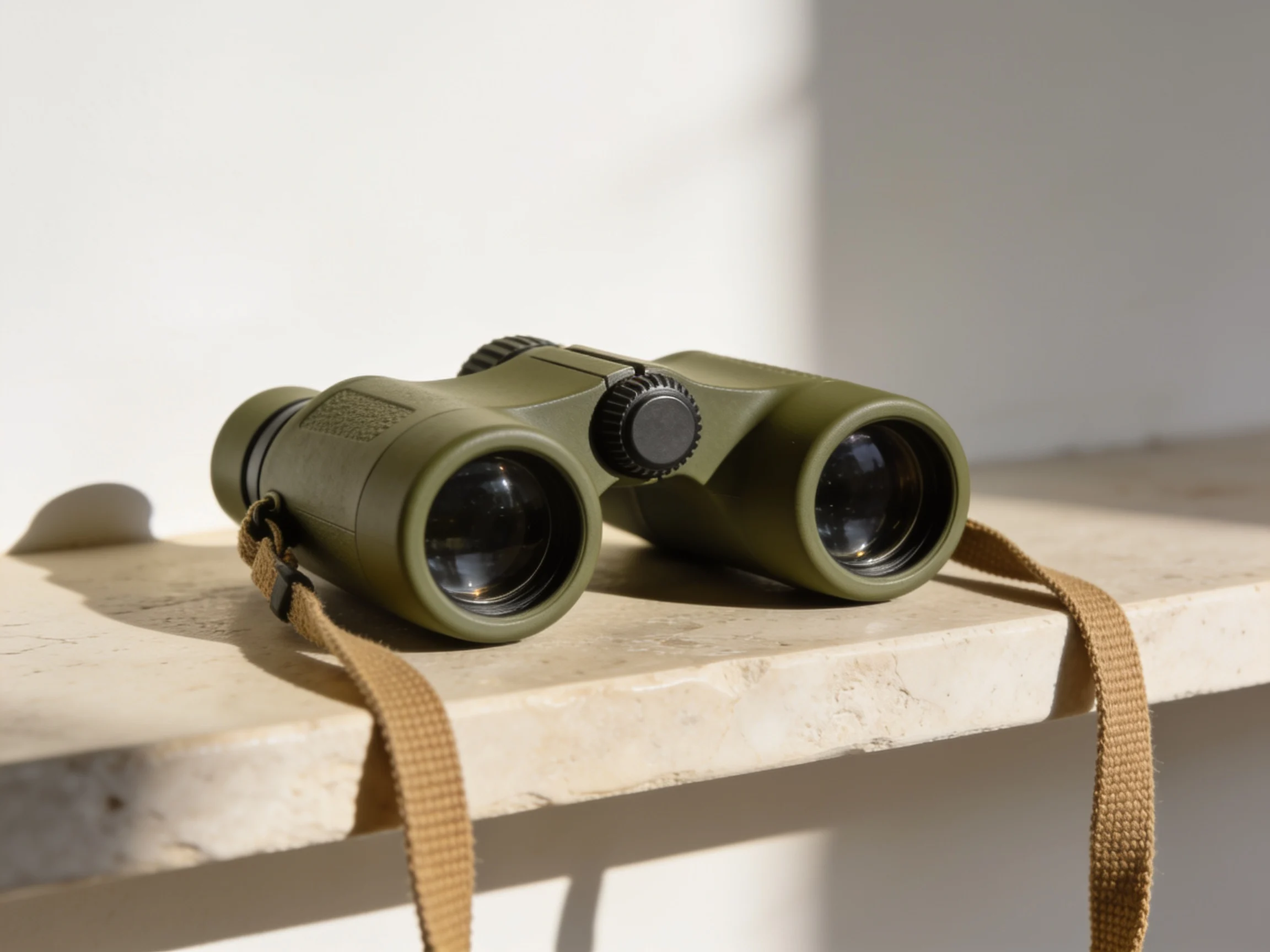
Starting imageA Seedream 4.5 image used as the source for this LTX 2.5 video.A closer view of the starting objectLTX 2.5 Fast animates the starting picture. The viewing angle changes while lenses, focus wheel, and strap remain recognizable.
Animate a starting image
Animate one starting picture
Use image-to-video when you already have the appearance and composition you want to begin with. The image supplies a visual starting point, while your prompt explains the movement, camera behavior, and sound. It does not lock every feature for the whole clip. Keep a copy of the source for comparison, and inspect recognizable details as the scene develops. This workflow starts from one image; it does not require an ending frame or combine several reference pictures.
Choose a source that explains the subject
A clear source image helps you judge whether the generated motion keeps the important features recognizable. Look for complete outlines, readable materials, and enough surrounding space for the proposed action. A close crop can leave the model to invent unseen parts as the camera moves. Avoid references with important text or tiny details that must remain exact. Use images you have permission to animate and remove personal information that is irrelevant to the scene.
Ask for movement rather than a new photograph
Describe what happens after the starting image. For a product, this might be a restrained camera push and a subtle change in light. For an illustrated object, it could be a small repeated motion. Keep the subject description consistent with the source rather than asking for a different object halfway through. Review the result for changes to handles, wheels, facial features, markings, or other details that carry the subject's identity. Similar overall color is not enough to establish continuity.
Choose Pro or Fast for the current attempt
Pro and Fast are separate choices with different available output settings and credit estimates. Select the version before reviewing the clip length, resolution, and frame rate. Fast is useful to consider when exploring an idea within a smaller budget; Pro is another option to evaluate against your own brief. The names do not guarantee a particular completion time or a better result for every scene. Compare the returned clip, and avoid changing several settings before you understand what needs improvement.
Check the combination of output settings
The available durations depend on the version, resolution, and frame rate. Pro offers 6, 8, or 10 seconds; Fast offers longer options for supported combinations, up to 20 seconds. Higher resolution or frame-rate choices can reduce that maximum. Choose from the combinations shown in the generator and review the estimate after making changes. A larger file or higher frame rate does not by itself fix inconsistent motion, incorrect details, or sound that fails to match the action.
Picture, sound, and cost
Review the whole result before using it
Treat each clip as a generated interpretation of the brief.
Watch continuity and listen separately
Watch for objects appearing or disappearing, shifting shapes, sudden camera changes, and an ending that cuts off the action. Check the soundtrack separately from the picture. Keep the original clip before making edits so you can compare versions without losing the starting result.
Review every new request
Preparing a prompt does not start a paid request; generating a new clip has its own cost, which you should review for the selected settings. Follow the current task in the workspace instead of creating another request while waiting. Decide what needs changing before paying for a new attempt.
From brief to clip
How to prepare an LTX 2.5 video
01
Choose text or a starting image.
Use text for a new scene, or add one clear image when its appearance should guide the opening. Decide what will move.
02
Write a short scene brief.
Describe the action, camera behavior, light, and sound. Keep the sequence manageable within the clip length.
03
Review version and output.
Select Pro or Fast, an available duration, resolution, and frame rate. Check the credit estimate before generating.
04
Watch, listen, and download.
Review the full clip for continuity and audio. Keep the original and make final trims or sound changes in your editor.
Plans for image and video
Pricing
Annual plans are billed upfront. The same plan credits refresh every 30 days and expire at the end of that window; unused subscription credits do not roll over.
Free
$0/ month
Explore the workspace and prepare a first request before choosing a paid plan.
01Can I create a video without uploading an image?+
Yes. Text-to-video begins with a scene description. Image-to-video uses one starting picture together with instructions for movement and sound. Choose around whether you already have a composition to preserve.
02Does this page install the open-source model locally?+
No. This page provides an online generation workflow in Movelume. Local setup, model downloads, hardware requirements, and training are separate tasks and are not part of this generator.
03How long can the clip be?+
Pro provides 6, 8, or 10 seconds. Fast supports up to 20 seconds in eligible combinations, with shorter limits at higher resolutions or frame rates. The generator shows the choices for your current settings.
04Can the video include sound?+
Yes. Describe the relevant sounds in the scene, then listen to the result. Generated audio can contain timing or content errors, so edit or replace it when precise synchronization or wording is essential.
05What determines the cost?+
The selected version, resolution, and duration affect the estimate. Review it before starting each request. A new attempt is a separate generation, even when you keep the same prompt or source image.
Your next video
Make the next shot easy to evaluate
Choose one action and a clear camera direction. Review the output settings, then judge the returned clip against the movement and sound you actually need.