
Sculptural still life
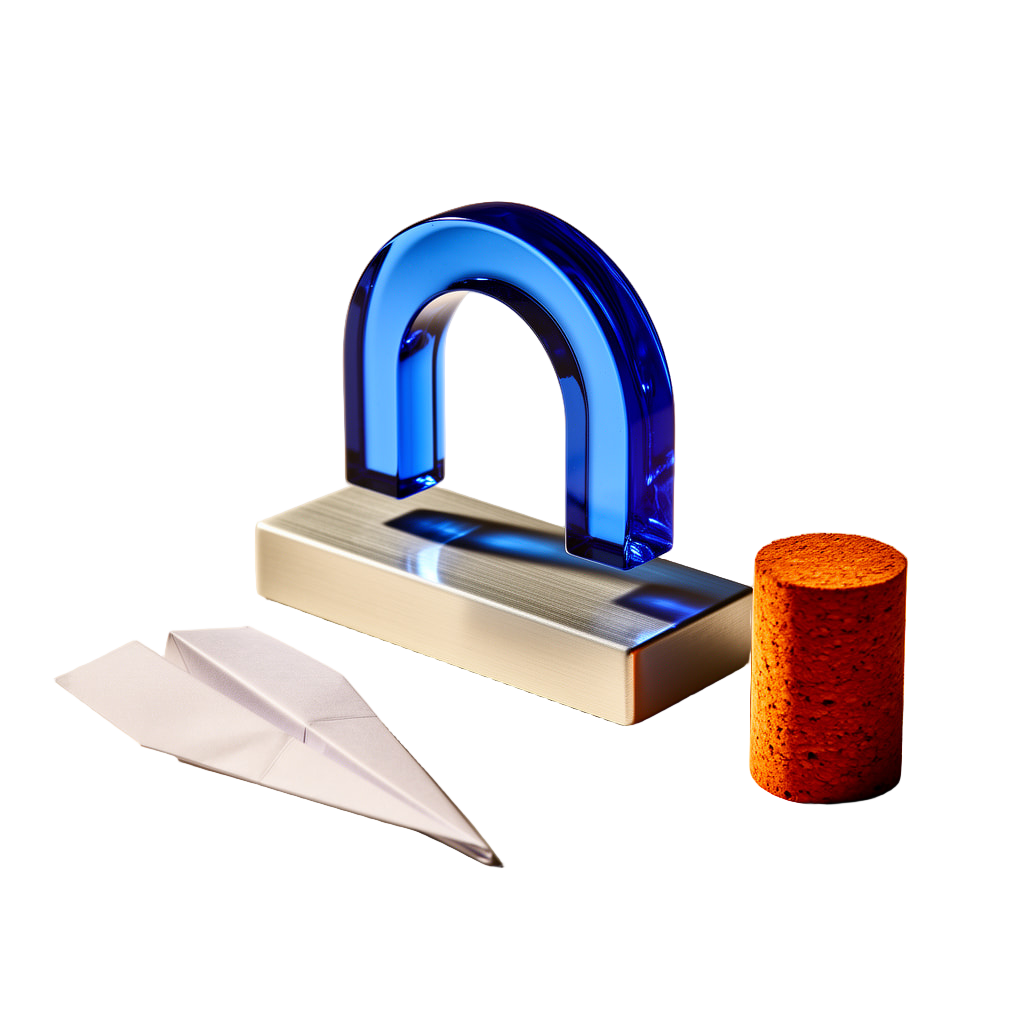
 OriginalBackground removed
Drag to compare · Arrow keys supported
Reflections can retain colors from the original scene. Review the edges against your intended background.
Remove the background from a photo or artwork online. Keep the subject and download a transparent PNG for your next layout.
or drop it here
JPG, PNG or WebP, up to 10 MB. Choose a clear image with the whole subject in view. Large images are resized to fit 4096 pixels.
Review the credit cost before processing. The download keeps transparency.
Checking account…Compare saved examples, then try a different backdrop to inspect the edges.
OriginalBackground removedDrag to compare · Arrow keys supported
Reflections can retain colors from the original scene. Review the edges against your intended background.

 OriginalBackground removed
Drag to compare · Arrow keys supported
Check every object you want to keep. Small foreground details may be removed along with the background.
Upload a JPG, PNG or WebP from your device, or open one of your completed Movelume images and choose Remove background. Start with the original file when possible: a screenshot or repeatedly compressed copy can lose the edge detail that separates the subject from its surroundings. Keep the whole subject inside the frame, including handles, hair and any accessories you want to retain.
Sign in and check the credit cost, then choose Remove background. The AI background remover keeps the main subject and removes its surroundings without asking you to trace an outline. You can use a photo, illustration or artwork as your starting point. For a product with several matching shots, check the selected preview so you get the view you want for your design.
Inspect the finished image before placing it in a design. Look at the outer silhouette, spaces inside the subject and small details that might have been mistaken for background. Download the transparent PNG rather than taking a screenshot of the preview. A screenshot includes whatever backdrop your screen displays, while the PNG lets another editor show its own background through the removed areas.

 OriginalBackground removed
Drag to compare · Arrow keys supported
Choose an image where the foreground stands apart from the scene in color, lighting or focus. Dark hair against a dark wall and pale objects against bright highlights can make the boundary ambiguous. If you can reshoot, use even light and a less cluttered background. Avoid cutting off the subject before upload: background removal cannot reconstruct a missing corner, hand or part of a product.
Separate a bottle, shoe, accessory or other clearly defined product from a distracting scene. A cutout can be placed in a shop banner, presentation or product comparison without carrying the entire photograph into the layout. Inspect thin straps, openings and nearby props carefully: an automatic selection may keep the main product but remove a small object you intended to include. Add final spacing and any replacement background in your design editor.
Isolate a person for a presentation, profile layout or editorial graphic. A sharp outline around shoulders and clothing is easier to reuse than a busy room or outdoor scene. Loose hair, translucent fabric and motion blur are more demanding, so judge those edges against the background you plan to use. The tool removes surroundings; it does not retouch skin, change an expression or recover hair that was already cropped out.
Turn a standalone illustration or a completed Movelume image into a reusable visual element. This is useful when the subject works but the original background does not suit a slide, collage or campaign composition. Keep the original as a separate version so you can compare the result or choose a different crop later. For a new subject, create an image first and then use the result action to bring it here.
Accepted files are JPG, PNG and WebP, up to 10 MB. Each side must be between 256 and 8192 pixels, with no more than 64 megapixels overall. Large images are resized to fit within 4096 pixels during preparation. Choose a clear source at an appropriate size for your intended layout; enlarging a blurry small image before upload does not create reliable edge detail or guarantee a sharper cutout.
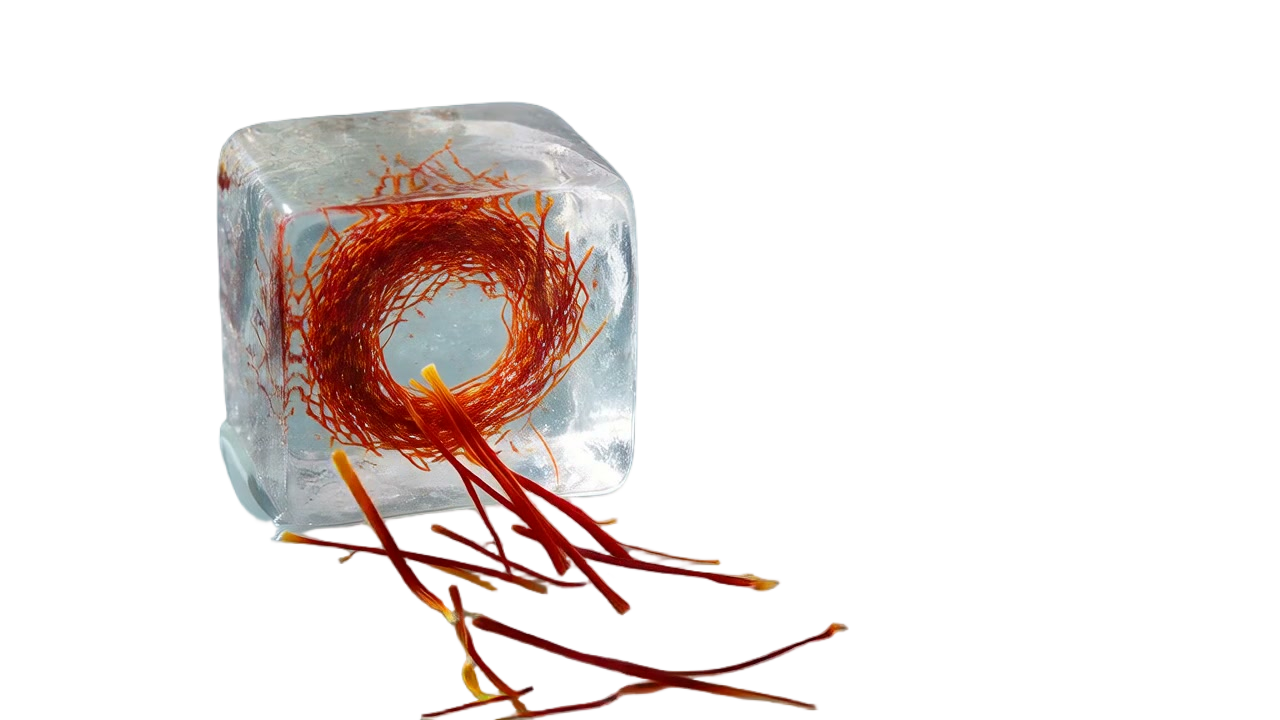
 OriginalBackground removed
Drag to compare · Arrow keys supported
The ice cutout still contains colors from the original scene. Compare the outer edge and the inside of the object separately.
Fine strands, fuzzy fabrics and soft shadows do not have the same clear boundary as a solid object. Examine the result at a useful viewing size and look for missing wisps or a light fringe around the silhouette. In the mineral-vessel example above, a small foreground stone is removed with the background. Use that example to judge whether automatic removal suits a composition where every separate object matters.
A transparent PNG does not mean a photographed glass object becomes optically correct on every new background. Glass, ice, water and polished surfaces can contain colors or reflections from the original scene. Removing the surrounding area can leave those colors inside the subject. The ice example shows this distinction. If your new layout uses a very different backdrop, inspect the interior of the object as well as its outline.
Plans for image and video
Annual plans are billed upfront. The same plan credits refresh every 30 days and expire at the end of that window; unused subscription credits do not roll over.
Explore the workspace and prepare a first request before choosing a paid plan.
For occasional image and video experiments with a predictable monthly ceiling.
Subscriptions renew automatically at the selected monthly or yearly rate until canceled. Cancel future renewals in your account.
For creators who iterate every week and need room for several directions.
Subscriptions renew automatically at the selected monthly or yearly rate until canceled. Cancel future renewals in your account.
For sustained, high-volume creation and access to the highest available output quality.
Subscriptions renew automatically at the selected monthly or yearly rate until canceled. Cancel future renewals in your account.
Prices are in USD. Subscriptions renew automatically; credit packs are one-time purchases.
Compare plansProcessing uses Movelume credits. Browsing the examples is free, and selecting an image does not start a paid removal. Sign in to see the credit cost before you confirm. If you need more credits, visit Pricing to compare the available plans and allowances. Check the selected image before confirming so you spend credits on the version you want to use.
Choose Download when the cutout is ready and keep the PNG file. It has a transparent background around the retained subject, so you can place it over another color or image in an editor. A checkerboard in the preview helps show the empty area; it is not part of the cutout. Avoid saving the cutout as JPG if you need transparency, because JPG fills the empty area with a solid background. Your original photo stays separate from the downloaded PNG.
The example controls let you inspect cutouts against different preview backgrounds. Those choices do not create a new image or change the downloaded PNG. To produce a final white, colored or photographic background, place your downloaded cutout over that background in a design editor and export the finished composition in the format you need.
Large inputs are resized during preparation to fit within 4096 pixels, so the output should not be treated as an untouched full-resolution copy of an oversized source. Background removal also does not add detail or upscale a blurry photograph. Check the downloaded dimensions before using a cutout in a large print layout, and keep the source file for future editing.
Yes. Open a completed image you own and choose Remove background to use it as the starting image. You do not need to download it and upload it again. The source must still be available in your account. A saved history entry may remain after its downloadable image expires, so keep your own copy of results you need long term.
This tool performs automatic background removal for one image at a time. It does not include a brush for restoring missing regions, manual object selection or batch processing. If a detail matters and the result removes it, keep the original and use a manual editor for that correction. Repeating the same input is not a guarantee that the selection will change.
An edge that blends into a pale preview can become visible on a dark layout, and the reverse is also true. Reflected colors and soft edges can affect the transition. Check both light and dark backdrops, then inspect the result on the actual background you intend to publish. For a portrait, look around the hair and shoulders; for a product, check handles, gaps and any shadow you want to keep. View the design at its final display size as well as close up, so you can judge which details need attention.
Open your history to see whether the image is still processing or ready to download. Closing the page or losing your connection does not necessarily stop the removal. If it is still processing, wait for its status to change before trying again; starting another removal may use more credits. If the image remains unavailable, contact support and tell us which image you were working on.
Start with one image and review the cost before processing.