
Templates

A moderate photo effect

AI muscle filter

Explore a moderate change to visible arm and shoulder definition in one still photo. Compare the result with your original before keeping it.

20 credits per preview · One image · About 1K PNG

or drop it here

One adult with shoulders and arms clearly visible. Use a photo you own or have permission to edit; keep ordinary clothing on. JPG, PNG or WebP up to 10 MB.

Choose your look

Selected: Moderate definition. One fixed moderate effect. Check the face, clothing, hands and background for unwanted changes. This is a visual effect, not a prediction of fitness results. Every preset starts from your original photo.

Checking account…

No model or prompt to configure. Each additional preview uses 20 credits. Plans & credits

One photo, one moderate effect

How to use the AI muscle filter

  1. 01

    Choose an adult photo with visible arms

    Upload one JPG, PNG or WebP up to 10 MB. Start with a photograph you own or have permission to edit. Include a clear face and enough of both arms to judge their shape. An ordinary short-sleeved top works better for comparison than a coat that hides the upper body. Keep clothing on and leave space around the elbows rather than cropping tightly into the area you want to change.

  2. 02

    Review the cost for Moderate definition

    There is one fixed effect: a restrained increase in visible arm and shoulder definition. Sign in, check the 20-credit quote and confirm when you are ready. You do not need to write instructions or choose an image model. Each new image costs another 20 credits. This photo effect uses your Movelume image balance; the separate single-video offers do not pay for it.

  3. 03

    Compare the edit and download your PNG

    Move the comparison slider between the original and the result. Check the face, sleeve edges, hands and nearby objects before judging the arm definition. Download the PNG if the whole photograph works for your purpose. Keep your original too: an edited picture is a creative interpretation, and small changes elsewhere may make it unsuitable even when the arms look convincing.

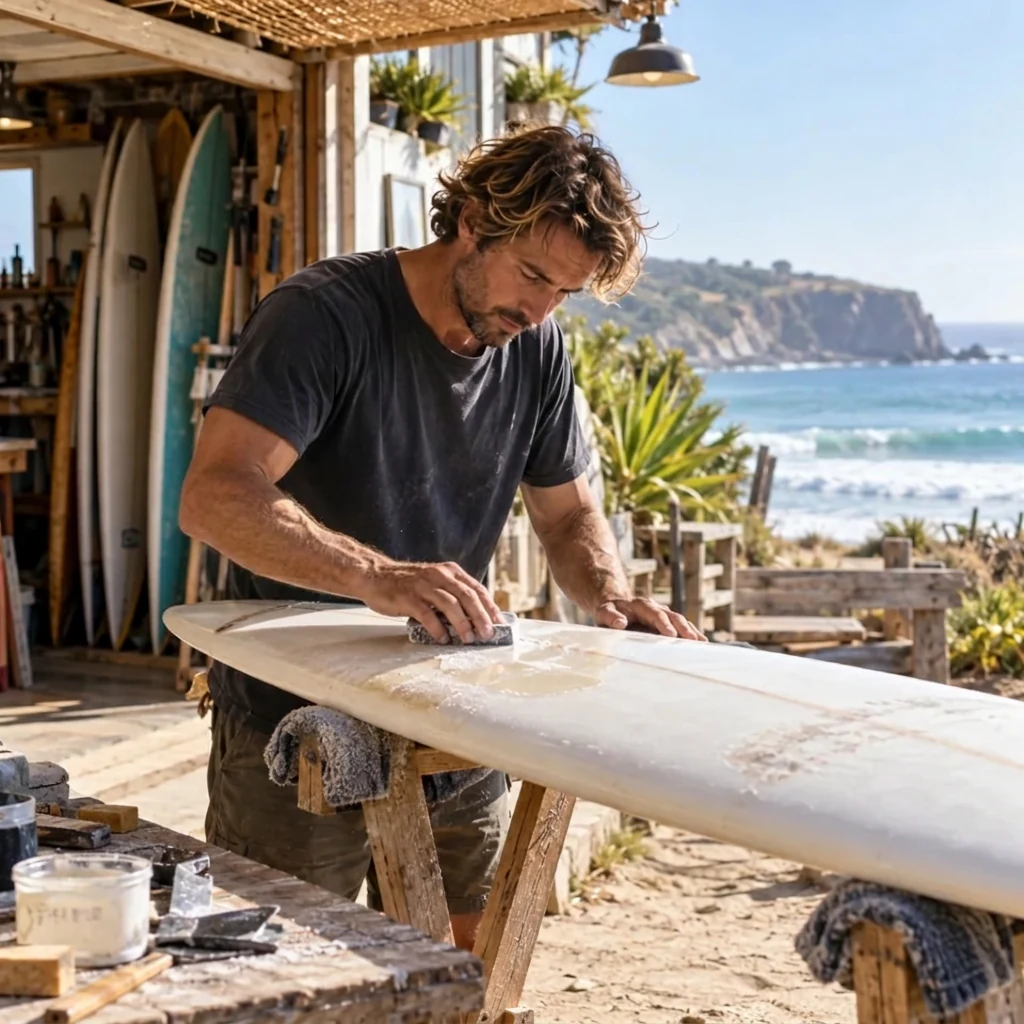
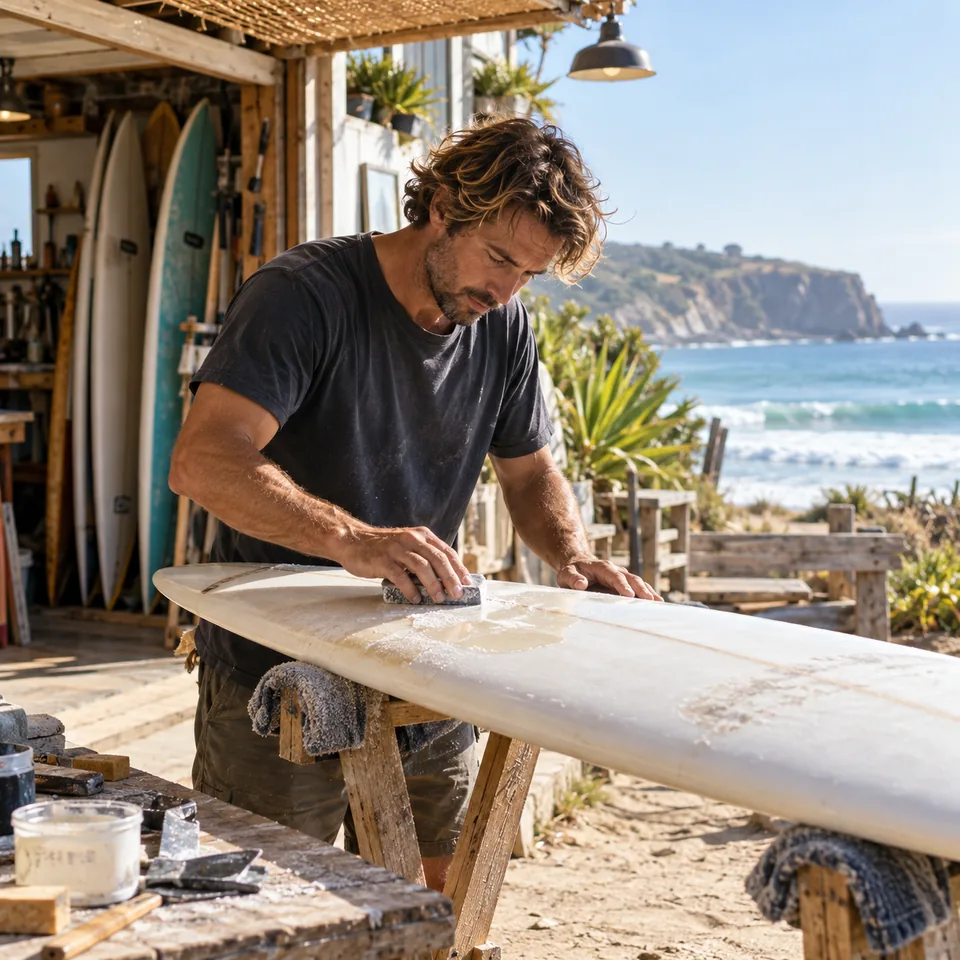
Synthetic adult sanding a surfboard, with a moderate AI arm-definition edit; clothing and working pose remain
Synthetic adult sanding a surfboard, with a moderate AI arm-definition edit; clothing and working pose remain, AI previewSynthetic adult sanding a surfboard, with a moderate AI arm-definition edit; clothing and working pose remain, OriginalOriginalAI preview

Drag to compare · Arrow keys supported

Read the actual comparison

A subtle muscle photo edit in an everyday scene

The AI muscle filter adds moderate definition to visible arms while aiming to keep the adult, clothing and setting recognizable. It produces a still image for comparison, rather than an animated transformation. The example uses a fictional AI-created adult, so it does not represent a real person or a real change in fitness.

  • Look at the arm outline, not only the shadows

    In this example, the person continues sanding a surfboard in the same coastal workshop. The exposed upper arm and forearm have a modestly fuller outline and more definition. The short-sleeved shirt stays on, the face remains recognizable, and the hands still meet the board and sanding tool. Compare these details at the same scale instead of deciding from a tiny thumbnail. The effect is intentionally limited. It does not turn the subject into an extreme bodybuilder, open the shirt or reveal the chest. The shoulders are covered, so this example cannot show the shape of muscles underneath the fabric. Some regenerated texture and small framing differences remain visible; treat the comparison as evidence of this one result, not a guarantee for every photograph.

Start with a readable photograph

Choose a photo that makes arm definition easy to assess

Use clear light and enough space

A moderately lit upper-body photograph makes the face, sleeves and arm edges easier to compare. Very dark shadows can already resemble strong definition, while harsh highlights can hide it. Choose a sharp source without a heavy body filter. Include the hands if they are near the arms, and leave background around the outline so you can spot any bending or smearing after the edit.

A small figure in a wide landscape gives the effect little detail to work with. A close crop can remove the shoulder or elbow that you need for judging proportions. Use a source that shows the actual area you want to edit. Enlarging a blurry arm does not supply an accurate view of anatomy that was missing from the original.

Keep ordinary clothing and realistic expectations

Short sleeves can leave enough upper arm and forearm visible for a useful comparison. A loose jacket hides those areas, so a muscle photo filter may produce a subtle or difficult-to-judge result. The effect aims to retain clothing and its coverage. Do not expect it to reconstruct a body underneath fabric or to show an accurate shirtless version of the person.

Use one adult rather than a group, and avoid hands or equipment completely covering the target area. The surfboard example includes both hands and a tool, which helps expose preservation mistakes. Your own photograph may present different challenges. A visible sleeve seam or a straight railing near an arm is a useful reference when checking whether the edit altered something unintended.

Make a careful comparison

Check the whole photo before keeping the stronger look

Follow the face, sleeves and hands

Start with recognition: compare the eyes, nose, mouth, hairline and expression. Then trace each sleeve edge and the outline of the arm down to the wrist. Watch for fabric that seems to melt into skin, an elbow that bends oddly, or a hand that no longer grips its object naturally. Moderate definition should still fit the pose and the person in the picture.

Inspect the background next. Check straight posts, a tabletop, the edge of a board and any object touching the body. Changes in those areas can be distracting even if the main subject looks good. Keep both images available and move the slider more than once. A plausible overall appearance does not prove that every small detail was preserved.

Decide whether the edit fits where you will share it

A restrained appearance edit can be useful for a playful portrait or a creative visual idea. If you share it where someone might mistake it for a genuine physical transformation, label it as an AI edit. Do not present it as a training result, a health assessment or evidence that a person changed their body. Ask permission before editing or publishing someone else’s image.

The result cannot predict muscle growth, strength, body fat or the effect of a workout. It also cannot tell you how your body should look. Judge it as an optional photograph effect. If the change feels unnatural or an important detail is wrong, keep the original rather than treating a generated image as a more accurate version of the person.

Your source and your result

Save a useful comparison without losing the original

Check the downloaded file

The tool returns one PNG at about 1K resolution, with the shape of the output guided by your source photo. Inspect the downloaded dimensions and view the image at the size you intend to use. A picture that looks fine on a phone may show texture changes when enlarged for print. The sample on this page is a compressed display copy of the same accepted result, not a second generated variation.

Know what your account retains

Your uploads and generated results are accessed through your signed-in account. The result view shows when its download is available until; save a local copy before that date if you want to keep it. Retention depends on the applicable account terms. Read the linked Privacy Policy before uploading, and use support for a question about your saved material. Do not upload a sensitive photo just to test what an appearance filter might do.

Plans for image and video

Pricing

Checking payment availability…

Starter
$34.99/ month

For occasional image and video experiments with a predictable monthly ceiling.

2,400
credits every 30 days

Subscriptions renew automatically at the selected monthly or yearly rate until canceled. Cancel future renewals in your account.

  • 2,400 credits refresh every 30 days
  • Subscription credits expire at each refresh
  • Private results and generation history
CoreMost popular
$69.99/ month

For creators who iterate every week and need room for several directions.

6,000
credits every 30 days

Subscriptions renew automatically at the selected monthly or yearly rate until canceled. Cancel future renewals in your account.

  • 6,000 credits refresh every 30 days
  • A larger credit buffer for repeated iterations
  • Private results and generation history
Max
$174.99/ month

For sustained, high-volume creation and access to the highest available output quality.

18,000
credits every 30 days

Subscriptions renew automatically at the selected monthly or yearly rate until canceled. Cancel future renewals in your account.

  • 18,000 credits refresh every 30 days
  • Access to the highest available output quality
  • Private results and generation history

Prices are in USD. Subscriptions renew automatically; credit packs are one-time purchases.

Build a free draftCompare plans
Before you try

AI muscle filter FAQ

01How much does the muscle filter cost?

One image costs 20 Movelume credits. Sign in and review the quote before confirming. Check Pricing for the account options and available credits; a new account’s starting balance may be below this cost. There is no separate $9.90 muscle-image purchase on this page.

02Can I adjust the strength or choose an extreme transformation?

This tool has one Moderate definition preset. There is no strength slider, extreme-body preset or second intensity level. It aims for a modest change in visible arms and shoulders. The actual amount of change depends on the photo and may be subtle.

03Will it keep my face, clothes and background exactly the same?

The edit aims to preserve them, but exact preservation is not guaranteed. Check facial details, coverage, seams, hands and nearby objects in the comparison. The example keeps the scene recognizable while showing small regenerated differences. Keep the original if the result changes an important detail.

04Can I use a photo with a loose shirt or jacket?

You can choose an appropriate clothed adult photo, but hidden arms make the effect harder to see and assess. It does not remove clothing or provide a trustworthy view of anatomy underneath it. A short-sleeved photo with exposed arms is a clearer starting point.

05Does this make a muscle transformation video?

No. This is a static photo editor that returns one PNG. It does not create movement, a transition clip or a fitness timeline. The video templates elsewhere in Movelume are separate products with their own inputs and costs.

06What should I do if an image fails or seems stuck?

Check your generation history and balance before starting again. A request may still be processing even if the page stops updating. Use the saved result if one is available, or contact support when the outcome is unclear. Another confirmed preview is a separate paid generation.

Make your comparison

Compare your photo effect

Inspect the original and edited image before keeping the result.